Visual Automations
Put your routineson a schedule
A workflow is a routine Plexon follows. Describe the job, such as checking your inbox for invoices every morning, and choose when it starts. Review the steps, connect the apps it needs, and turn it on.
What happens in this clip
- A bundled workflow opens in the editor.
- The trigger at the top polls the inbox.
- A tool step reads the email, spending no AI tokens.
- An AI step pulls out named fields, and a branch decides what happens next.
- A message step sends the reply, and a notification step tells you it went.
Related features
Or just ask
Start with something you do every week
Tell Plexon what should happen and when. It can ask you a few questions first, at most four, and skips the ones your sentence already answers. The draft arrives with a card that says what it will do, for you to review before anything runs.
Say this
Every weekday at nine, check my inbox and send me a summary of anything urgent.
You get back
A weekday routine at nine: it reads the new mail, has the AI pick out what is urgent, and sends you one message with the list. It arrives switched off, with a card saying what it will do.
Say this
When a new order email arrives, thank the customer on WhatsApp.
You get back
A routine that watches your inbox for order emails, pulls the customer and their number out of each one, and sends a thank-you on WhatsApp. Ask me a few questions first and it checks which mailbox to read and whether to ask you before sending.
Say this
Every Monday, put last week's numbers on my dashboard.
You get back
A Monday routine that gathers the figures and hands them to a board, so the board is already current when you open it.
Say this
Watch my Downloads folder and file invoices into the right folder.
You get back
A routine that checks the folder, reads each new file, decides whether it is an invoice, and moves it into the folder you named. The move itself runs without AI.
Say this
Remind me three days before every Greek tax deadline.
You get back
A scheduled routine that checks the coming deadlines and sends you a reminder three days ahead.
Say this
When someone messages me on Telegram after hours, reply that I will answer tomorrow.
You get back
A routine that starts on an incoming Telegram message, checks the time of day, and sends your reply only outside the hours you set.
Every draft opens for you to read before it does anything. Nothing runs, sends, or refreshes until you have looked at it and said so.
Start with a routine you already do
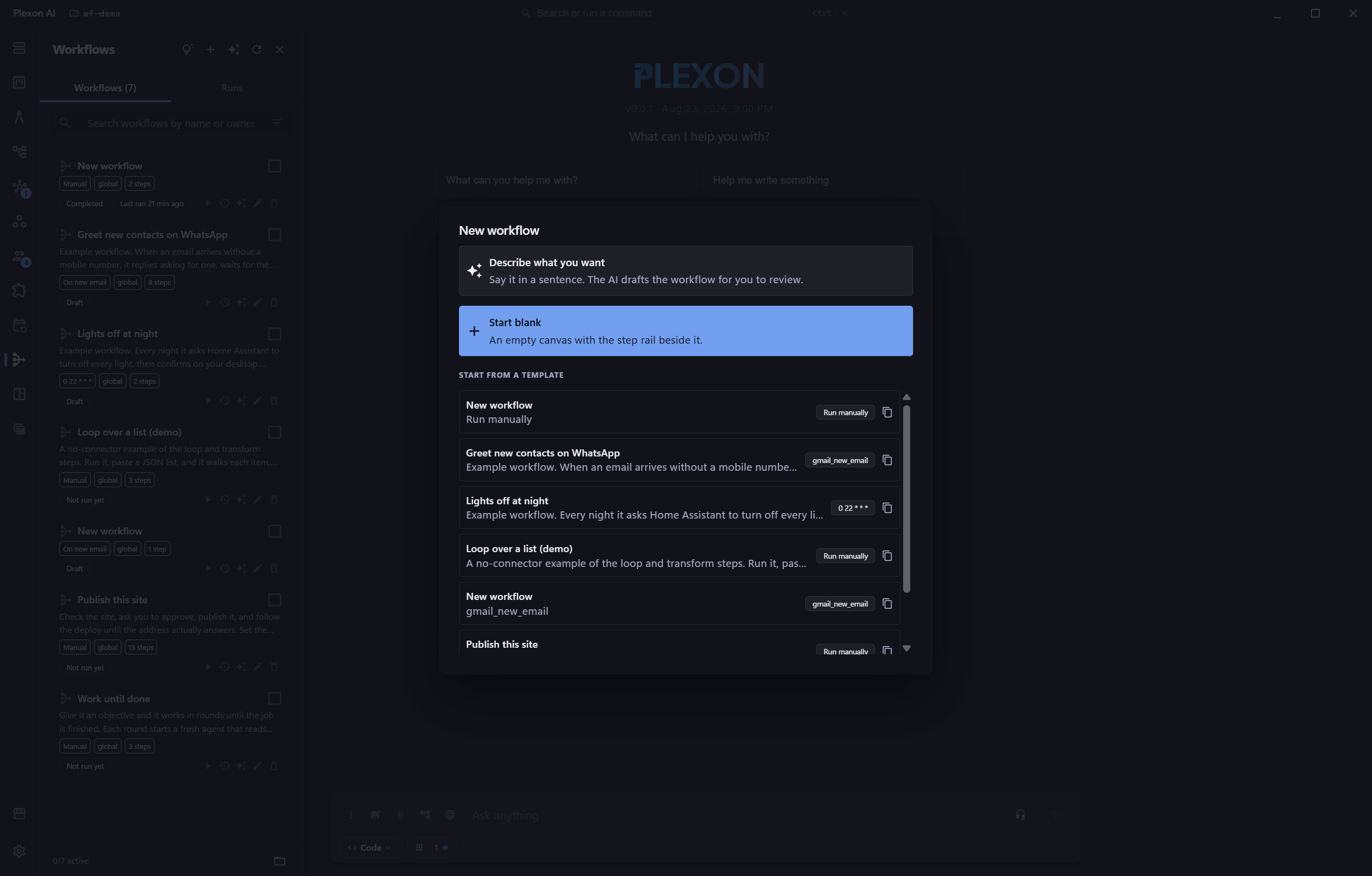
Open Workflows, choose New workflow, and describe the job. Plexon can ask you a few questions first, then drafts the steps for you to review. You can also start from a template or build one by dragging steps into place.
- Start from a template: they are grouped by where they come from (included with Plexon, your personas, your marketplaces, yours), each card says what the routine does and which apps it needs, and a setup form asks for its settings before the copy opens
- Add familiar actions such as Send an email, Create a Jira ticket, or Send a Slack message
- Click a step to choose its app, fill in the details, or write an AI instruction
- Read the whole routine before turning it on; AI drafts arrive switched off
- Keep a routine in one project or make it available across your projects
Turn what you just did into a routine
Finish a job in chat, then say "turn what we just did into a workflow". Plexon reads the conversation, the tools it called and what came back, and drafts a routine that keeps the steps that decided the outcome and drops what was specific to that one case. A date, a file name or a customer from the chat becomes an input or a setting, never a fixed value. You can also name past chats, or past runs of another routine, up to five together. The draft arrives switched off, like every draft.
- Learning mode: ask for a routine that learns, and each agent step writes a few short notes while it works. Which step settled the job, what it opened that could not have changed the answer, which source worked when another did not
- The notes are about the kind of job, not the one case. They are never shown as facts and never become memories
- A draft from past work goes through the same checks as one you described, and lands switched off
- Ultra for a whole routine, or for the one step that needs it. The switch is on the routine, the override on the step under Advanced
One editor, words first
A routine reads top to bottom as plain cards, one line each, with the values it reads named in words: a condition as a sentence, a wait as "3 days", a schedule as "Runs every weekday at 09:00". Select a step and its panel opens on the fields you fill in. Everything else (the connector, the ids, the time limit and retries, the raw JSON) waits in one Advanced fold at the bottom.
- A message or prompt that mixes text and values shows each value as a pill in the flow of the text. Add one with + value or by typing {{, remove it with Backspace, and open a long prompt in a larger editor with the values listed beside it
- A rule on a condition is built from pills and menus: pick a value, choose a comparison that fits it (text, number, yes or no, list, date), type or pick the other side. Rows group under All of these or Any of these, groups nest, and the same rule shows as code with one click
- A schedule that runs more than once a day lists its other times under Also at, next to the first one
- An agent that asks a few questions shows them as fields, and the prompt box becomes whatever else you want to tell it
- The What is on the screen? card takes its picture from the browser step above it, so nobody types the path
- Every timeout is a number and a unit, minutes to weeks, and the Run dialog asks for each input by a plain name, with a dropdown where the answer is a code
- Nothing sits behind a mode. The Advanced fold opens on its own when a field in it has an error or already holds a value
- Every routine reads as one paragraph, written from its steps: on its card, in its panel, and above each run’s report
- Notes live in a list beside the canvas, and a note can point at one step
Nine ways to start a routine
Choose when the first step should run. A trigger is the time or event that starts it.
- A schedule: every morning, each Monday, several times a day, or at the interval you choose
- A new item in an app, such as a Jira ticket, Asana task, or HubSpot contact
- A regular check of an app for new items, such as new mail in Gmail or Outlook
- A new article in a news feed
- A Telegram or WhatsApp message that matches your filter
- New activity on a GitHub project you already watch in Plexon
- A signal sent by another app
- Something happening in Plexon, such as a finished reply
- The Run now button, with any details you need to enter first
Choose what happens next
A routine can act in your apps, ask AI to read or write something, and decide which step comes next. Use AI only for the steps that need it. Sending a message or moving a file can run directly.
- Pull an invoice number from an email, draft a reply, or summarize a report
- Give a step to an agent, a specialist assistant, or a persona, a saved role with its own instructions and tools
- Repeat an action for each item in a list, such as every row in a spreadsheet
- Choose between steps based on a condition, such as whether an email includes a phone number
- Have a separate judge read the evidence before a routine accepts that a piece of work is finished
- Put a closed question to a fast decision instead of the AI: is this an order, how urgent is it, which of these categories fits. Several questions about one result ride one call, and the routine branches on whichever answer came back
- Wait for a reply, pause for your approval, or send a notification to your desktop, Telegram, Slack or WhatsApp
- Show the desktop notification only when none of the chat apps you picked took the message. Add a link and text to copy, and clicking it opens a card with Copy text and Open the page
- Add a random extra to a wait, so a daily run does not start at the same minute every day
- Give an agent step the websites it may open, and it works them in a hidden browser window on your signed-in accounts, with Show and Stop in the Workflows panel
- Answer a delivered report: reply to the notification on Telegram or Slack, or click it on the desktop, and a chat opens that starts from that report
- Open one of your own chats and send it the finished work, in Plan mode when you want a plan rather than edits
- Build a table, calculate totals, or tidy names and phone numbers without asking AI
Small decisions without a chat turn
A Decide step hands a result to Jev, the fast decision model, with up to eight questions about it, and gets every answer back in well under a second with a probability on each. It can branch on one answer, with each option its own edge. It can keep every answer for later steps to read. It can go through a list and keep the items that pass a yes-or-no question, or pick one item out of a list. When an answer is not sure enough, the routine can take a Not sure edge, to an approval step say, rather than guess. A Decide step can also look at a picture: point it at the screenshot an earlier browser step stopped on and ask a yes-or-no about it, or ask it to find something and get back where it sits, as the four sides of a box, in fractions from the top left. If the earlier step left no screenshot, the step takes its fallback. It costs about 1,000 to 1,800 input tokens on a run that has a picture, and a switch in Settings turns it off.
- Every answer and its probability stay on the run, and a later step reads them by name
- Replay: after editing a routine, ask Plexon to replay its recent runs against the edit. Nothing is called and nothing is sent. It re-reads the answers each run kept under the new thresholds and edges, runs the code steps over the old results, and reports which runs would have taken a different path
- A question the old runs never asked is reported as unanswerable, not guessed. Ask for a live replay and only those questions are asked now, with a cap on how many decisions one replay may spend
- Each routine keeps its last 200 runs to replay against, and can be told to keep up to 1,000
- With Jev off or unreachable, the step takes the fallback edge its author named and the run goes on
Check an agent's answer against what it read
An agent step that fills in named fields, say a total and the link it came from, can be asked to back each one up. The agent quotes the exact excerpt from the page, file or tool result that establishes each value, and Jev reads each value next to its excerpt and says whether the excerpt supports it. A field with no support goes back to the same agent, which quotes better support or reports it as unknown. After the rounds you allow, up to three, whatever is still unsupported is dropped from the result, or the step fails if you prefer that. What stays is backed by something the agent read.
- Choose which fields to check, or check them all, up to eight
- Each round is one fast decision, not a chat turn, and the agent is sent back with one message naming only the fields that failed
- The run shows which fields were kept, which were dropped, and the support each one had
- With Jev off or unreachable the step keeps its result exactly as extracted and says the check did not run
See what a step will do before it runs
Each step has a form with named fields and examples. Choose information from an earlier step, such as the address found in an email. Under every field a line says what it comes to with the last run’s data: the message as it would read, a condition as Yes or No, a loop as how many times it would repeat. Test step runs one step for real or as a dry run; a test send previews the message without sending it.
- A value the data does not have is named in plain words, never as a path
- The preview only reads. It never runs a tool, asks the AI, or sends anything
- Browse for a file or folder using the usual picker on your computer
- See matching files as you fill in a search
- Use the information menu to pick a result from an earlier step
- Errors appear beside the field that needs attention, with a suggested fix when available
- Review the next scheduled runs before you save
Give a routine its own settings
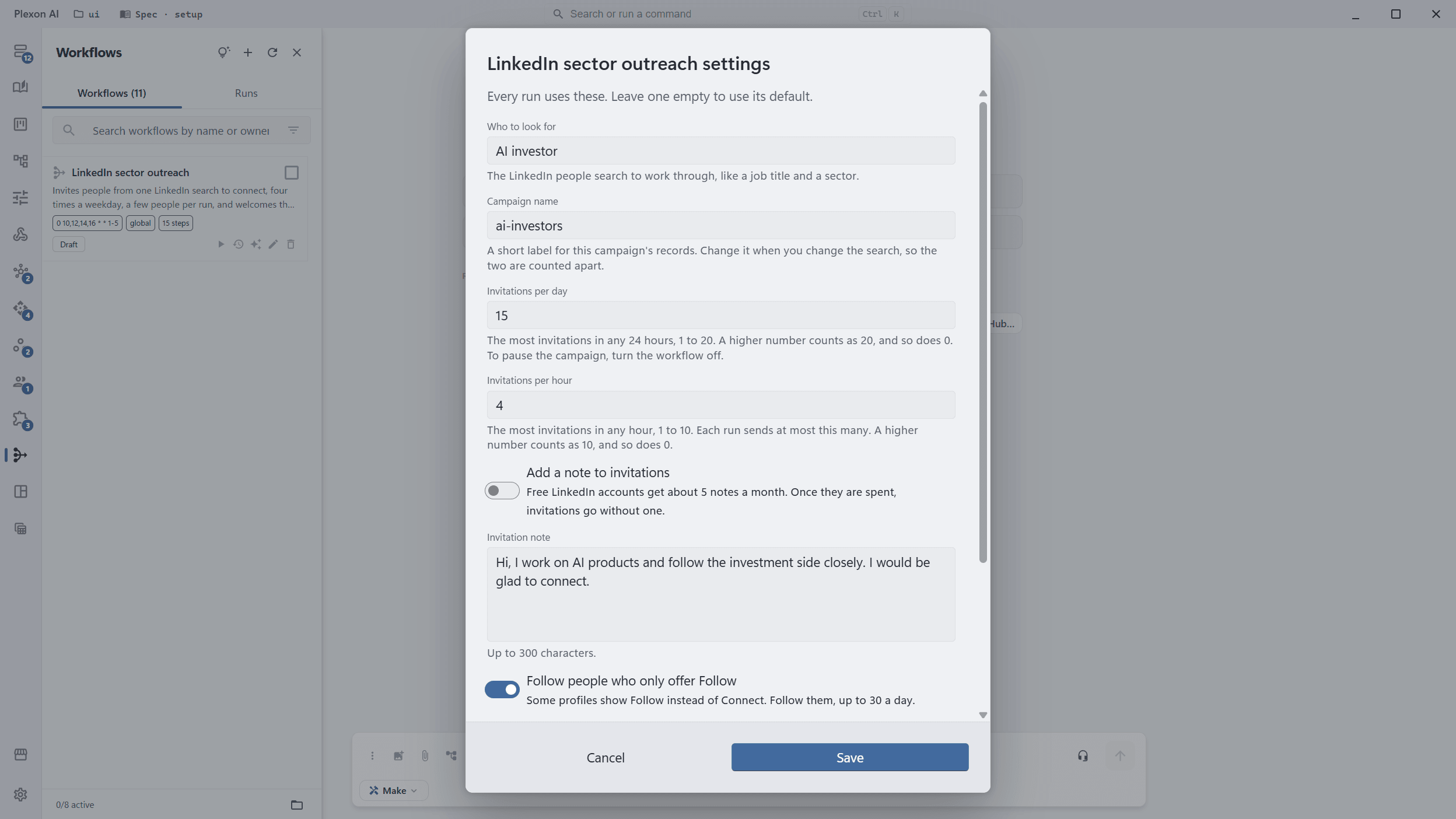
A routine can come with settings of its own, like the search to work through or how many messages a day. Right-click it in Workflows and choose Settings. You change the values, not the steps.
- Text, long text, numbers, on and off switches, and choices from a list
- Each one has a label, a line of help and a default; leave a field empty to use the default
- A value that does not fit, like letters in a number field, is refused with a sentence saying which one
- A run already underway keeps the values it started with
Keep track of customer follow-ups
An outreach routine can remember who it contacted, which channel it used, and what was said. Replies can continue the same conversation across email and WhatsApp. Open that conversation in the sidebar when you want to take over.
- Find contacts by status and read their message history
- Continue a previous exchange instead of starting a new conversation
- Automation pauses when you take over and waits until you resume it
- Contact records are saved on your computer; sending messages uses the connected service
Follow the work as it happens
Open the Runs tab to see each routine and its recent runs. Each run opens with its report: the numbers it found as tiles and its message, then every step in plain words, how long it took, and what it cost.
- Line up a routine's runs in a progress table with a total for each number
- Save one run, or a whole week of them, as a PDF report
- Click a routine's notification to open that run's report
- The first failure tells you, with a fix: one notice, one button (Sign in again, Install, Open the step, Open settings). The same cause stays quiet until you fix it
- See when each schedule runs next, and stop a run that is still going
- Plexon keeps the computer awake while a schedule is set, as long as it is plugged in. A closed lid still puts it to sleep
- A run whose time passed while the computer slept is skipped and the card says so, or runs once at wake with Catch up on
- See the last 24 hours, the last 7 days, or the full history
- Ask in chat how a routine's runs went and the answer counts the runs that handed a case back instead of deciding it, and the fast decisions each one spent
- Runs waiting for your approval stay easy to find
- Clear finished runs individually, by routine, or once they are 7 or 30 days old
- A running job must be cancelled before you can delete it
Work through a long task in stages
Plexon includes a routine for jobs too large for one answer. Give it an objective and a limit on how many rounds it can run. Each round reads the previous work, tackles the next part, and reports what changed.
- Set the round limit and spending budget before it starts
- Read each round, stop the job, or follow its progress in Workflows
- The routine stops when the work is complete, it needs help, or it reaches your limit
Change a routine in your own words
Open the AI panel beside the steps and describe the change: “Send this on Friday instead” or “Ask me before replying.” The diagram updates as Plexon edits. You can also change any step yourself.
- Edit the whole routine or a single step
- Use Ctrl+Z to undo a change, then Save to keep the undo
- Stop cancels an AI edit in progress
- Editing an active routine leaves it switched on; a run already underway keeps its original steps
Reuse a routine with your team
Include a workflow in a persona or share it through a marketplace, a collection of tools and instructions people can install. Your teammates can use the same starting point and adjust it to their work.
- Include routines with the saved role that uses them
- Share through a marketplace you or your team manage
- Choose which projects can use an installed routine
Try the included WhatsApp greeting routine
Greet new contacts on WhatsApp, included with Plexon.
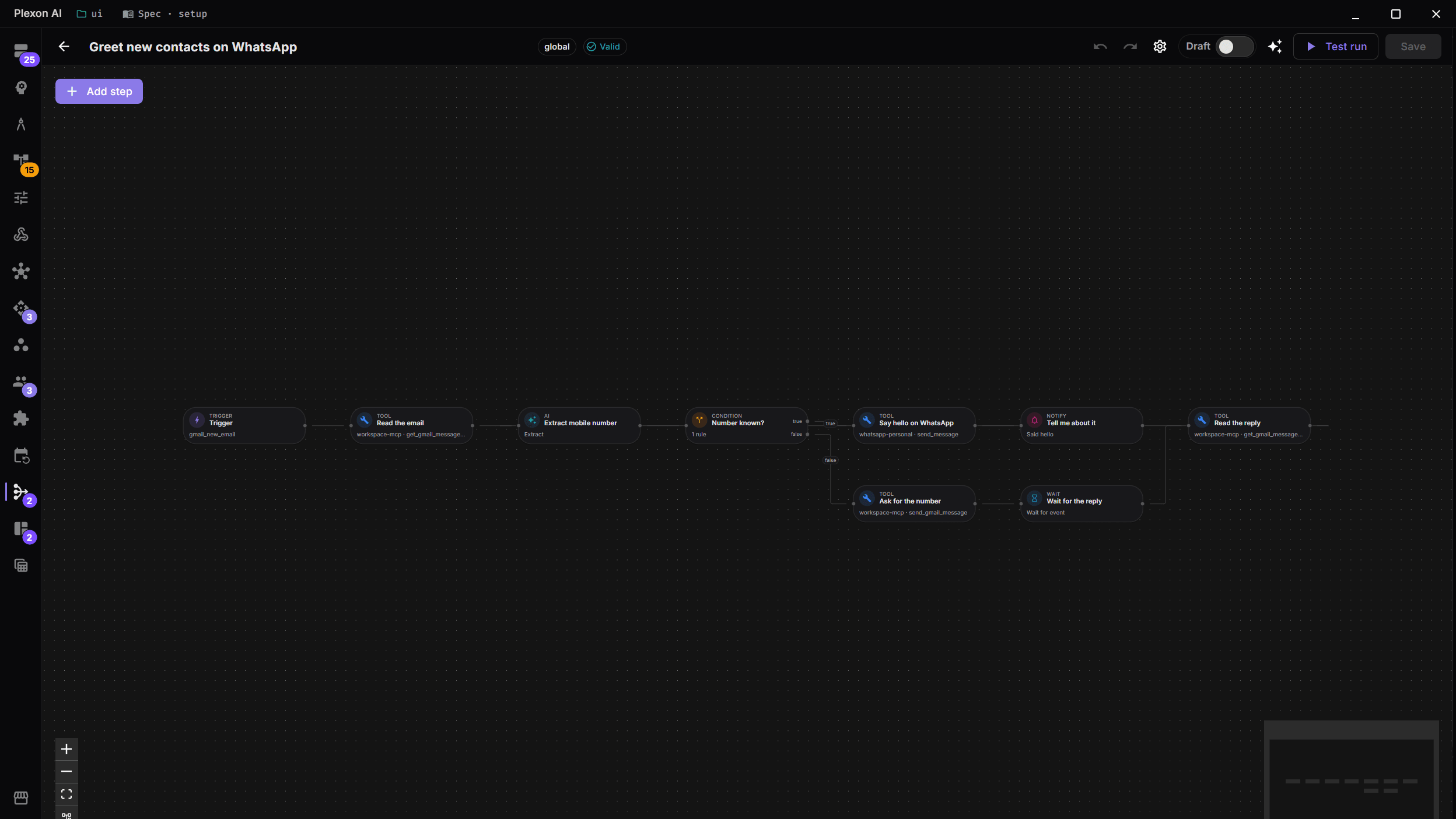
Plexon ships one example so a real workflow is there to read end to end. It watches your mailbox, Gmail or Outlook, for a new email, reads the message, and asks the AI to pull out a mobile number. If there is no number, it replies in the same thread to ask for one and waits for the answer. Once it has a number, it sends a hello over WhatsApp and posts a note to your inbox.
It arrives switched off. Connect one mailbox (Google Workspace for Gmail, or Microsoft 365 for Outlook, Hotmail and Live) and WhatsApp, then review each step. When you turn it on, it sends greetings automatically. Choose supervised mode first if you want to approve each WhatsApp message yourself.
The flow, step by step
- 1A new email arrives in Gmail or Outlook, whichever mailbox is connected
- 2Read the message body
- 3AI extracts a mobile number
- 4No number? Reply in the thread and wait for the answer
- 5Send a hello over WhatsApp
- 6Post a note to your inbox
What you need first
- One mailbox, signed in once: Gmail through Google Workspace, or Outlook, Hotmail and Live through Microsoft 365
- WhatsApp, paired by QR scan
- A review of every step
- The enable switch, when you are ready
This routine starts when a new email arrives. Turn it on when you are ready to watch for messages. Other routines can start from Run now and ask for any details they need first.
LinkedIn sector outreach, included
A weekday invitation campaign that stays under LinkedIn's limits.
Give it a list of LinkedIn searches and it works through a different one each weekday, four runs a day, a few people per run. It invites them, follows the people who only offer Follow, and welcomes the ones who accepted. It also reads their replies and sorts them into leads, recruiters, peers, asks and spam, without answering any of them. It runs in a hidden browser window on your own signed-in LinkedIn, checks the allowance before every invitation, and stops at LinkedIn's limit notices.
It arrives switched off. LinkedIn does not allow automation, so running it puts your account at some risk. Read what it does and the limits it keeps. Its Instagram sibling, Instagram audience outreach, follows a few people a weekday from a rotating audience, likes a post or two, messages the ones who follow back and answers the leads from facts you wrote, or drafts the answers onto a board for you. Instagram forbids automation too, and the same risk applies. See the Instagram one. An X sibling, X sector outreach, follows a few people a weekday from searches you choose, likes their newest post, messages the ones who follow back and answers the leads from facts you wrote, or drafts the answers onto a board for you. X forbids automation too, and the same risk applies. See the X one. Another, LinkedIn weekly content, plans your posts for the week and writes each one in your voice for you to paste. It never posts anything. See how it works. One more, ΓΕΜΗ lead radar, asks the Greek business registry every weekday morning for companies registered in the last two weeks in your sectors and prefectures, scores each one against what you sell and files the fits as leads. See the radar.
Market updates included with Stock Trader
Install the persona to add these routines, then choose which to turn on.
The Stock Trader persona includes routines that use free market data and need no extra sign-in. Choose the updates you want and set the times that suit you. Alerts send a message only when their conditions are met.
What ships
- Pre-market briefing: indices, sectors, FX, and headlines before the open
- Watchlist signal scan: RSI extremes, big moves, and moving-average crosses across your list
- Volatility radar: a heads-up when the VIX climbs
- Earnings and catalyst scan: the material news on your watch list
- Weekly sector rotation digest: which sectors lead and which lag
- Weekend crypto watch: a heads-up when a major coin makes a big move on a Saturday or Sunday
- End-of-day journal: a recap plus a prompt to log the day, saved to a file
- Single-symbol alert: an overbought or oversold read, a big move, or a 50/200-day cross
- Watchlist sentiment scan: flags extreme bullish or bearish crowd sentiment on your list
- This week's earnings: a dated digest of which watch-list names report in the next seven days
How they behave
- Quiet until it matters: a check that finds nothing notable sends nothing
- Free market data that needs no extra sign-in, with calculations on your computer
- They arrive switched off; review each routine and turn on the ones you want
- Edit the symbols and times, or attach the set to your own persona
Educational, not financial advice. The persona is read-only and never places orders.
Runs you can trust
A record of each run
A run keeps the steps it started with, even if you edit or delete the routine while it is working.
Listed files are checked
A run that lists a file it did not leave behind, or one that does not open, is reported as partial instead of done, with the file named.
The judge checks the shape too
A Check step fails work that has the right answer in the wrong shape: extra fields, extra columns or commentary the task did not ask for.
An outage does not end the run
A step that loses its connection waits for it to come back, for up to about fifty minutes, and carries on. A run that failed that way does not count toward the three failures that switch a routine off.
Interrupted sends wait for you
If Plexon stops in the middle of a send, the run pauses and asks what to do. It does not resend the message on its own.
Control AI spending
After a restart, a run that was spending AI credits waits for you to resume it.
Choose when to approve
Let a routine run on its own, or turn on supervised mode to approve each send.
Saved on your computer
Your routines and their history are stored locally. Steps that use an online app or AI service send the information needed for that task.
Remember each follow-up
Keep contact details, message history, and status together. Open a conversation and take over whenever it needs a person.
Turn a report into a PDF
Have AI write the report, then save it as a PDF with headings, lists, and tables. The conversion runs on your computer without spending AI credits.
Connects to
Nothing here works alone. See the whole map for how the pieces fit together.
This one is taught in step 5 of 8: put the job on a clock.
What feeds it
App Connectors triggers this.
An inbound message or a poll on a connected app starts a run.
App Connectors runs inside this.
A Tool step calls a connector directly, spending zero AI tokens.
API Connections runs inside this.
A Tool step calls any endpoint you imported.
Data Sources feeds this.
Give a workflow a Data source input and the loop step walks its rows.
AI Chat & Modes triggers this.
A finished reply or a tool call is an event a flow can watch for, matched on a phrase you choose.
AI Chat & Modes authors this.
Describe a flow in chat and the AI drafts it; it lands switched off, with a review link.
207 AI Agents runs inside this.
An Agent step hands one step to a headless sub-agent.
Decision Tools runs inside this.
Both the optimiser and the forecaster are bindable in a Tool step.
Richer Hook Events triggers this.
A hook can pick a workflow as its action, borrowing the hook's matchers.
Fast Decisions with Jev runs inside this.
A Decide step asks Jev up to eight questions in one call and branches on any answer, a verify clause checks the fields of an agent step against the evidence it quoted, past runs replay against an edited routine with no call at all, and the Judge step tries the cheap decision before spending a full model turn.
Personas runs inside this.
A Persona step runs a whole persona, with its skills and connected tools.
LinkedIn Outreach runs inside this.
LinkedIn sector outreach is a bundled workflow: a quota check, a random start, an acceptance sweep that also sorts the replies, and an invitation step, with its search and texts in Settings.
LinkedIn Weekly Content runs inside this.
LinkedIn weekly content is a bundled workflow: a morning check that ends without AI on a day with nothing to do, a planning step once a week, a writing step on posting days, and an approval that logs what you posted.
Instagram Outreach runs inside this.
Instagram audience outreach is a bundled workflow: a quota check, a random start, a sweep that messages the people who followed back and reads their replies, and a follow step for the audience of the day, with the audiences, the texts and the facts it may answer from in Settings.
X Outreach runs inside this.
X outreach is a bundled workflow: an allowance check, a random start, a sweep that messages the people who followed back and reads their replies, and a follow step for the search of the day, with the searches, the texts and the facts it may answer from in Settings.
ΓΕΜΗ Lead Radar runs inside this.
ΓΕΜΗ lead radar is a bundled workflow: a registry search with a date window, a dedupe against its own lead sheet, one AI call per new company for the score and the opener, and a morning digest, with the sectors, the prefectures and what you sell in Settings.
Where it goes
This renders into Dashboards.
A widget bound to a workflow shows the output of its most recent run, so opening the board does not re-run anything.
This renders into Flows.
Repeating an action across many things shows as a counted card you can pause.
This renders into Telegram Bot.
A workflow can ping you where you already are.
This renders into Slack Bot.
A workflow can post to a channel.
This is packaged by Personas.
Attach a workflow to a persona and it arrives ready to review and enable.
This is distributed by Unified Marketplace.
Flows travel inside a linked, managed or protected marketplace bundle.
This is packaged by Move to Another Machine.
Workflows and dashboards travel with your setup.
This triggers Publish Sites.
A workflow can rebuild a site and publish it on a schedule, pausing for your approval first.
This feeds Action Record & Tool Rules.
Every tool a workflow step runs lands in the record with the workflow named as the one that started it.