Multimodal AI
Visual& Voice
Hands-free, turn-by-turn voice conversations with the AI. Transcription by Plexon Voice, or on your machine with Whisper; natural cloud voices on every plan; push-to-talk barge-in; and voice transcripts saved as first-class session metadata. Plus paste-image visual analysis.
What happens in this clip
- The Voice page holds voice chat, voice input and voice output in one place.
- A wake phrase starts voice mode by saying it, whether or not Plexon is in front.
- Five voice engines are listed with what each costs in download size or privacy.
- Plexon Voice is the cloud one, and it can clone your own voice from a short recording.
- Ask for a line to be recorded and the wav file is written to the project folder and plays back in the chat.
Related features
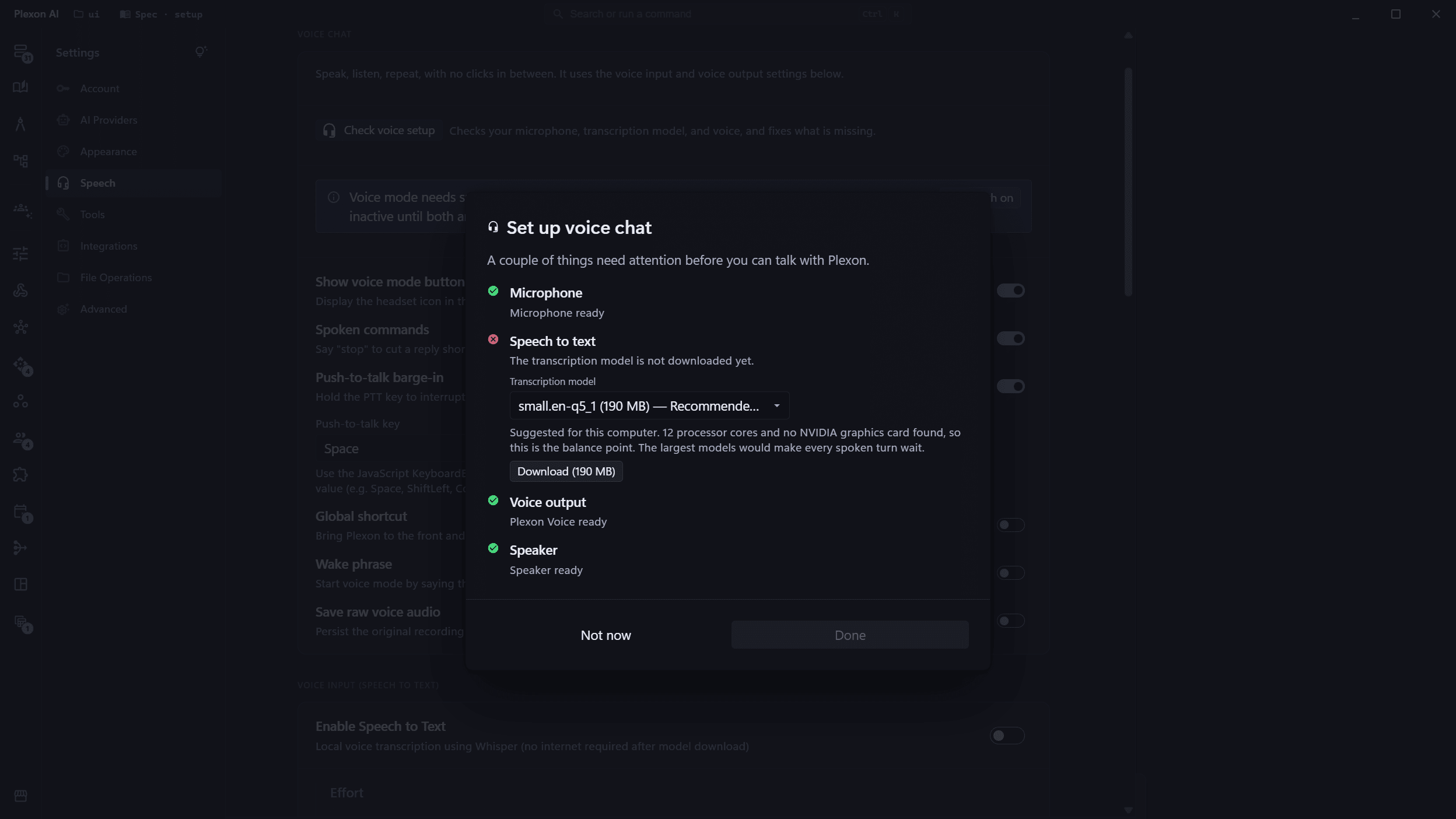
Continuous Voice Conversation Mode
Click the headset button in the chat input and just talk. Plexon Voice transcribes what you said (or Whisper does, on your own machine), Plexon answers, the assistant’s reply is read aloud, and the mic auto-resumes, turn by turn, no buttons in between. Voice activity detection ends each turn the moment you pause; push-to-talk barge-in (Space by default) lets you cut the assistant off mid-reply and take over the conversation. Configure it once in Settings → Voice → Voice chat, then run entire sessions hands-free.
- One click to start, hands-free turn-by-turn loop until you stop it
- Two engines to choose from: Plexon Voice (cloud voices on every plan, nothing to install) or My Voice (local voice cloning in 23 languages)
- Opening voice mode runs a quick readiness check and walks you through anything missing: mic access, the transcription model, your voices
- Optional hands-free activation: a system-wide shortcut, or say "Hey Plexon" from any app ("Bye Plexon" ends it). Both off by default
- Say "stop" or "pause" to cut a reply short, "start over" for a fresh session. No keyboard, no clicking
- Auto-VAD ends each turn on silence; push-to-talk barge-in interrupts the assistant mid-reply
- Speak commands, not just prompts: ask it to switch models or change a setting and it does it
- Full voice transcripts saved as first-class session metadata (input_modality, language, model, duration), searchable and exportable
- Privacy-aware: raw audio sidecar is opt-in and off by default; only the transcript is kept
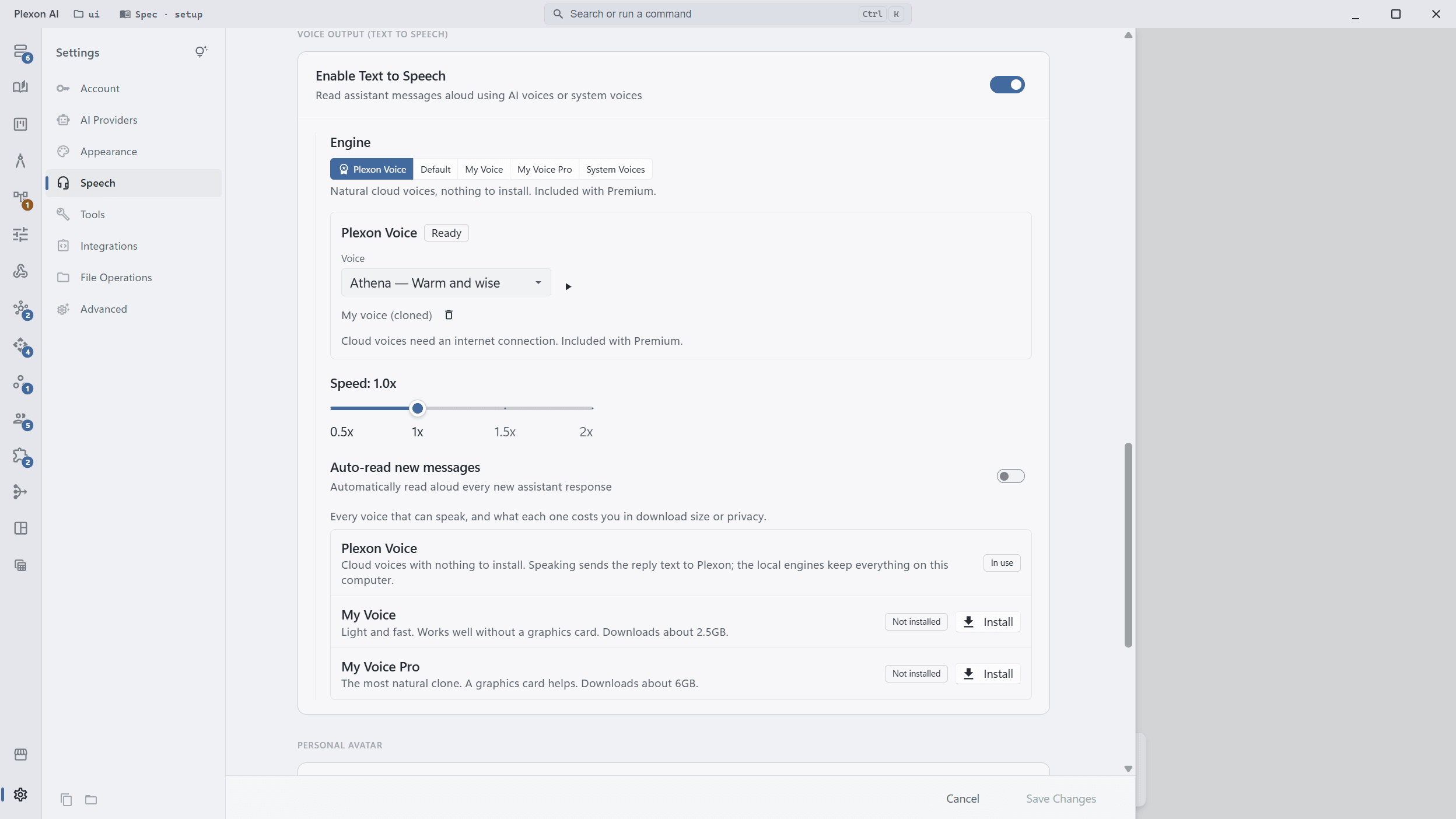
Plexon Voice: Cloud Voices That Can Sound Like You
Plexon Voice speaks with natural cloud voices and nothing to install, on Pro and on Premium: sign in and pick a voice. Premium adds High fidelity for richer audio, and cloning your own voice from ten seconds of recording. The clone shows up in the voice picker and works everywhere Plexon speaks, from read-aloud replies to persona voices.
- Zero setup: no downloads, no GPU, works on any machine
- Curated natural voices on every plan, plus your own cloned voice on Premium
- A High fidelity switch on Premium, for richer audio when a slightly slower start is fine
- Works across read-aloud, auto-read, voice mode, and persona voices
- Ask by voice and it acts: "switch to the premium model" changes the setting instead of explaining it
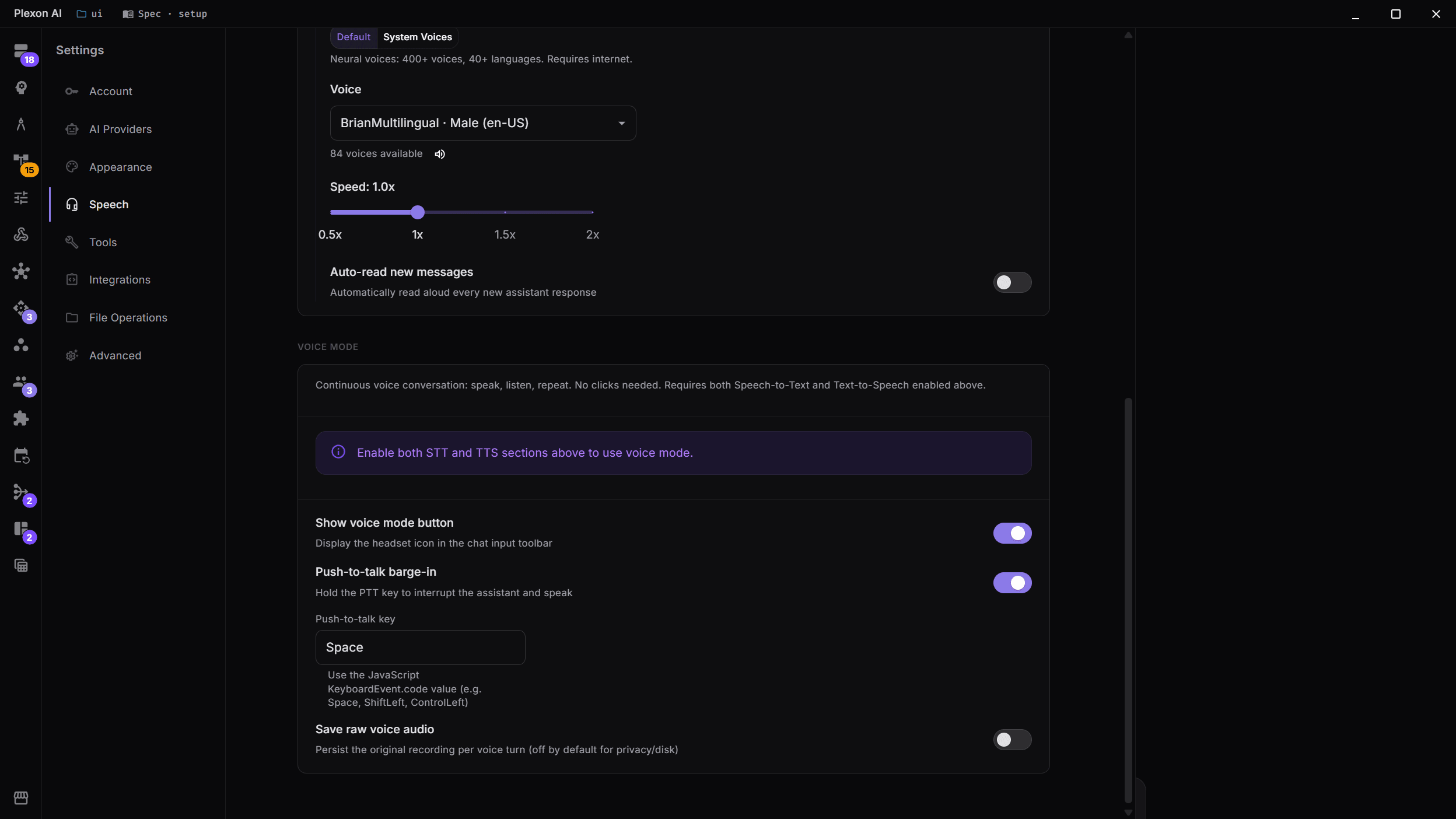
Hands-Free, From "Hey Plexon" to "Bye Plexon"
Turn on the optional activation surfaces and voice mode starts without touching the keyboard: a system-wide shortcut and a wake phrase, both working from whatever app you are in. Say "Hey Plexon" (or "Hallo Plexon", "Hola Plexon", "Γεια σου Plexon": the greeting can be in your own language, and an accent is fine) and the window comes back with the conversation already running. Say "stop" to cut a reply short, "start over" for a clean session, "Bye Plexon" to end it. Every opening runs a quick readiness check that walks you through anything missing, so the first run works instead of failing quietly.
- Wake phrase and shortcut both work from any app, including when Plexon is minimised or in the tray
- The wake phrase holds the mic for as long as it is switched on, which is why it ships off
- "Stop" and "pause" cut a spoken reply short; "start over" opens a fresh session and keeps the old one
- "Bye Plexon" ends the conversation without sending it as a message
- Off by default; phrases, keys, and spoken commands are configurable in Settings → Voice
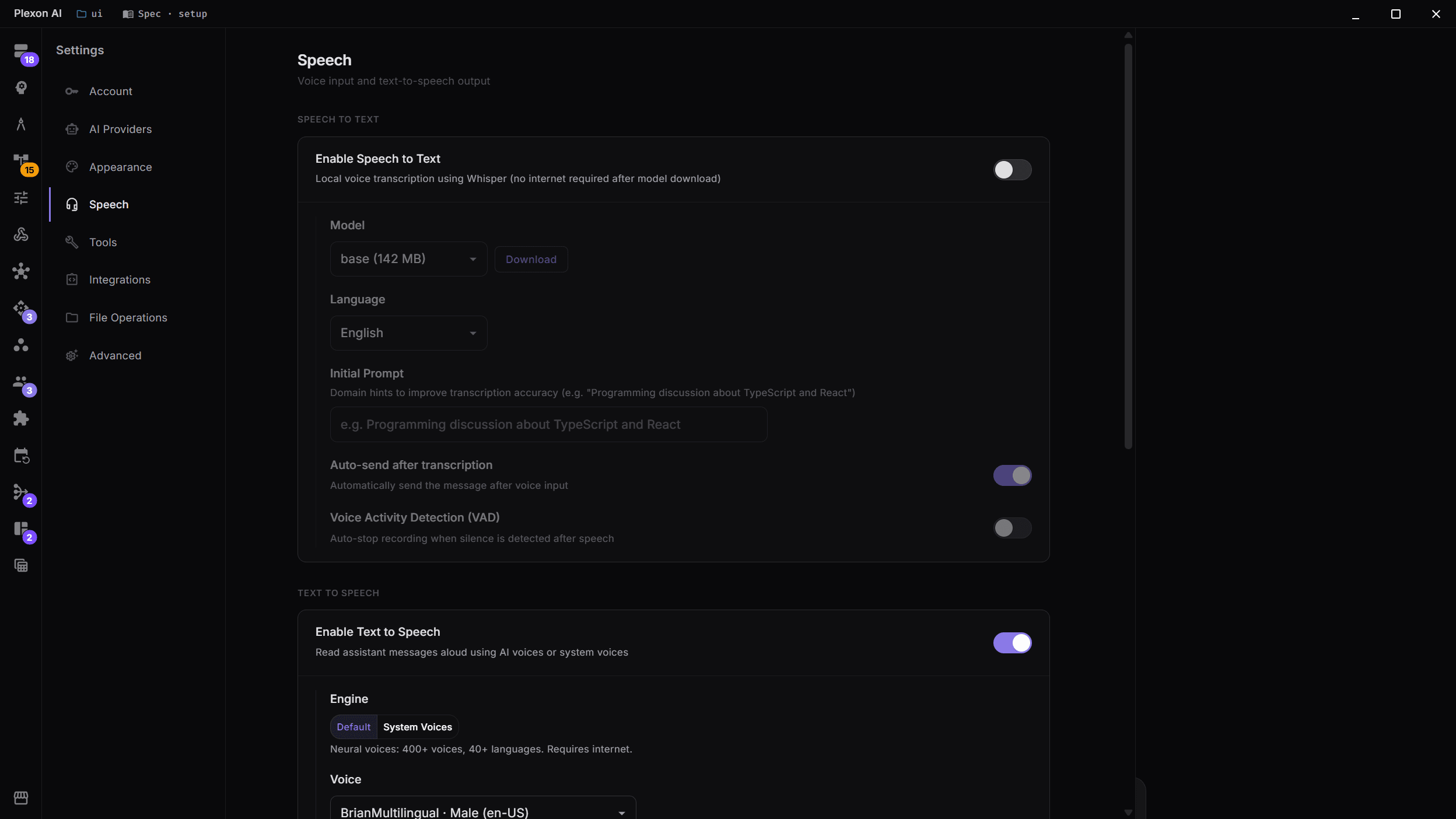
Speech to text, cloud or local
Two ways to turn your voice into text. Plexon Voice transcribes in the cloud on every plan, with nothing to download, in 20 languages. Whisper runs on your own machine instead: it needs a one-time model download, works offline, and covers 90+ languages, Greek among them. Pick either in Settings. Plexon Voice is the default where it understands your language; where it does not, Whisper is.
- Plexon Voice sends the recording to the Plexon server and its speech provider, and keeps only the text. Whisper keeps the audio on your machine
- Whisper: eight models from 32MB to 1.08GB, listed fastest first with what each one trades away. One model per speed rung for English and one for every other language, plus a large one for the languages the smaller models struggle with, Greek among them. Every model on the list beat the alternatives on a measured comparison, so a bigger download is never a slower, worse result
- Configurable language and initial prompt for domain accuracy
- Auto-send after transcription for hands-free operation
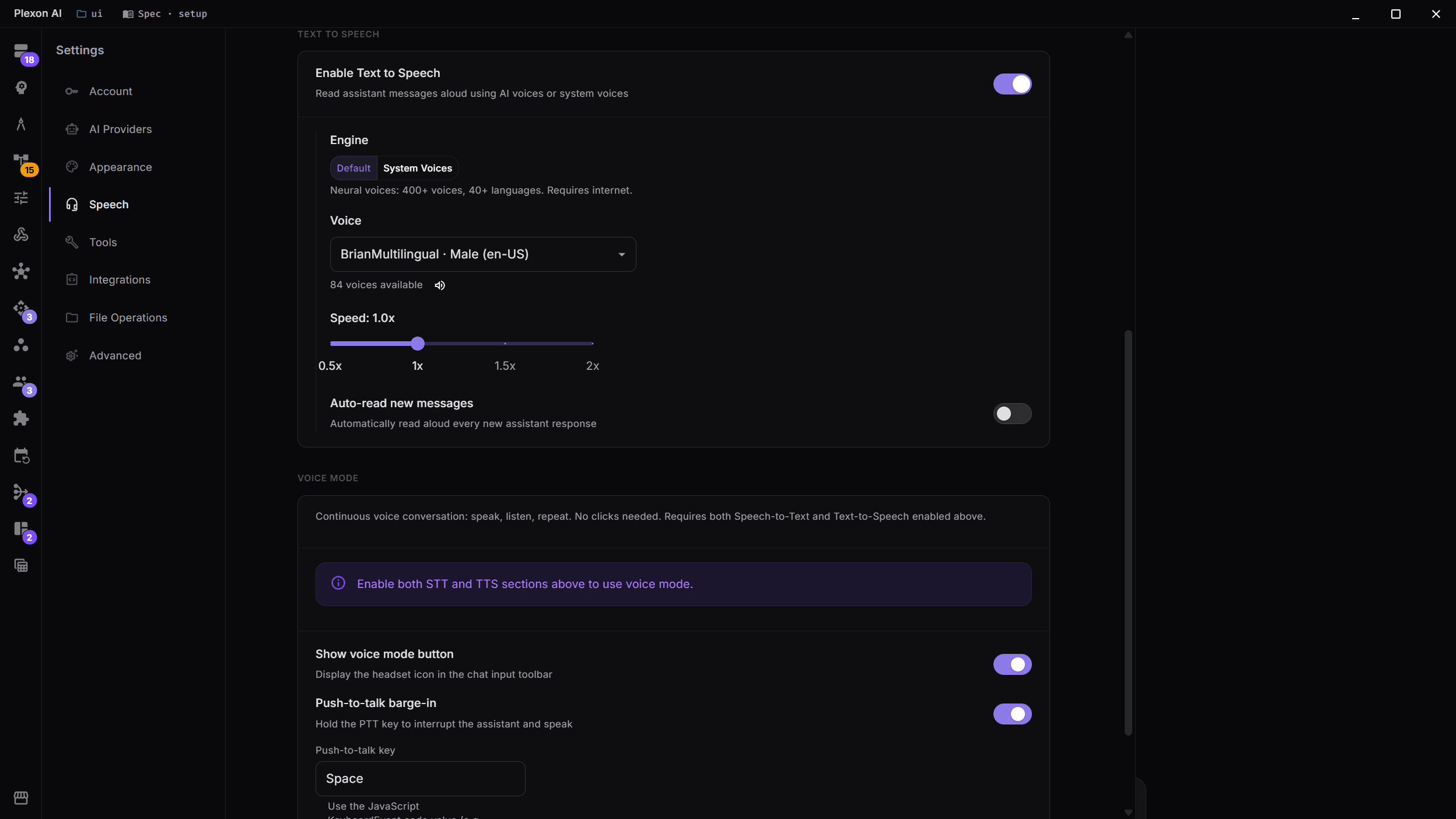
Text-to-Speech Output
Have the AI read responses aloud in a natural voice. Pick the engine and the voice, adjust the speed, and optionally auto-read every new response.
- Plexon Voice on every plan: natural cloud voices with zero setup. Premium adds High fidelity and cloning your own voice
- Ask Plexon to say something aloud in any chat and it speaks in the voice you picked, no voice mode needed
- Each engine remembers its own voice, so switching between them and back keeps your choice
- My Voice runs on your own computer and speaks 23 languages, Greek included
- Adjustable speed from 0.5x to 2x
- Auto-read new messages toggle
- Voice Activity Detection (VAD) for natural conversation flow
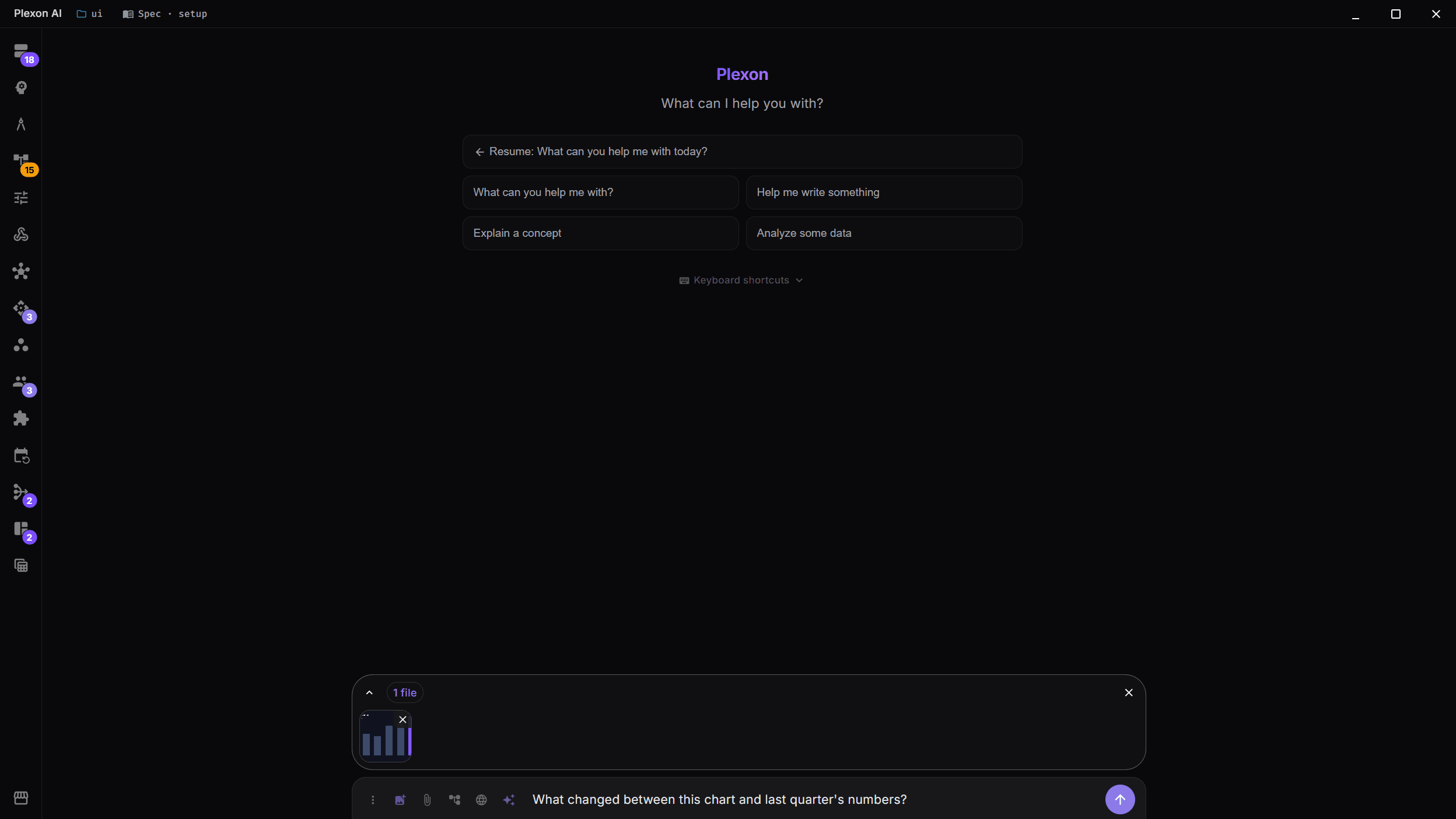
Visual Input: Images, Files & Screen Capture
Send visual context to the AI in multiple ways: paste from clipboard, drag & drop files onto the chat, click the photo icon to browse, or capture any area of your screen with Ctrl+Shift+S. Supports JPEG, PNG, WebP, and GIF. Attach as many as fit in 24 MB per message, and the same picture twice counts once.
- Screen capture: Ctrl+Shift+S to select and send any screen region
- Drag & drop: drop image files directly onto the chat input
- Clipboard paste: Ctrl+V to paste screenshots or copied images
- File picker: click the photo icon to browse and upload files
- Up to 24 MB of pictures and clips per message, however many files that is
- A picture already on your disk: name the file and the AI reads it itself, several in one go
- Works with any vision-capable model across all providers
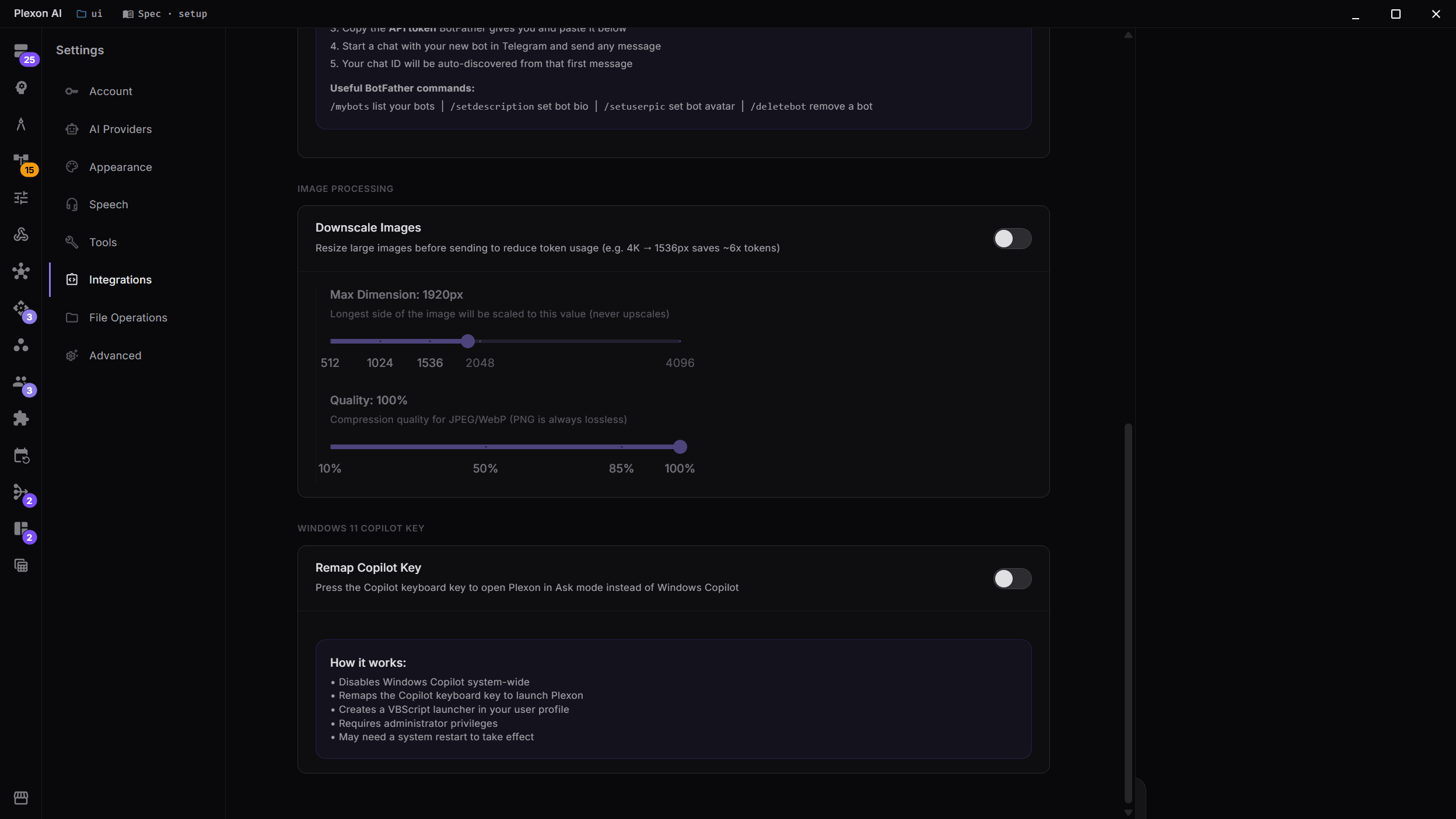
Image Processing & Optimization
Pictures are shrunk before they go to the model: the longest side is scaled to 1568 px, which is what the provider would do to a bigger one anyway, and a screenshot with no transparency is re-encoded as JPEG at 85 percent when that comes out smaller. A 4K capture then costs what a fitted one costs.
- On by default. Turn on Send pictures at original size (Settings, Connected apps, More options) to skip it
- Longest side slider (512 to 4096 px, 1568 by default)
- Quality slider for JPEG and WebP (85 percent by default)
- A PNG with transparency stays PNG, and so does one that would not shrink as JPEG
- A big screenshot is a fraction of the bytes, on every later request of the conversation
More Multimodal Capabilities
Hands-Free Voice Loop
One click on the headset button starts a continuous turn-by-turn conversation. Speak, listen to the reply, the mic re-arms automatically. Stop the loop with the same button.
Push-to-Talk Barge-In
Hold Space (configurable) to interrupt the assistant mid-reply and start your next turn. Plexon stops the audio, captures your input, and resumes the loop without losing the thread.
Say "Hey Plexon"
Opt in to a wake phrase that starts voice mode from whatever app you are in and brings the window back, a system-wide shortcut that does the same on a keypress, and "Bye Plexon" to end the conversation. Once on, the wake phrase keeps listening, so it ships off.
Voice Transcripts as Session Metadata
Every spoken turn is tagged input_modality: voice with a voice_meta block (duration, model, language) and round-trips through session export. Raw audio sidecar is opt-in and off by default.
Screen Capture
Capture any area of your screen with Ctrl+Shift+S and send it directly to the AI for analysis. Perfect for debugging UI issues or explaining visual context.
Voice Activity Detection
VAD automatically stops recording when silence is detected. Combined with auto-send, this enables fully hands-free conversation with the AI.
90+ Languages
My Voice speaks 23 languages, Greek included. Whisper transcription recognises 90+ on your own machine, and Plexon Voice transcribes 20 in the cloud (Greek stays on-device). Pick a default voice and language per persona, or let the model auto-detect.
Connects to
Nothing here works alone. See the whole map for how the pieces fit together.
What feeds it
Plexonaki extends this.
In voice mode it perks up while listening and mouths along while Plexon speaks.
Customization feeds this.
The engine and the voice every spoken reply uses are set here.
Where it goes
This feeds AI Chat & Modes.
Speak instead of typing; Plexon Voice (or Whisper on your machine) turns it into the message.
This feeds Video Composition.
Narration is spoken in whichever voice you set, including one cloned from your own recording.
This feeds Music Generation.
Clone your voice and ask for a song sung in it.