Developer Tools
EmbeddedBrowser
Split-pane webview docked next to the chat. Point at any DOM element on your local site, tell the AI what to change, and the prompt already carries the exact selector, viewport, outer HTML, computed styles, and a cropped screenshot. When a page publishes its own actions, run them from the same pane under a per-site grant and a confirmation on every call. Inspect, instruct, iterate, without leaving Plexon.
What happens in this clip
- Ask for a page and Plexon writes it, serves it, and opens it in the pane beside the chat.
- It is a real browser, not a screenshot.
- Click any element in the page and say what you want changed.
- The element, its markup and its computed styles land in the prompt.
- It edits the source and the preview reloads with the change.
Related features
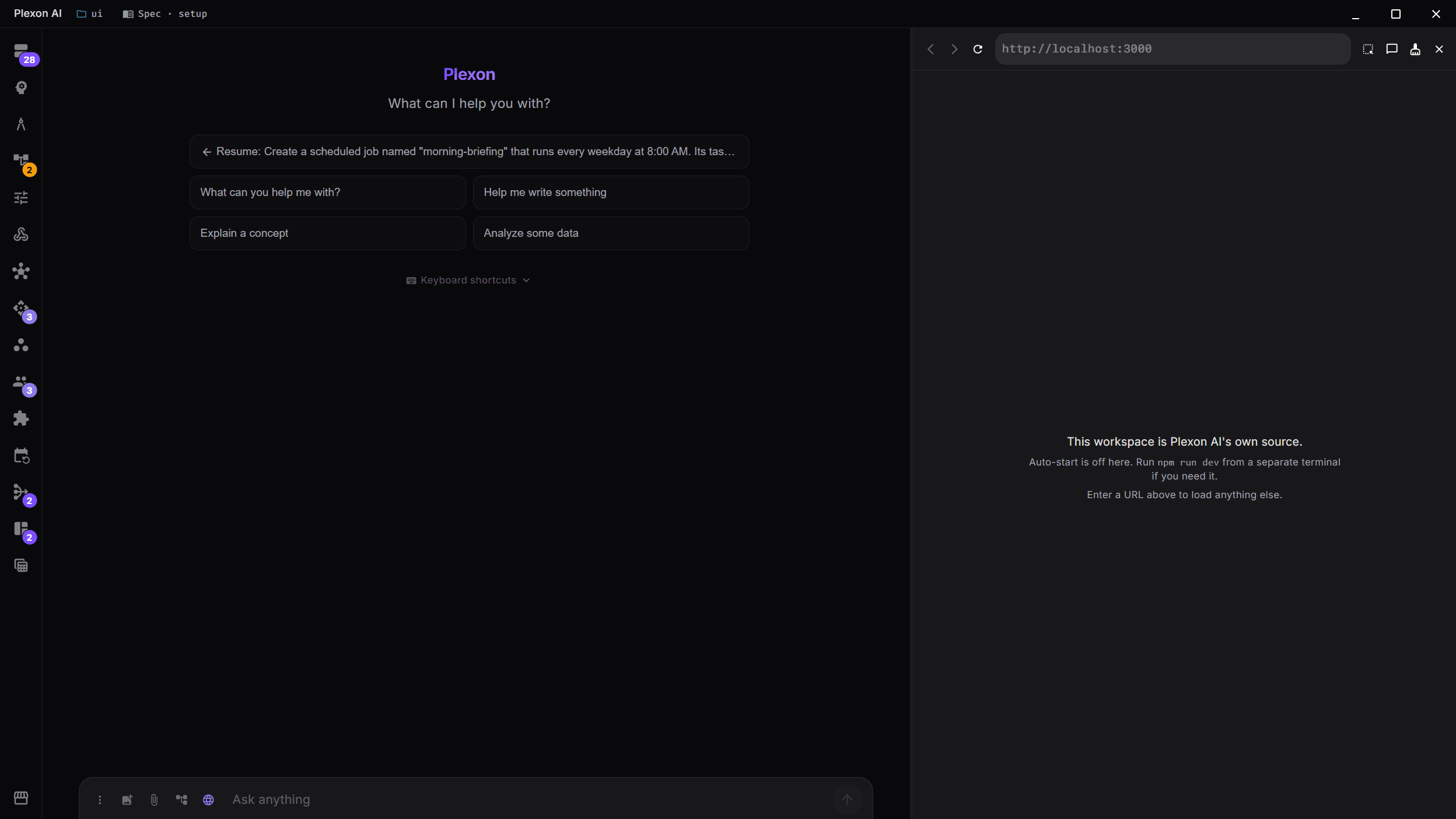
Click Any Pixel, Edit the Source
Open the embedded browser next to your chat, point at a button on your running dev server, and tell the AI what to change. The message that lands in chat already carries the exact CSS selector, inner text, viewport dimensions, outer HTML, a computed-styles digest, and a cropped PNG of the element. No more hand-describing elements in prose; no more pasting partial screenshots and hoping the model guesses which button. The inner loop between "I see the bug" and "the AI knows exactly where" is now a single click.
- Split pane docked to the right of chat: resizable divider, remembered across restarts
- Works against any URL the user can reach: localhost:3000, staging.example.com, a Vite preview, a Next.js dev server
- One inspection produces a structured message the AI can act on with its normal file-editing tools
- Zero setup: no extension to install in the browser, no dev-server instrumentation, no source maps required
Four-Tier Selector Strategy
Selectors are ranked by how likely they are to survive the next refactor. QA test hooks (data-testid, data-qa, data-cy, data-test, data-ui) come first: they exist precisely to be stable identifiers. Other data-* attributes come next: usually author-controlled and intentional. HTML ids follow, stable when hand-written, but framework-generated ids churn between renders. A positional CSS path with :nth-of-type() is the last resort. The inspector shows all four as clickable chips; the user picks which one the AI should target, and their typed instruction is preserved across chip swaps.
- data-testid / data-qa / data-cy / data-test / data-ui: test-framework conventions first
- Other data-* attributes: author-controlled, usually semantic
- #id: exact when hand-written, noisy when framework-generated
- Positional CSS path with :nth-of-type() collision handling: always valid, rarely stable
- Active selector chip is highlighted; clicking a different chip never wipes the instruction in progress
Every Signal the Model Needs Inline
The prompt Plexon sends carries more than just the selector. The viewport dimensions go with every message so the AI can reason about responsive breakpoints. A computed-styles digest covers the properties that actually matter for a typical edit (display, position, color, background-color, font-size, font-weight, padding, margin, width, height) filtered out of the thousands that getComputedStyle returns. The outer HTML of the element is truncated to 4 KB and included in a collapsible <details> block so it is visible when the model needs it but does not dominate the context window. And a cropped PNG of the element itself rides along as an image attachment for vision-capable models.
- Selector + inner text (truncated to 200 characters) + full page URL
- Viewport width × height: essential for responsive-design instructions
- Computed styles digest: 10 high-signal properties, not the 300+ getComputedStyle returns
- Outer HTML capped at 4 KB with ellipsis marker, wrapped in <details> so it does not crowd the prompt
- Cropped element screenshot attached as image_url: same channel as pasted images, so any vision model sees it
Inspect, Instruct, Iterate
Click the crosshair icon in the URL bar to enter inspect mode (on a site that is not local, right-click Clone and choose Inspect an element). A blue highlight follows the mouse across the page with an int32-max z-index so it outranks any host page stacking context, including modal dialogs and fullscreen surfaces. Click an element; inspect mode exits automatically and a docked popover appears under the viewport with the captured metadata. Type your instruction (Enter sends, Shift+Enter inserts a newline, Escape inside the webview exits inspect mode without selecting) and Plexon pushes the message into your current chat session. The AI uses its normal read/edit/grep tools to locate the source component and apply the change; your dev server hot-reloads; you click reload in the browser pane, re-inspect, and go again.
- Crosshair icon toggles inspect mode; the button flips primary-coloured while active
- Hover highlight uses a lightweight DOM overlay, not a heavyweight debugging protocol: no network cost, no frame drops
- Plain click = single element edit and exit inspect mode; Ctrl+Click = add to selection and keep picking
- The inspector docks at the bottom of the browser pane: always in the same place, never overlapping the element you clicked
- Esc, the × button, or toggling the crosshair off all exit inspect mode cleanly
- Back / forward / reload, smart URL normalisation (localhost → http://, example.com → https://, anything else → DuckDuckGo search)
Edit One Element or a Dozen in One Message
Hold Ctrl while clicking to stack multiple selections. Each one renders as its own row in the inspector with its screenshot, selector chips, and a × to drop just that entry. One instruction field applies to every selected element ("make all of these cards the same height and pin the CTA to the bottom") and the prompt switches to a numbered list with one cropped screenshot per element attached. The plus button in the inspector header re-enters inspect mode for more selections without a trip to the URL bar.
- Ctrl+Click appends; plain click replaces: familiar conventions from file managers and editors
- Each selection is an independent row with its own selector chips and remove button
- Sent prompt numbers every entry and attaches one image_url block per captured screenshot
- One instruction → many elements. Same-height card rows, matching button styles, consistent padding, all with a single send
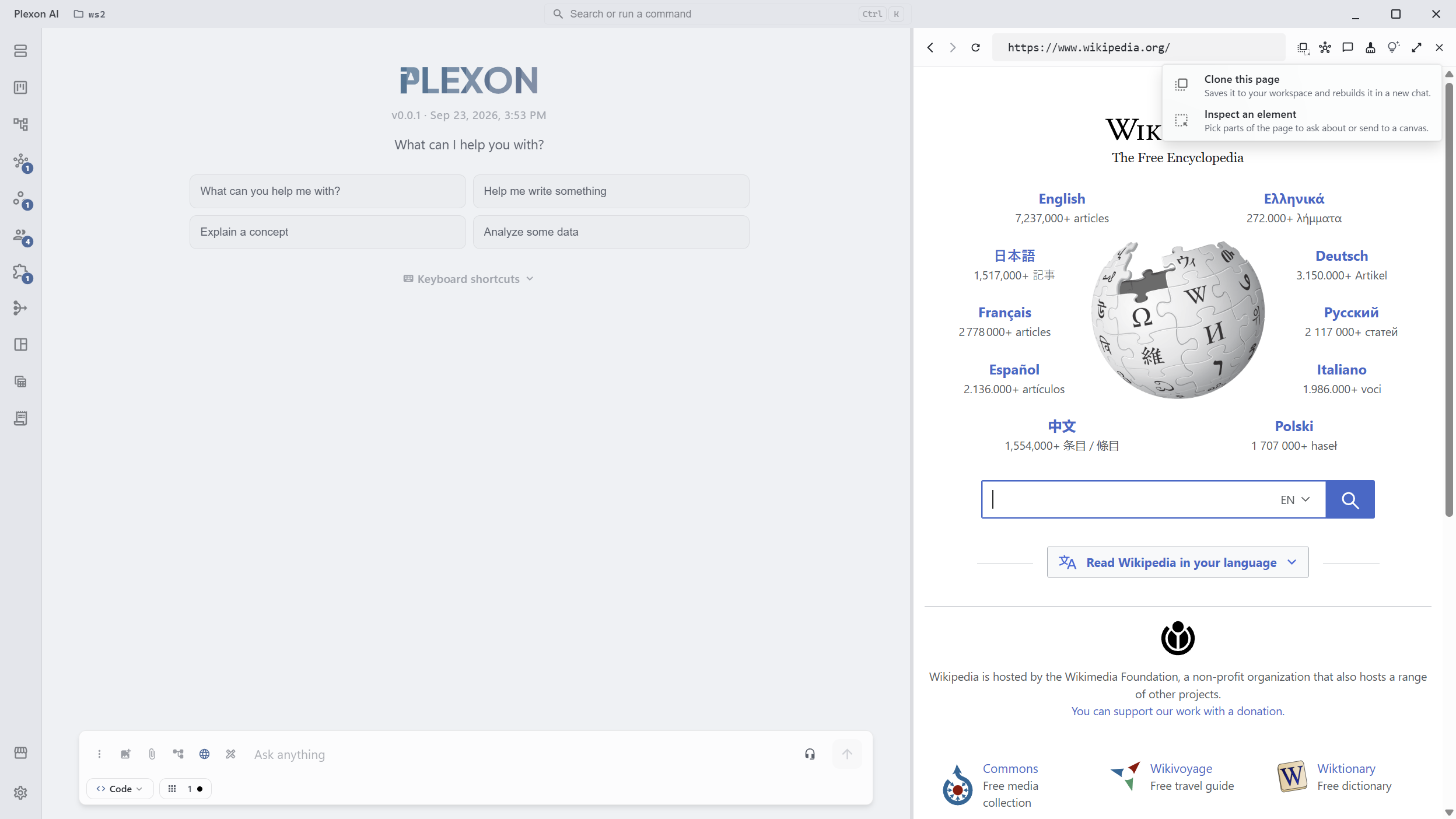
Clone the Page You Are Looking At
On your own pages the toolbar shows Inspect. On any other site the same button is Clone. Click it and Plexon saves the page the way the pane rendered it: signed in if you are, after its scripts ran, with the parts that only load on scroll loaded, because it scrolls top to bottom while it takes the screenshots. The HTML, every readable stylesheet, the fonts, a list of the images, a first-screen screenshot and a stitched full-page one go into a new folder in your workspace, named after the site and the date. Then a new chat opens in Make mode and rebuilds the page from that capture with the website cloner skill: it builds in Astro or React, pulls the assets into the project, and compares its build with the screenshots at 1440, 768 and 375 px wide, fixing the worst bands first. A capture of a signed-in page can hold your account details, so it stays on your computer: the capture folder is git-ignored, typed form values are never saved, and the chat uses placeholders and asks before anything is published. Inspect is still one right-click away.
- Inspect on localhost, your local network, files and widgets; Clone on everything else, in the same spot on the toolbar
- Right-click Clone for Inspect an element; inspecting shows Exit inspect until you are done
- Captures the page as rendered, after JavaScript, in the pane’s own signed-in session
- Saved to <site>-clone-<date>/_capture in the open workspace, with a .gitignore so it is never committed
- The rebuild is checked pixel by pixel against the screenshots at desktop, tablet and phone widths
- Clone never uses the debugging protocol, so it cannot collide with the AI driving the same page; both buttons are off while the AI drives
- A public page can be cloned from its URL alone: ask in chat and the skill fetches and renders it
Pages That Bring Their Own Tools
Some sites publish actions for an assistant to call: filter this catalog, price this plan, start this support request. A page registers them with document.modelContext.registerTool, and Plexon reads that catalog over the debugging protocol without injecting a script into the page. A "Page tools" button on the browser toolbar counts what the current page offers and opens the list under the URL bar. When the AI wants to use a site, and again before every individual call, Plexon shows you the request with Allow and Deny, naming the tool, the origin and the arguments. Answer it, or do nothing: after three minutes (your setting) the request is allowed and the work goes on, so a task you left running does not stall at the first page tool. What comes back is marked untrusted and stays an ordinary tool result in the transcript, and the page catalog never joins the model’s own tool list.
- Four actions on the browser tool: status, list_tools, call_tool, cancel_call
- Site access is per origin and lasts for that chat session; Revoke access ends it on the spot, and a denied site stays denied until you allow it yourself
- Every site request and every call shows a toast and a row in Page tools with Allow and Deny. Unanswered requests are allowed after a wait you set (default 3 minutes, 0 to always wait for you)
- Tool references expire when the page commits a navigation, so a stale reference fails instead of hitting a different page
- Switching chat session or revoking the site drops the binding and any calls waiting on it
- Page results are labelled untrusted; the catalog never becomes part of the model’s global tools
The AI Drives the Page You Are Watching
Ask for something on a site you have open and the AI does it in this pane, in the session you are signed in to, where you can see every step. It reads the page as a nested outline from the accessibility tree, each element with its state and every link with its target, or as plain text when the job is to collect things (the posts on a profile, the rows of a table, the results of a search come back in one read instead of one click each, and a feed that loads as you scroll is read to its end in one call). Then it clicks, types, presses keys and key combinations, picks options out of dropdowns, scrolls, hovers, drags one element onto another, and goes back and forward through the page’s own history. Every one of those comes back with the page it left behind, what changed or that nothing did, so it acts and reads the answer in one step instead of looking again after each one. Boxes embedded from another site (a card field, a captcha, a sign-in) are read and filled like the rest of the page, and a link that wants a new window opens in the pane while the AI is driving, one Back from where it was. Nothing is asked first: the moment it acts, a strip appears over the page with Take the wheel. While you hold the wheel, every action the AI tries is refused, not queued. When the page asks for a password, a captcha, a code or a card number, the AI hands you the page itself, with the field already focused, and says what it needs; you type, and Give control back sends the chat on by itself. It goes further than one action at a time: give the page one whole goal, plus any text it needs typed, and Plexon works through it on its own with Jev, a fast decision model that picks each next control from the page outline. It is on from the start, with its own switch in Settings, Fast decisions. When the steps are already known (open Filters, pick Public, press Done, read the list), the AI sends them as one call, each control named by what it says on the page, waits for a control that appears a moment after an earlier step, and stops at the first step that fails and names it; that needs no decision model at all. Each step answers as soon as the page holds still, so a click costs tens of milliseconds rather than a second, and only a link, a submit button or Enter in a form keeps a short window open for the navigation it may start. It does not start from nothing on every site, either: Plexon ships driving notes for some popular ones, the address that lands on the job and which control does it, and hands them to the AI with the page. They are hints it checks against what is on screen, never a recorded script, because sites change. When a run works out a site with no notes, it offers what it did as a draft you approve or reject under Skills, and nothing typed into a page is ever in one.
- Twenty driving actions on the one browser tool: snapshot, read, collect, find, click, type, key, select, scroll, hover, drag, back, forward, wait, console, screenshot, dialog, handoff, task, batch
- A known sequence of clicks, typed fields and menu picks goes over as one call, each control named by what it says on the page, and can read the list that follows to the end in the same call
- Plexon carries driving notes for some popular sites, so the AI knows which control does a common job before it starts clicking, and offers to save what it learns on a new one
- The handoff goes one way only: the AI can give you the page, never take it back; that stays your button
- Every acting step answers with the page: what changed, or that nothing did, or the whole outline after a navigation
- What the AI has already seen stays usable: a scroll or a closed panel does not make it re-read the page, and a link it has seen is opened by address
- A page’s own question box can be answered by you or by the AI, whichever gets there first, and the reply says which and what the answer was
- Every action goes through the debugging protocol; nothing is injected into the page and no script is ever evaluated in it
- Typing never submits and never echoes the text back; sending a form is a separate Enter the AI has to choose
- Console capture starts only when the AI asks for it, so a page merely previewed is not being listened to
- A screenshot reaches the model as an image; clicks are still addressed by outline reference, never by coordinates
- The AI can ask for a screenshot at any size from 320 to 3840 pixels a side. The page is laid out at that size for the picture only and then put back, and your pane stays as you left it
- Take the wheel refuses the AI’s actions outright instead of saving them up for when you hand control back
- When its turn ends the strip comes down, and a pane the AI opened for its own job closes again; it comes back by itself, at the same page, when the next reply needs it, and a pane you closed stays closed
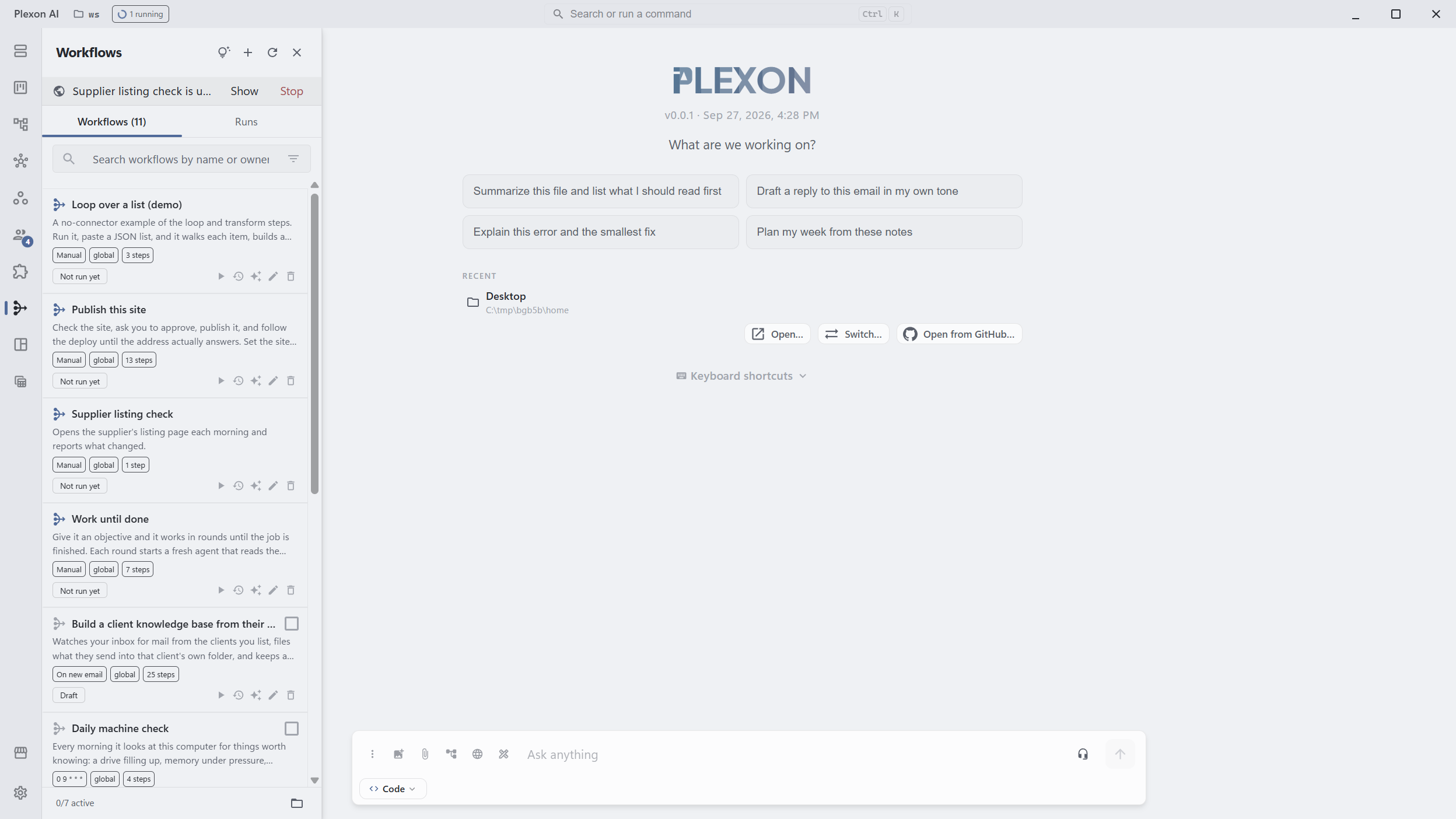
A Hidden Window for Workflow Steps
A workflow agent or persona step that lists the sites it may open (`browser.sites`, https only) gets a browser window of its own instead of the pane. The window is hidden, stays out of the taskbar and keeps painting while hidden, so reads, scroll-to-load collects, waits and screenshots all work with nobody looking. It shares the signed-in session of the pane, so a site you signed in to beside the chat is signed in there too. A strip under the Workflows header names the workflow using it, with Show and Stop, and the tray menu carries the same two while it runs. Stop cancels the run and closes the window; the step ending closes it too.
- Every navigation, redirect and popup is held to the declared sites; anything else is refused with a sentence naming them
- Nobody is at that window, so handoff and page-published tool calls are refused and the step reports that the site needs you
- One workflow holds the window at a time; a second gets a sentence naming the first
- The pane keeps its own page: a workflow step never restores or drives what you have open beside the chat
- Closing a shown window hides it again; the run carries on
- It needs the desktop app running, open or in the tray
Bounded, Validated, Cancellable
A web page is not a trusted source of schemas, so its catalog is treated as input. Every tool schema is validated with Ajv inside a worker with its own time budget, and both the arguments going out and the reply coming back are size-capped before they reach the chat. A call that passes its deadline is not thrown away: cancel_call hands back a pending receipt, so status and a later cancel still act on the same call instead of on nothing. A document that is not http or https, a local file for instance, is reported as an unsupported scheme rather than failing quietly.
- Ajv validation in a bounded worker: a hostile schema costs a rejection, not the app
- 64 KiB of input, 16 KiB per tool schema, 256 KiB of output, 128 KiB of catalog
- 128 entries per page catalog, 8 calls in flight, the 20 most recent results kept
- cancel_call returns a pending receipt at the deadline, so status and cancel keep working on it
- file:// and other non-http(s) documents report an unsupported scheme, with no guessing
- Reconnect re-binds the panel after a guest reload, with no restart of the app
Safe-by-Default Isolation
The embedded page runs fully isolated. The guest page has no access to Plexon’s internals and no way to reach the backend. A minimal inspection layer installs the hover / click / Esc listeners and posts element metadata back to the host over a narrow, one-way channel. The main window runs sandboxed, exposing none of its privileged APIs to guest content. The pane also has its own storage, so its cookies and logins are separate from Plexon’s own and from the browser you use for everything else, and clearing it clears the pane and nothing else. A page that tries to open a new window never gets one: it is loaded in the pane while the AI is driving, handed to your normal browser while you are, and refused otherwise. For a dev tool that loads user-chosen pages on the user’s own machine, the threat model is intentionally minimal, and explicitly documented.
- Full isolation on every embedded page: guest content cannot read Plexon’s internals
- Its own cookie jar: sign in to a site in the pane and it stays signed in there, and nowhere else in Plexon
- Embedded views are opt-in for the main window only; a guest page never spawns a second browser window
- Inspection uses a capture-phase listener and an isolated overlay; it never mutates the host page’s DOM subtree
- Screenshot capture runs at CSS-pixel resolution, clamped to the viewport, with no debugging-protocol exposure
- The inspection layer ships with the app: no setup, and no extension to install
One-Click Integration With the Chat Pipeline
The send path is the same pipeline typed messages use. The inspector’s "Send to AI" button builds a ContentBlock[] with a text block (selector + viewport + outer HTML + styles) and an image_url block (the cropped screenshot as a base64 data URL), calls chatStore.addMessage and DaemonService.sendMessage, and lets the daemon’s normal streaming response come back to the regular chat view. No new provider code, no new message shape, no new storage. The browser is a richer input, not a separate conversation. When the daemon streams a file edit tool call, you see it in the chat while your browser pane shows the live page. Hit reload after the hot-reload kicks in; inspect the next element; send the next instruction.
- ContentBlock[] with text + image_url: identical to the shape pasted images use, so every provider already handles it
- Session auto-creation follows the same fallback chain as typed messages (client-side UUID if createSession RPC transiently fails)
- No changes to the daemon, system prompts, or provider adapters: pure client-side feature
- User messages show up in the chat transcript with the embedded screenshot thumbnail, so the history stays readable
- Works in every chat mode (Make, Plan, Ask, Auto, Spec) without per-mode branching
What the embedded browser gives you
Split-Pane Layout
A dockable webview sits beside the chat with a draggable divider (clamped 320–1400 px). Width and last-visited URL persist across sessions via localStorage. Toggle on/off with the globe icon in the input toolbar.
One-Click Element Picker
Click the crosshair icon, hover to highlight, click to select. The hover overlay rides on top of any host-page stacking context (z-index int32-max). Esc exits inspect mode cleanly.
Clone Any Page
On a site that is not yours, Clone saves the page as the pane shows it, signed in and after its scripts ran, into your workspace. A new chat rebuilds it and checks the build against the screenshots at three widths.
Four-Tier Selector Strategy
QA hooks → data-* → id → positional CSS path. Chips let the user switch selectors without losing their typed instruction. Designed so the AI targets the most refactor-resilient handle available.
Cropped Element Screenshot
webview.capturePage with the element rect, clamped to CSS pixels inside the viewport. Attached as an image_url ContentBlock: same channel as pasted images, so every vision-capable provider just works.
Computed-Styles Digest
Ten high-signal properties (display, position, color, background-color, font-size, font-weight, padding, margin, width, height) filtered out of the hundreds getComputedStyle returns. Keeps prompts tight.
Outer HTML In a Collapsible Block
The element’s outerHTML is included in a <details> block capped at 4 KB with a truncation marker. Visible when the model needs it, never crowding the prompt.
Smart URL Normalisation
localhost:3000 → http://localhost:3000, 192.168.x.y → http://…, example.com → https://…, anything with spaces → DuckDuckGo search (no tracking). Back / forward / reload / stop buttons behave like any browser.
Sends Into the Current Chat
The "Send to AI" button builds a ContentBlock[] (text + screenshot), calls addMessage + DaemonService.sendMessage, and lets the regular streaming pipeline respond. No new provider code, no new session scope.
Page Tools
A site can register its own actions with document.modelContext. Plexon lists them under the URL bar, reads them over the debugging protocol without injecting anything, and keeps them out of the model’s global tool list.
One Grant, One Confirmation Each
Allow site covers one origin for one chat session. Each individual call still raises a request naming the tool, the origin and the arguments, and Revoke access cuts it off immediately.
Cancel a Page Call
cancel_call returns a pending receipt at the deadline instead of dropping the call, so status and a second cancel still act on it. Cancel call is also a button in the panel.
Fully Isolated Guest Pages
Guest pages run fully isolated. No access to Plexon’s internals, no access to app state. The inspection layer uses capture-phase listeners and an isolated overlay; it never mutates the host page’s subtree.
Works With Any Local Stack
Next.js, Vite, SvelteKit, Astro, Remix, a bare npx serve: Plexon treats them all the same. The embedded browser is a plain web view; whatever a modern browser can render, the inspector can target.
No Extension, No Setup
No browser extension to install, no dev-server plugin to add, no source maps required. The pane keeps its own sign-ins and presents a stock Chrome to the sites it loads, so a Google login works there without one.
Every Chat Mode, Reading and Acting Apart
Send an inspection from Make, Plan, Ask, Auto, Spec or Orchestrator mode. Driving the page itself splits: in Plan and Ask the AI reads the page and cannot touch it, in Make it reads and acts. A plan about the page beside the chat is made of what the page actually says.
Your Daily Chrome, or the Page Beside the Chat
Two different jobs. The Browser MCP and Chrome MCP connectors reach the browser you already have open, with your everyday tabs and logins. This pane is its own browser with its own sign-ins, docked next to the chat, where you watch each step. Desktop Automation is the third: native apps across the whole screen.
Fast Iteration Loop
Inspect → instruct → AI edits source → dev server hot-reloads → click reload in the browser pane → inspect the next element. No context switch, no manual copy-paste, no prose description of which button you meant.
Connects to
Nothing here works alone. See the whole map for how the pieces fit together.
What feeds it
Fast Decisions with Jev feeds this.
Given one whole goal for a page, Jev picks each next control from the page outline, and says when the goal is done or a login wall is in the way.
Where it goes
This feeds AI Chat & Modes.
Point at any element on your dev server and the selector, HTML, computed styles and a cropped shot land in the prompt.
This feeds Publish Sites.
A site that publishes its own actions is checked in the browser pane before it goes live: allow the site once, run each action, read what the page did.
This feeds Document Signing.
The signature pad opens in the browser panel, and what you draw is saved as a picture in your folder.
This requires LinkedIn Outreach.
You sign in to LinkedIn once in the browser panel, and the hidden window the steps work in shares that sign-in.
This requires Instagram Outreach.
You sign in to Instagram once in the browser panel, and the hidden window the steps work in shares that sign-in.
This requires X Outreach.
You sign in to X once in the browser panel, and the hidden window the steps work in shares that sign-in.