Creative AI
ImageGeneration
Generate stunning images directly in the chat, powered by Google's Nano Banana 2 Pro. No external tools, no separate apps. Describe what you want and it appears inline, alongside your code and conversation.
What happens in this clip
- Type @ and pick the image agent from the list of specialists.
- Describe the picture in the same message, and ask for a caption with it.
- The image and the words arrive in the same reply, about a minute later on the managed service.
- The Tool Activity pane on the right shows the steps it took to get there.
- Ask for a variant and the first image stays where it is.
Related features
Generate Images Directly in Chat
Generate images directly in the chat using providers that support it. Simply describe what you want and the AI creates it inline. No separate tools, no browser tabs, no workflow interruptions. Results appear alongside text responses in the conversation, mixed with code and other AI capabilities.
- Inline image generation in the chat flow
- Works with vision-capable providers (Gemini, etc.)
- Generated images displayed at full resolution
- Real-time cost tracking per generation
Powered by Nano Banana 2 Pro & More
Plexon AI fully supports Google's Nano Banana 2 Pro (Gemini) for image generation: one of the most capable and cost-effective image generation models available. But it doesn't stop there: any vision-capable provider that supports image generation works out of the box. The integration is native and complete: select the model, type your prompt, and the image is generated and displayed with zero friction.
- Native Nano Banana 2 Pro (Gemini 3) integration
- Other vision-capable providers also supported
- Subscription-based models offer unlimited generations at flat cost
- Real-time cost tracking shown in the status bar
- No API key juggling. Configured once on the AI models page in Settings
Easy Provider Setup
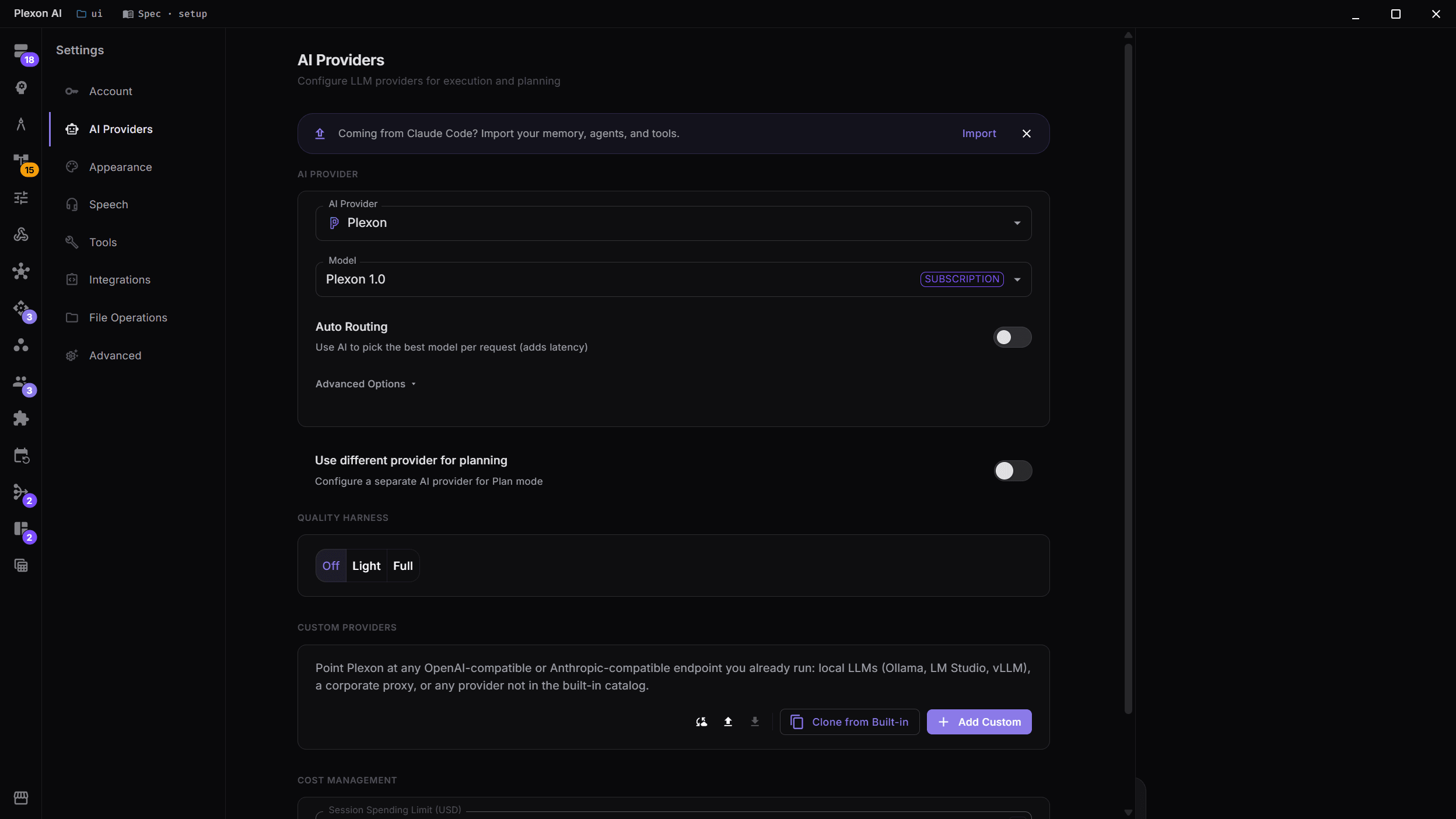
Getting started with image generation takes seconds. Select your provider in Settings → AI models, enter your API key, and choose a vision-capable model like Nano Banana 2 Pro. Plexon automatically detects which models support image generation and enables it directly.
- One-time provider setup in Settings
- Model badges show capabilities (Vision, Subscription)
- Works with Google Gemini and other vision providers
- Separate execution and planning providers. Use an image model for creative tasks and a code model for development
Why Image Generation in Plexon?
Conversational Image Creation
Generate images in the same conversation where you're writing code or planning architecture. Ask the AI to create mockups, diagrams, icons, or illustrations without switching context.
Instant Results
Images generate in seconds and appear inline. No waiting for external services, no downloading files, no copy-pasting between apps.
Creative + Technical
Use image generation alongside code: create UI mockups, generate placeholder images for development, visualize data architectures, or produce marketing assets.
Transparent Cost Tracking
Every generation shows its cost in the status bar. Subscription models like Nano Banana 2 Pro offer unlimited generations at a flat rate. No per-image surprises.
Multi-Provider Support
Image generation works with any provider that supports it: Google Gemini and more. Switch providers freely without changing your workflow.
Image-to-Image
Provide a reference image and describe how to transform it. Supports style transfer, editing, and variations. The AI uses your image as a starting point for generation.
Full Resolution Output
Generated images show at their full resolution. Click one to see it full size, right-click to open it, show it in its folder or copy it, or reference it in a follow-up message to refine it.
Connects to
Nothing here works alone. See the whole map for how the pieces fit together.
What feeds it
Plexon Provider feeds this.
Images on both plans, with no keys to manage.
Where it goes
This feeds Video Generation.
A still can be brought to life as a clip.
This feeds Video Composition.
Generated stills become scenes, given slow motion.
Seen in these jobs