Search & Navigation
CommandPalette
You know what the thing is called. You should not have to remember which panel keeps it. Click the box in the title bar, or press Ctrl+K, type a few letters, and go straight there: a skill, an agent, a connector to install, a chat from last week, or the setting you can only describe in your own words.
What happens in this clip
- Right-click the sidebar to show or hide any of its items.
- Conversations open as tabs across the top.
- Ctrl+K opens the command palette over whatever you were doing.
- A > prefix runs a command, and : settings, * skills, @ agents, & tools and ~ yours each narrow the search.
- Escape closes it, and right-clicking a card gives that card its own menu.
Related features
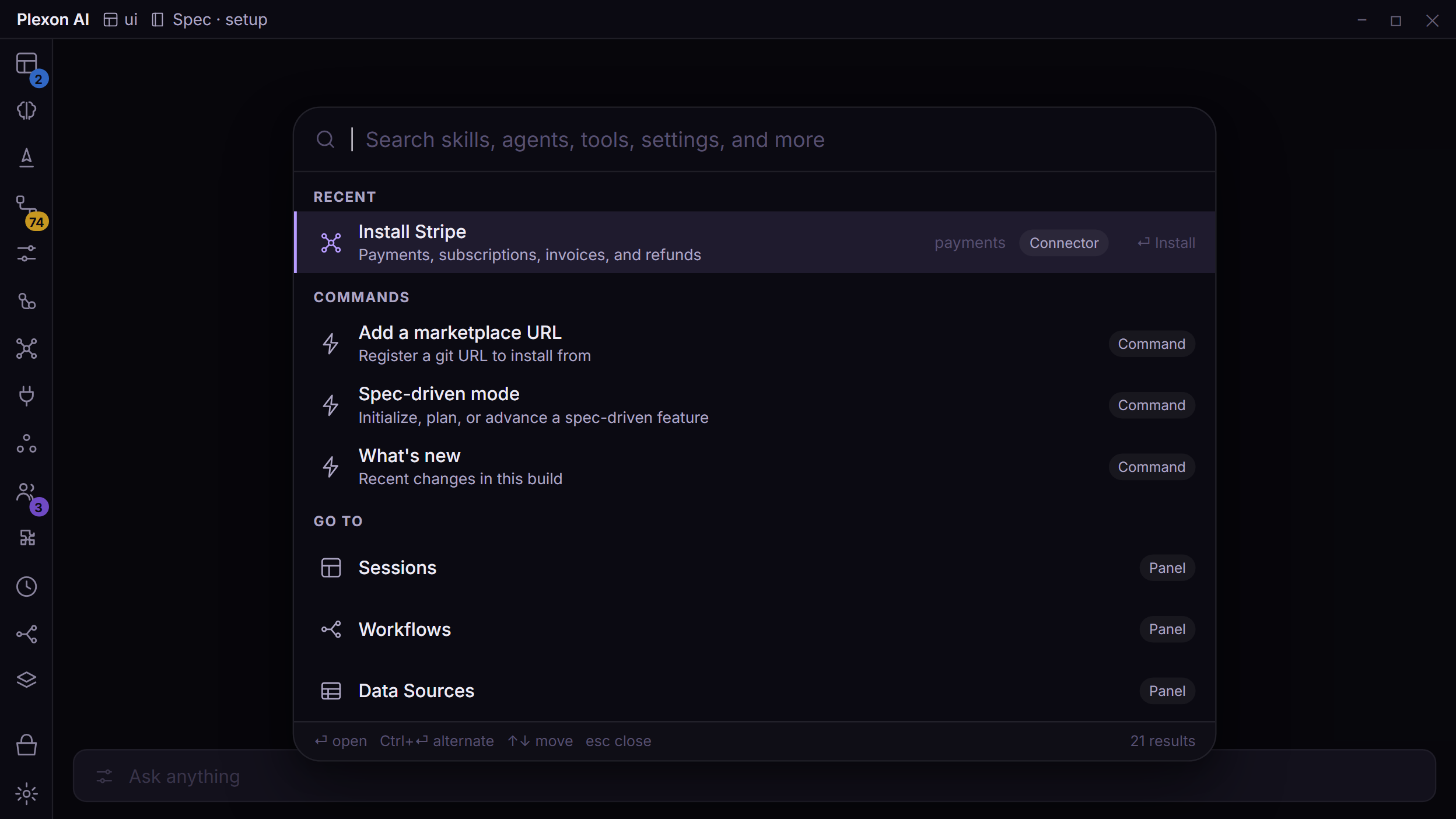
One Box Over Everything
The search box sits in the middle of the title bar, and Ctrl+K opens it from anywhere in the app. Before you type, the palette shows what you picked most recently, then the commands you can run, then the panels you can open. Type and it searches your skills, agents, tool servers and their individual tools, connectors, personas, plugins, workflows, dashboards, data sources, API connections, hooks, schedules, chats, memory notes, the people and facts in your knowledge map, plans, journal entries, pinned messages, and all of the settings at once.
- Opening it with nothing typed shows your most recent picks, so Ctrl+K then Enter repeats the last thing you did
- Arrow keys move, Enter runs it, Escape closes
- Prefixes narrow by family: > for commands, # for panels, @ for agents, * for skills, & for tools, : for settings
Search the Chat You Have Open
Type / and then a word to search the conversation in front of you. The chat search bar opens on that word and jumps to the first match, which is the same thing Ctrl+F does by hand. The palette itself still only reads names and descriptions, never the words in your files or your chats; the / prefix hands the job to the search that already existed rather than building a second one.
- One keystroke from the same box you use for everything else
- Greyed out with a reason when no chat is open, rather than doing nothing
- Enter jumps to the first match; the usual next and previous take it from there
Nothing Matched? Ask Instead
Search boxes usually end at "no results". This one offers the two things you probably meant: look for those words in the chat you have open, or send them to Plexon as a message. So the box takes a half-formed sentence as readily as a skill name, and typing a question into it is a reasonable thing to do.
- Enter sends what you typed as a message
- Ctrl+Enter puts it in the chat box for you to finish before sending
- It is also how most people find the prefixes, without reading a list of them
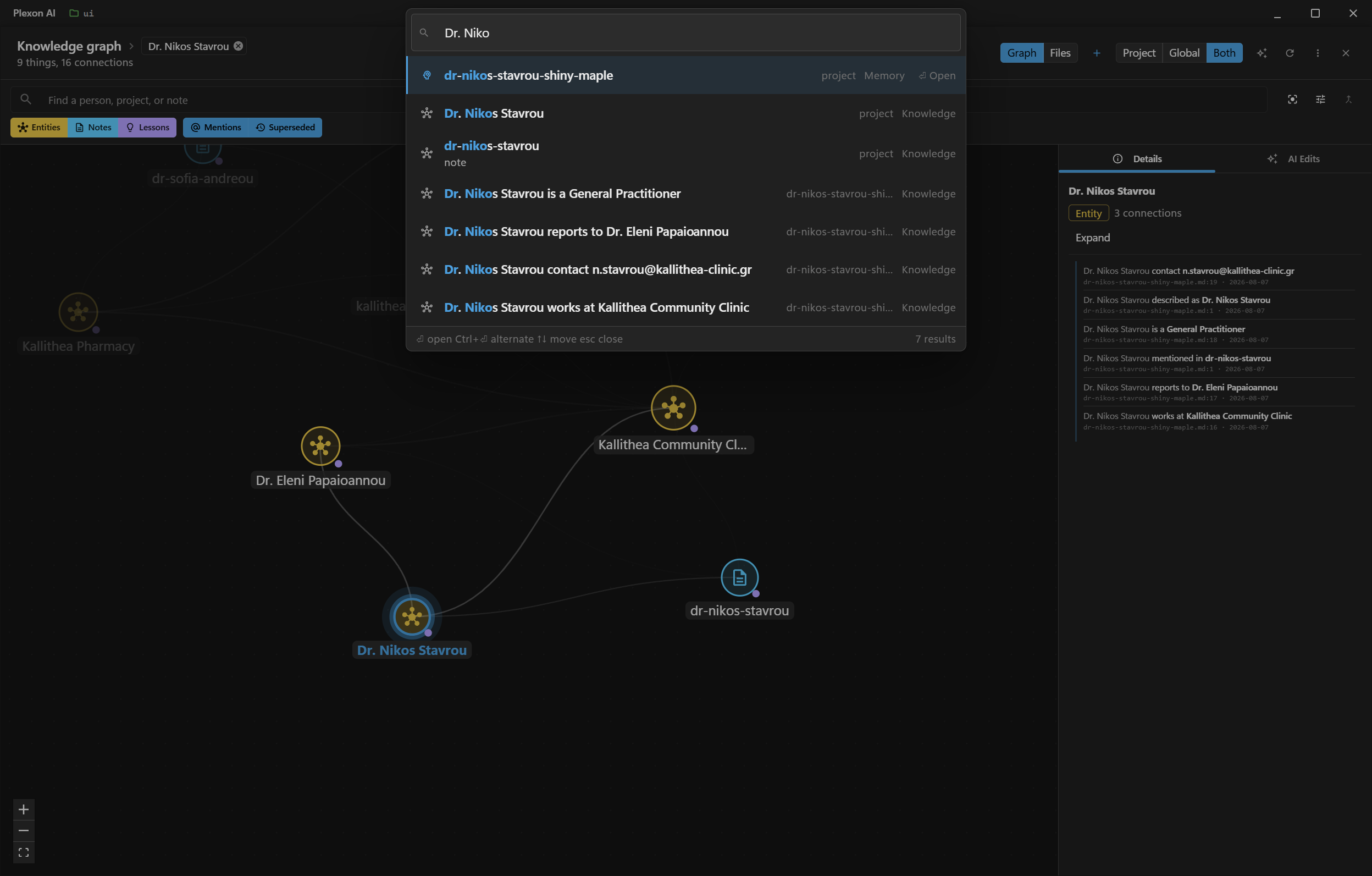
Find a Person, Not the File They Are In
Your notes turn into a map of the people, companies and projects they describe. The palette searches that map, so a name comes up as itself rather than as the filename it happens to sit in, and the facts your notes state about it come up beside it. Pick one and the map opens centred on that node, ringed and named, with its facts and the note each was read from.
- Names, aliases and the facts stated about them, all searchable
- A fact opens the map on the person or project it is about
- Notes are still findable by filename, as their own kind of result
- Off if you have turned the map off in Settings, like everything else it feeds
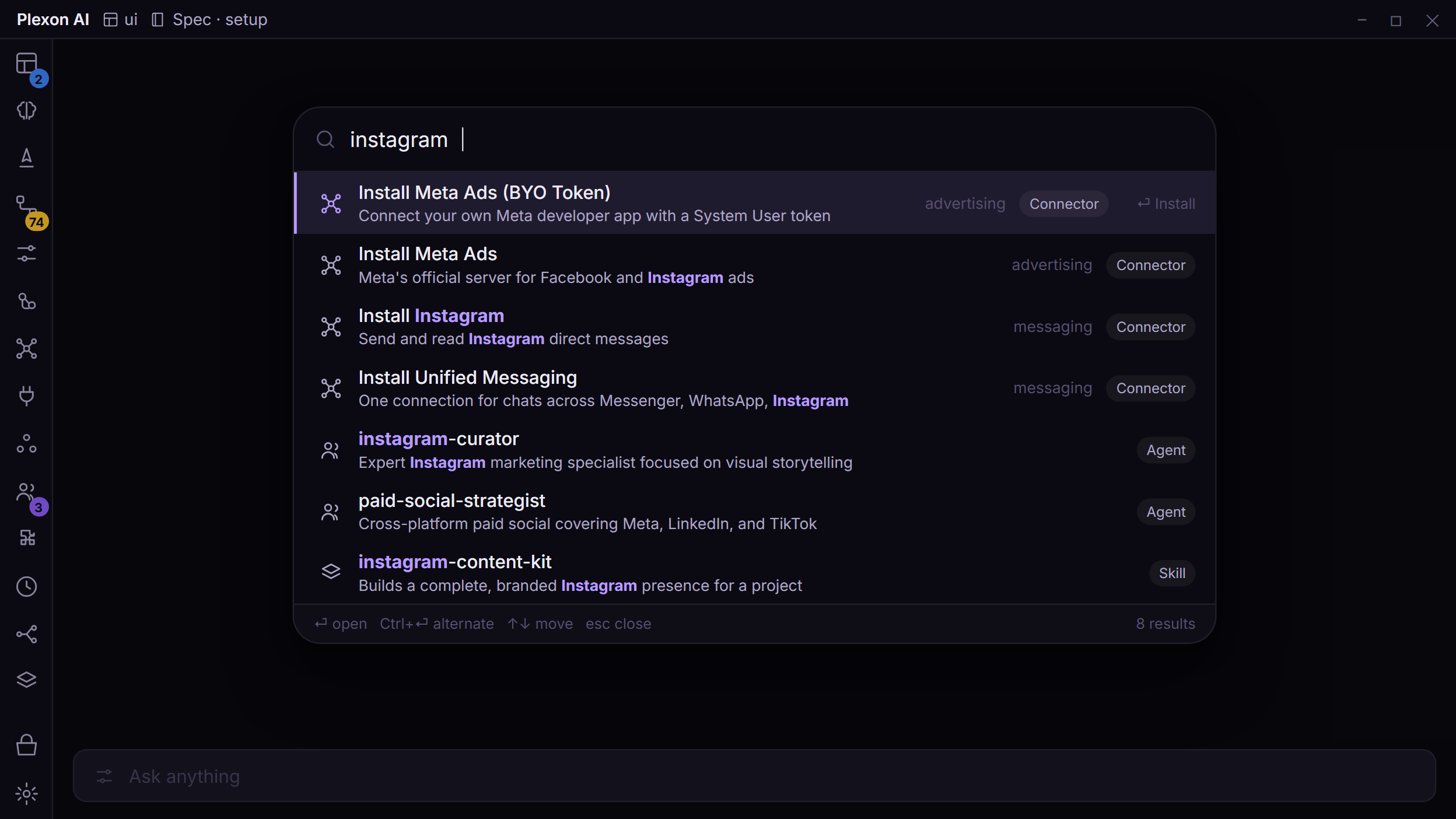
Type a Product Name, Get the Connector
Search for the tool you have in mind rather than the name its vendor chose. Connectors carry the brands they actually reach, so "facebook" and "instagram" both find Meta Ads. Connectors lead the results because a product name almost always means you want the integration, and Enter on one opens its install flow instead of dropping you in a browse grid to find it again.
- The letters you typed are picked out in every result
- Connectors and tool servers rank first, then everything else
- Enter installs; Ctrl+Enter shows the card in the marketplace instead
- "Add a marketplace URL" is in there too, so registering a source is one search
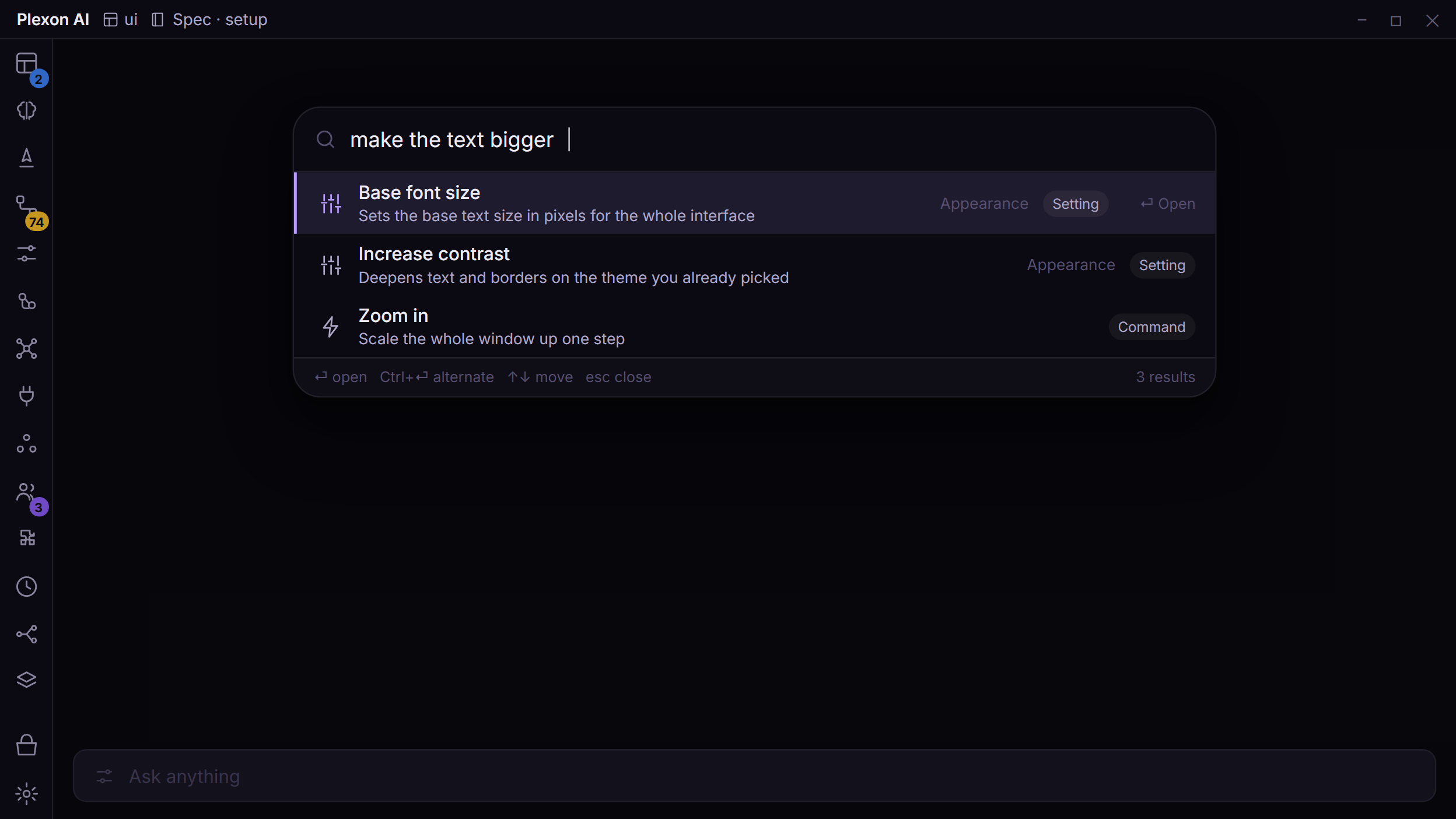
Describe a Setting, Not Its Name
Every setting in Plexon carries the words people actually reach for, so "make the text bigger" finds the base font size and "night mode" finds the theme. It is the same search the box at the top of Settings runs, so both give the same results in the same order, and each Settings page is a row of its own. Picking a setting opens its page, scrolls to the section that owns it, and briefly outlines the control you asked for. A switch or a list shows on the selected row: Ctrl+Enter or a right-click changes it and the palette stays open. The same box takes vendor names: "openai", "gemini" and "fireworks" each land on the provider dropdown, and "migration" opens the Claude Code import.
- Around 300 settings and all ten Settings pages, plus every AI provider under the name its vendor uses
- Enter opens the setting where it lives; Ctrl+Enter flips the switch or moves the list right there
- Common phrasing is stripped out, so a sentence works as well as a keyword
- Ask a question in a few words, or in Greek, and "Can't find it?" hands it to Fast decisions, which offers the change with Apply. Nothing changes until you press it
It Learns the Order You Want
Picking something nudges it up next time. One decaying counter per result folds how often you use it together with how recently, so the tools you live in surface first without ever outranking a better match for what you typed. That counter stays on the machine that made it and no account is involved.
- Frequency and recency in one score, with a two-week half life
- Capped so it reorders close calls and never beats a stronger match
- A skill you have run forty times outranks one you have never used
- Stored locally, not synced, not tied to an account
It Respects What You Have Hidden
A panel you removed from the sidebar still turns up, ranked near the bottom and marked as hidden, so a feature you put away months ago is findable again. Opening one from here is for that session only, and the only thing that writes to your config is the explicit action to put it back. Panels an administrator has locked stay out entirely.
- Hidden panels are marked, not silently dropped
- Opening one does not un-hide it or change your sidebar
- Administrator-locked panels never appear
- Content belonging to a persona you are not running stays out, exactly as it does in the panels
Nothing Leaves the Machine, and Nothing Waits
The palette searches names, titles, descriptions, and tags. It never reads your file contents or your conversations, because Ctrl+F already searches the open chat and the Sessions search box already searches across chats. Plexon hands the whole searchable list to the window once and ranks it there, so every keystroke is a local scan rather than a request that has to come back.
- Names and descriptions only. No file contents, no message bodies
- No request per keystroke, so typing never waits on anything
- Nothing carries a body, a password, or a file path off your disk
- It opens straight away on a cold start and fills in as the app finishes loading
What one box reaches
Every kind below is searchable the moment you press Ctrl+K. Follow one to read what it does.
- SkillsBy name, or * to see only skills
- AgentsBy name, or @ for the agent list
- PersonasSwitch role from the box
- PluginsInstalled plugins and what they brought
- Apps and connectorsType a product name to install one
- MarketplaceAnything published, plus "add a source"
- WorkflowsOpen one, or jump to a run
- DashboardsBy board name
- Data sourcesSpreadsheets and feeds you imported
- API connectionsSaved endpoints and their auth
- HooksEvery hook, by the event it fires on
- ChatsPast conversations by title
- Memory and the mapNotes by filename, people and facts by name
- PlansSaved plans across the workspace
- Pinned messagesPins from every project on the machine
- SettingsAround 220, described in your own words
Journal entries, every panel, and the commands that change mode, theme or marketplace source are in there too.
Why It Feels Fast
Everything, One Shortcut
Twenty-odd kinds of thing in one list: skills, agents, connectors, personas, workflows, boards, chats, plans, settings, and panels.
Acts, Not Only Finds
Install a connector, switch mode or theme, register a marketplace, open What is new. Enter runs it; Ctrl+Enter shows you where it lives.
Ranked, and Marked Up
Connectors first, then the rest. Matched letters are picked out in each row, and a chip names what kind of thing it is.
Local and Instant
The list lives in the window. Ranking is a local scan, so results keep up with typing and nothing about you is sent anywhere.
Connects to
Nothing here works alone. See the whole map for how the pieces fit together.
What feeds it
Knowledge Graph feeds this.
The people and facts in your knowledge map are searchable from the palette.
Pinned Messages feeds this.
Pins are one of the things the palette searches, across every project on the machine.
Customization feeds this.
Describe a setting in your own words and the palette lands you on the exact control.