Plan mode · Plans panel
Plan First,Then Build It
Plan mode investigates without touching anything and writes one plan: the files to change and the steps in order, or, when the answer is research rather than code, the document to produce and what goes in each section. It writes into the plan as it works, so you watch it take shape rather than waiting for a wall of text at the end. Approve it and the same conversation switches to Make mode with the plan driving the work. Every plan it wrote stays in the Plans panel afterwards, ready to implement in a fresh chat or to rewrite by saying what you want changed.
What happens in this clip
- The Plans panel opens from the sidebar with its built-in help card.
- Plan mode explores the project read-only and writes one plan for you to approve.
- Nothing is edited until you approve it.
- Every plan you ever approved stays in the list, browsable.
Related features
Read-Only While It Thinks
Plan mode cannot edit your code. The AI reads, searches, and explores as widely as it needs, a connected mailbox or drive included, and the one thing it is allowed to write is the plan itself. When it genuinely needs to run a command or a request that changes something, it asks first and you decide per call. That is what makes it safe to point at a codebase you have not read yet.
- File writes, edits, and destructive commands are blocked outright, not discouraged
- Read-only lookups run unattended, including web search and reading a page
- A command or request that would change something raises a card and waits for you
- Trust a connector or a command once and it stops asking, revocable in Settings
- Sub-agents it fans out to inherit the same restrictions, so delegation cannot route around them
The Plan Is a File, Written As It Goes
The AI does not compose a plan in its head and dump it at the end. It creates the plan file on its first pass and keeps editing that same file as it explores, phase by phase, so opening a plan while the AI is still working shows the draft taking shape. There is exactly one plan file per conversation, which is why a long session cannot quietly leave three half-plans behind.
- One plan file per conversation, created early and updated in place
- Markdown with a short frontmatter block: title, status, when it was written
- Long plans get targeted edits rather than a full rewrite on every pass
- The Plans badge and an open panel both refresh the moment the file changes
Approve, and the Same Chat Starts Building
Approving a plan does not hand it to a fresh assistant that has to work everything out again. The conversation you planned in switches to Make mode and carries on, so every file the AI read and every dead end it ruled out is still there. The plan arrives as the next message, its checklist becomes the todo list, and an untitled chat takes its name from the plan.
- Plan mode and building are one continuous thread, not a handoff between chats
- The plan's checklist seeds the todo list, so progress is visible while it works
- Approve and auto-run starts the work without stopping between steps
- Keep planning instead, and your written feedback goes straight back to the AI, which revises the same draft and resubmits
Every Plan Stays, in the Plans Panel
Plans do not evaporate when the chat scrolls away. The Plans panel lists this project's plans newest first, with a search box, All, Approved and Drafts filters, a colour per status, and a one-line excerpt to help distinguish plans without opening them. The sidebar badge counts them and its tooltip splits the number into drafts and approved.
- Search and filter, with a status colour and a one-line excerpt per row
- Superseded plans drop out of the count, because replaced work is not worth advertising
- Ctrl or Cmd+click to pick, Shift+click for a range, Ctrl or Cmd+A for everything showing, then delete the lot behind one confirmation
- A search term or filter narrows what Select all reaches, so "find, then delete the lot" is two steps
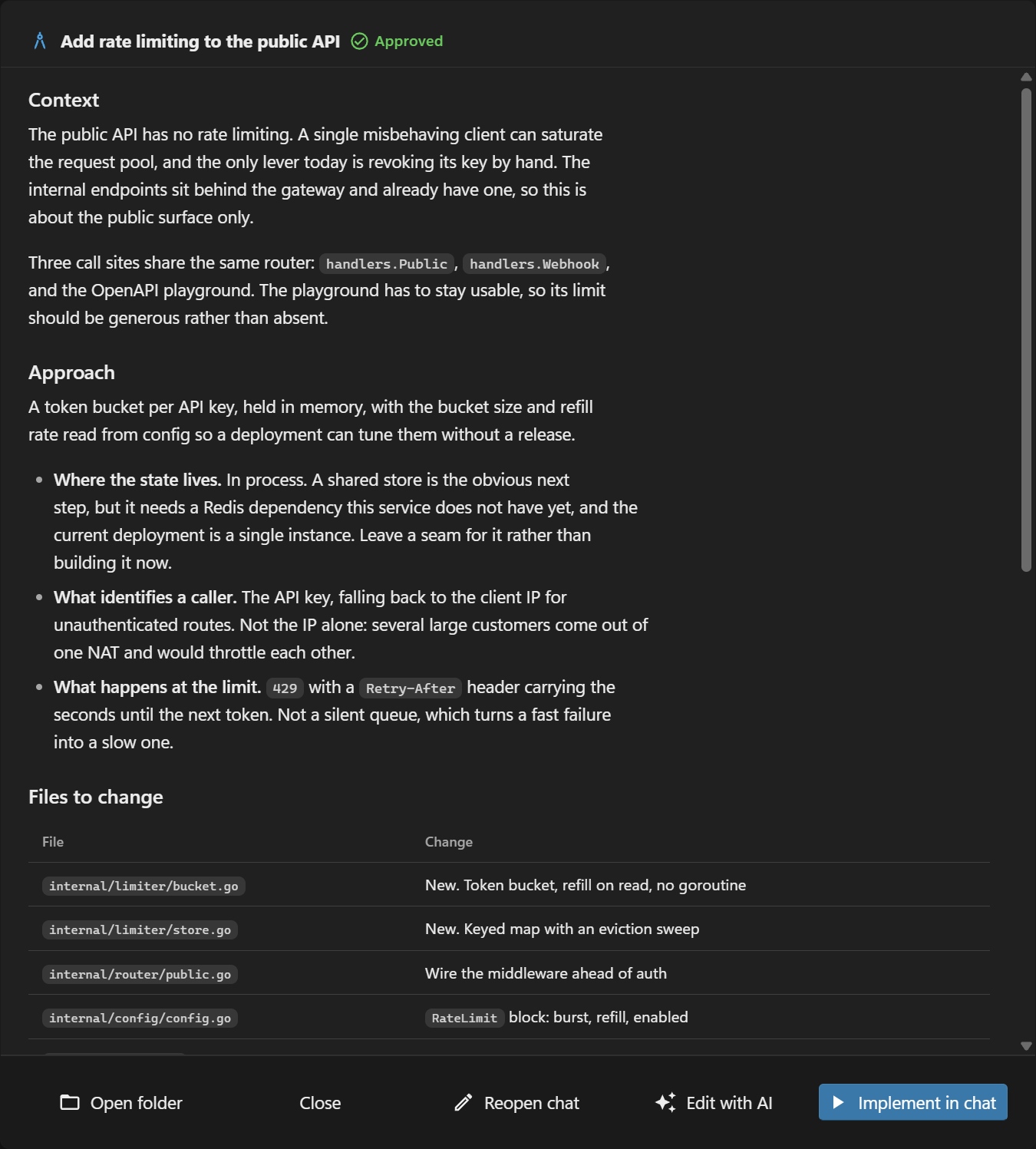
Implement a Saved Plan in a Fresh Chat
Open a plan and Implement in chat starts its own conversation in Make mode and sends straight away. It hands over the plan file itself, not only the text, which is what lets the AI go back to the document while it works: re-read a section that scrolled out of reach, tick the checklist off as each step lands, and write down anything it had to do differently. Come back to the plan afterwards and it tells you how far the work actually got.
- Starts a new chat, so a plan never lands at the end of an unrelated thread
- Already on an empty chat? It uses that one rather than opening another tab
- The AI gets the plan file, so the checklist is ticked off in the plan itself
- Deviations get written down where you will find them later, not just said once in chat
Edit a Plan by Saying What to Change
Edit with AI opens a chat in Plan mode with the plan already in the box, ending on "What I want changed:". Type the change and send. The AI rewrites that same plan file rather than saving a second copy, so the plan keeps its place in the list, its approved status, and its history. It is the quickest route when the document needs work rather than the thinking behind it, and it is the only route for a plan with no conversation left to reopen.
- The plan you edited is the plan that updates. No duplicate appears in the list
- An approved plan stays approved. Editing the wording does not send it back for review
- Works on plans imported from another tool, which never had a conversation to return to
- Nothing is sent until you have said what you want, because the prompt is deliberately unfinished
Or Pick the Original Conversation Back Up
When a plan still has the chat it came from, Reopen chat returns you to it in Plan mode with everything the AI already worked out intact. That is the better choice when the thinking has to change rather than the wording: the AI still has its exploration, so it revises the same plan instead of rebuilding its understanding from the document.
- Reopens the exact conversation, switched back to Plan mode
- The AI keeps every file it read and every option it ruled out
- It revises the same plan record rather than forking a new one
- Shown only when the plan still has an origin conversation
Kept Per Project, Outside Your Repo
Plans are stored per project in Plexon's own folder, never inside your repository, so no plan is ever committed by accident and no .gitignore rule is needed. Open the folder from the panel to read them as plain markdown, keep them in your own backup, or hand one to somebody who does not run Plexon.
- One markdown file per plan, readable and diffable without Plexon
- Scoped to the project, so switching workspaces switches the list
- Never written into your repo, so nothing lands in a commit by mistake
- Travels in a transfer bundle with the rest of your setup
Plans You Wrote in Claude Code Come Across
The migration wizard brings your Claude Code plans over. Each one lands in the project it was written for, worked out from the session it came from, and keeps the approved or draft status it had. They carry a Claude Code label, an Imported filter lists just those, and running the import again refreshes what you already brought over rather than adding second copies.
- Sorted into the project each plan was written for, not into one pile
- Approved and draft status survive the move
- "All except ephemeral" takes only the plans you actually approved
- Imported plans can be edited with AI like any other, even with no conversation behind them
From Plan to Built
One Plan, Written Live
The AI creates the plan file on its first pass and edits that same file as it explores. Open it mid-run and watch it take shape.
Approve and It Builds
The same conversation switches to Make mode with every file it read still in context, and the plan's checklist becomes the todo list.
Edit With AI
Say what you want changed and the AI rewrites that plan file. No duplicate in the list, and an approved plan stays approved.
Implement It Later
Every plan stays browsable. Send one to a fresh chat and the AI gets the file itself, so it ticks the steps off as it goes.
Connects to
Nothing here works alone. See the whole map for how the pieces fit together.
This one is taught in step 2 of 8: have a real conversation.
What feeds it
Migrate from Claude Code feeds this.
Plans land in the project each was written for and keep their approved or draft status.
Where it goes
This feeds AI Chat & Modes.
Approve a plan and the same conversation switches to Make mode with its checklist loaded.
Seen in these jobs