Built-in Document Signing
Sign PDF and Word FilesFrom the Chat
Draw your signature once on Plexon’s signature pad and ask it to sign your documents. It shows where it will sign, waits for your yes, and saves a signed copy next to each original, with a picture of every signed page.
Related features
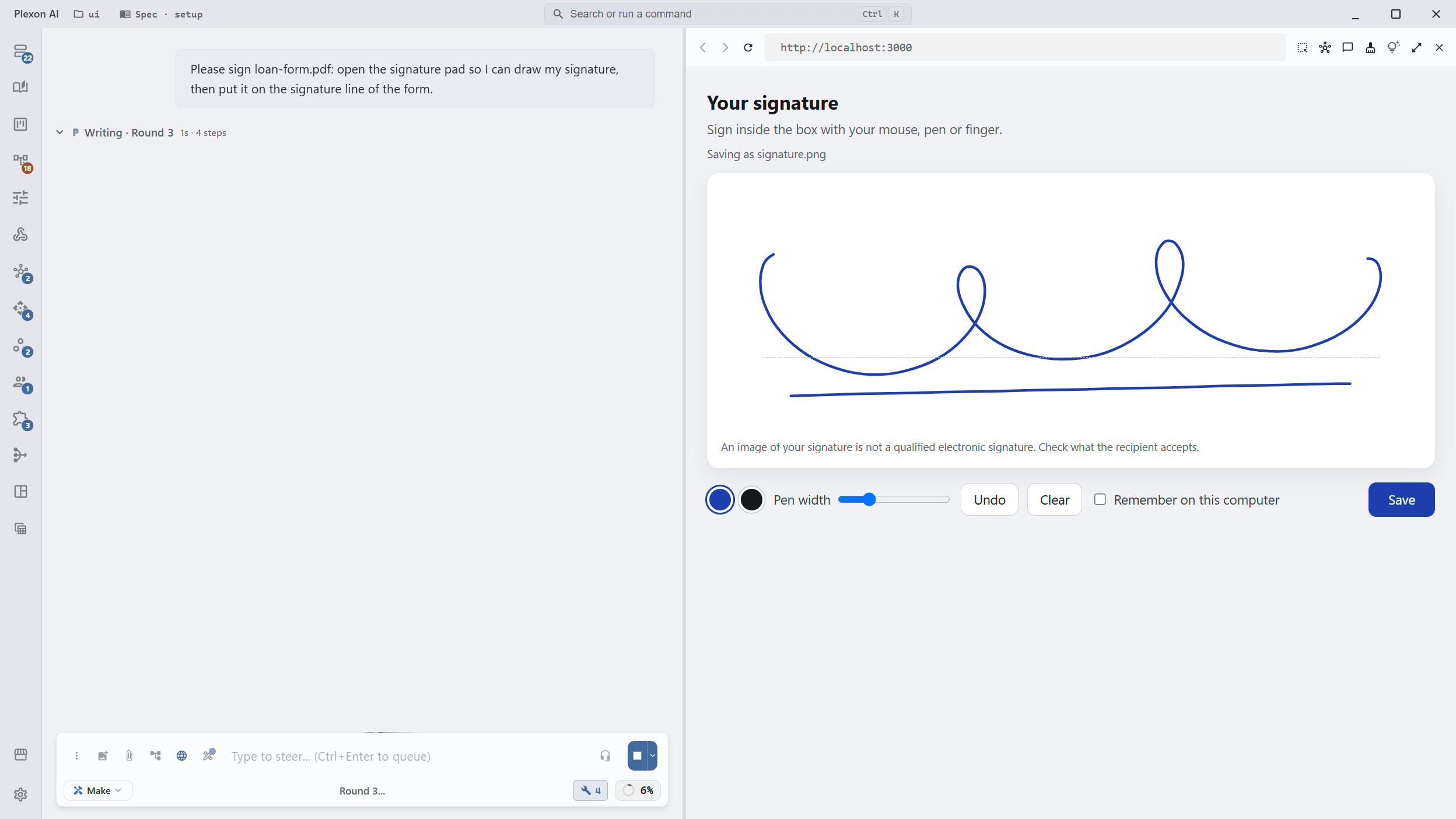
Draw Your Signature Once
Ask Plexon to sign something and its signature pad opens in the browser panel next to the chat. Draw with the mouse, a pen or your finger, press Save, and the pad closes by itself and the signature lands in your folder as a picture. Plexon also keeps a copy on your computer, so the next contract can use it without drawing again.
- "Sign these three PDFs and the Word form"
- "Draw my signature, I will sign the lease with it"
- Undo and Clear while you draw, blue or black ink
- Pick a saved signature instead of drawing a new one
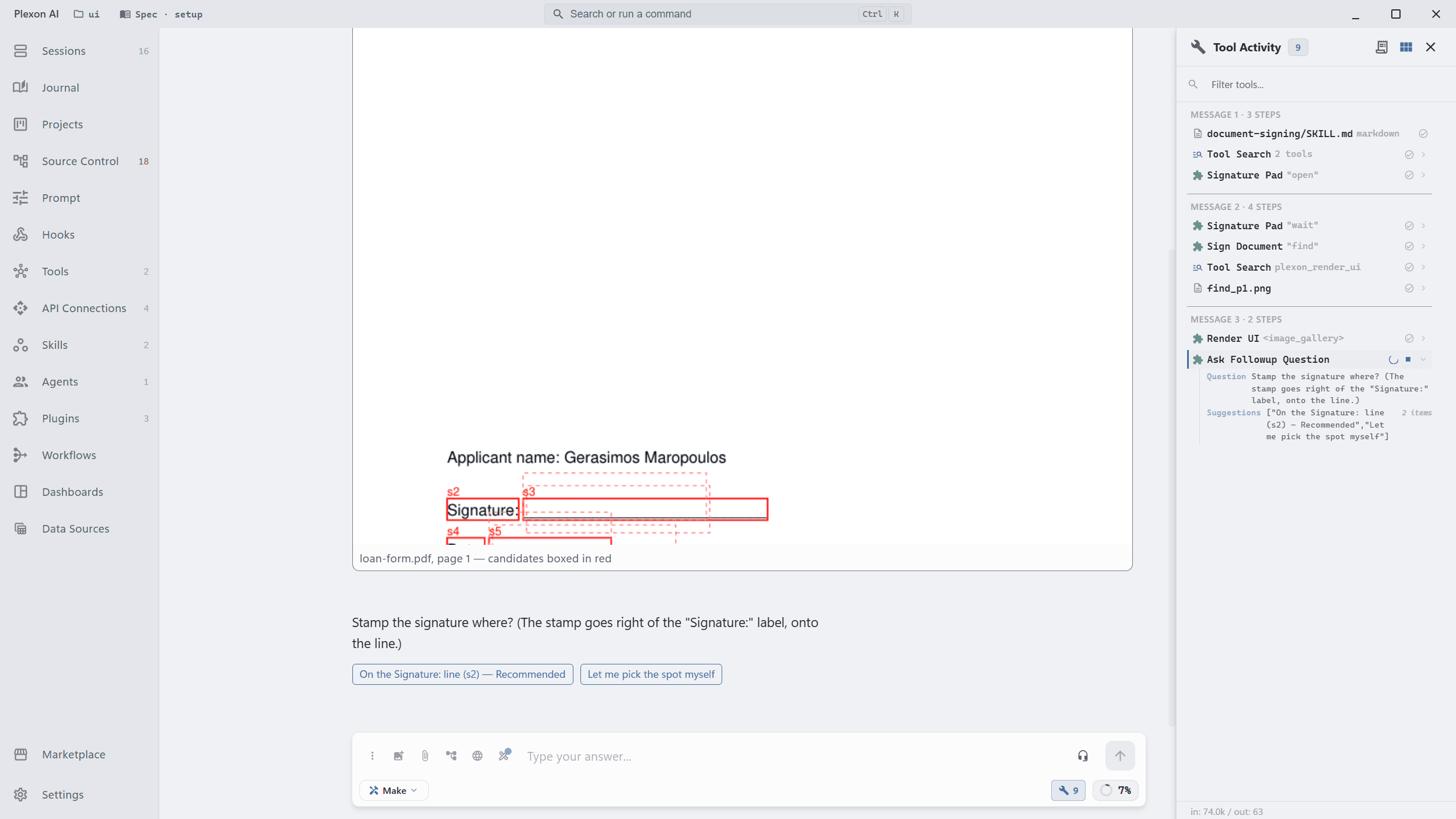
See Where It Will Sign
Plexon looks through each file for the places that ask for a signature: a label like Signature or Υπογραφή, a date line, a blank line to sign on. It shows you every page with those spots boxed and numbered, and asks once before it signs. A word that only appears inside a sentence is marked as such, so it does not get a signature by mistake.
- Greek and English labels
- Preview pictures of each page, with every spot numbered
- One question to confirm, or choose the spots yourself
- A scanned PDF with no text gets its pages shown, and you point at the spot
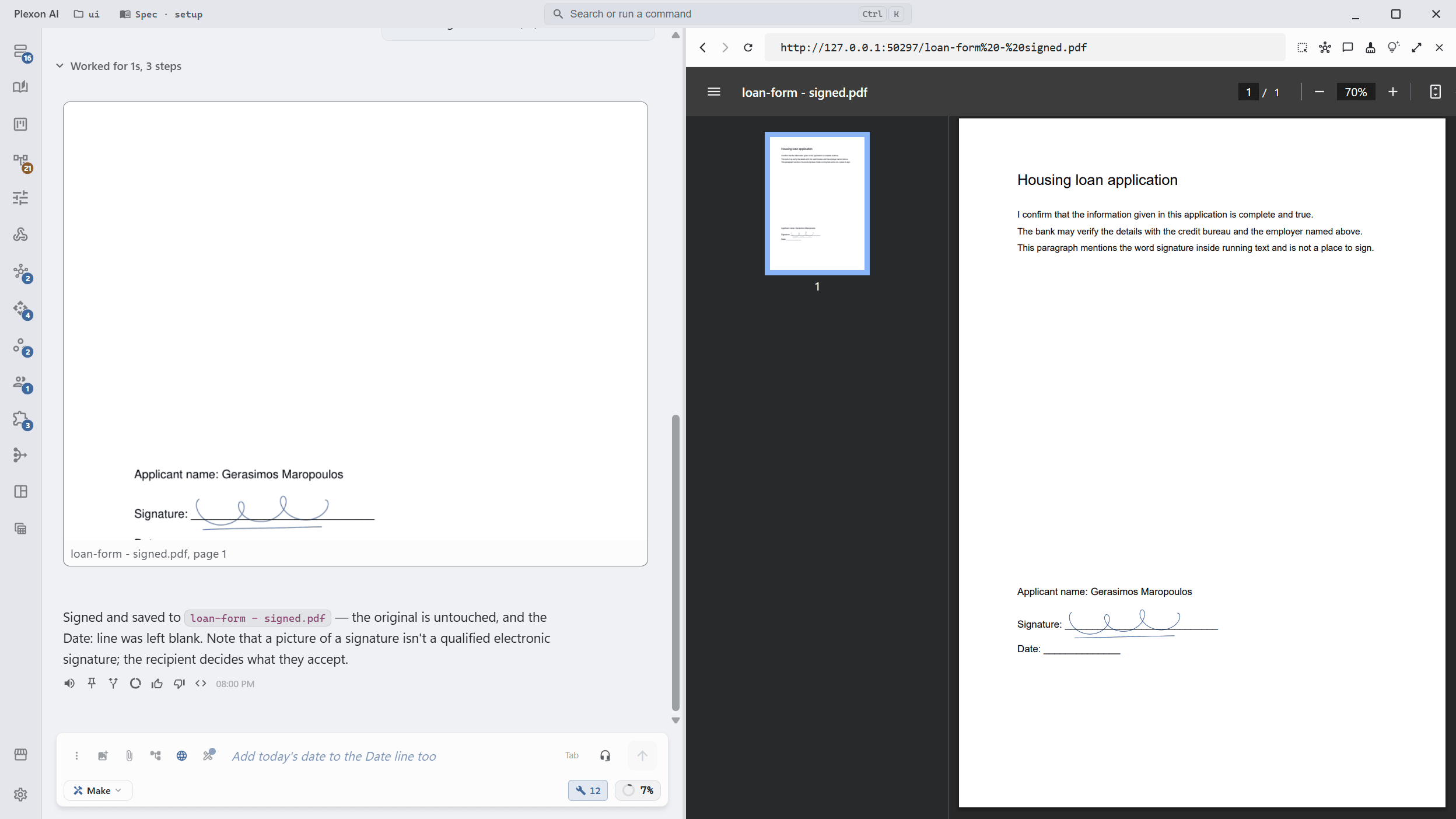
A Signed Copy, Checked Page by Page
The signature goes into a new file beside the original, named after it with "signed" added. The original is never changed, and an earlier signed copy is never overwritten. When it is done, Plexon shows you each signed page to check before you send it.
- PDF and Word (.docx) files
- Next to a label, under it, above it, or at an exact spot on a PDF page
- Previews of every signed page
- The original file stays as it was
What This Signature Is
The result is a picture of your handwritten signature placed on the page, like signing a printout and scanning it. It is not a qualified electronic signature and carries no certificate. Whether a signed copy is accepted is up to whoever receives it, so for a bank, a court or a public office, check what they accept first.
- An image of your signature, placed where you agreed
- Not a qualified electronic signature
- The recipient decides whether a signed copy is enough
What It Does
A Real Signature Pad
Plexon’s own pad, in the browser panel beside the chat. Smooth strokes, Undo, Clear, and the drawing is trimmed to the ink before it is saved.
Remembered Signatures
Every saved signature is kept on your computer, so the pad shows the ones you drew before. App updates and a Soft Reset leave them alone; a Hard Reset wipes them with the rest of Plexon’s data.
Finds the Places to Sign
Labels, date lines and blank lines, in Greek and English, each boxed and numbered on a preview of its page.
Asks Before It Signs
You see the spots first and answer once. Nothing is stamped until you say yes.
Signed next to a label or at an exact spot on the page, with a picture of every signed page afterwards.
Word (.docx)
Signed next to, under or above a label, inside tables too. Page previews need LibreOffice installed, since a Word file has no fixed page layout.
The Original Stays
Every signature goes into a new copy beside the original. An earlier signed copy is never overwritten.
Plain About What It Is
A picture of your signature, not a qualified electronic signature. The person or office receiving it decides whether it is enough.
Connects to
Nothing here works alone. See the whole map for how the pieces fit together.
What feeds it
Embedded Browser feeds this.
The signature pad opens in the browser panel, and what you draw is saved as a picture in your folder.
Where it goes
This renders into Dynamic UI Widgets.
The places to sign, and every page once it is signed, come back as a gallery of previews in the chat.