Chat
Ask a question.Work through a task.
Write what you need, attach a file if it helps, and continue the conversation. Ask Plexon to explain a report, draft a reply, or plan the next steps of a project.
What happens in this clip
- Type @ in the message box and the picker offers your agents and the files in the project.
- Point the message at one of them and send it.
- Ask mode answers read-only, drawing a table instead of touching anything.
- The usage chip under the reply shows the tokens and the time that answer cost.
- Branch the conversation from any earlier message. The original stays exactly as it was.
Related features
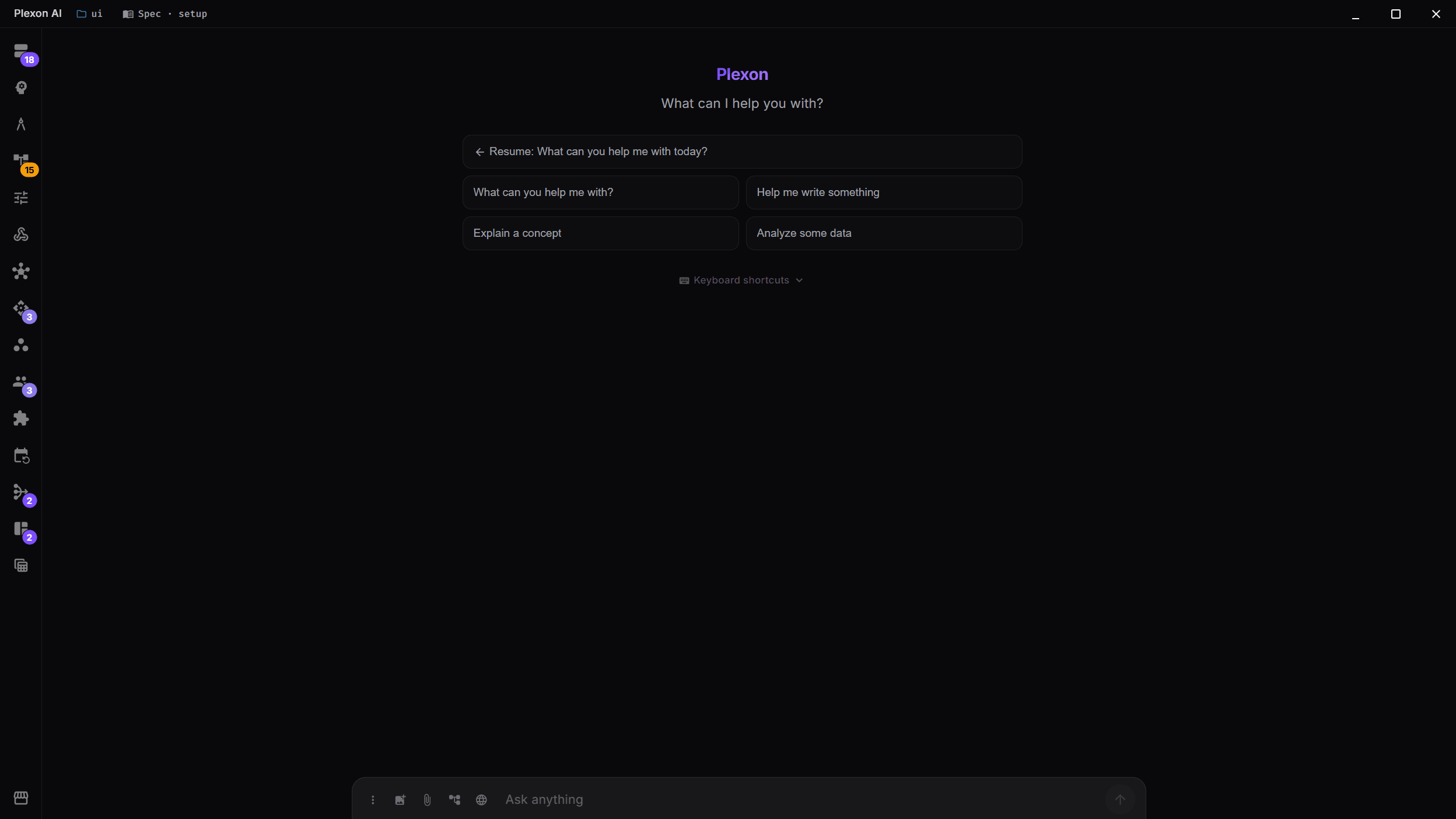
Start with what you need done
Type a request or choose a suggested prompt. Try “Summarize this report and list the decisions I need to make.” Attach the file, then ask follow-up questions in the same conversation. A persona is a saved role; its instructions shape the help you receive.
- Suggestions match your selected role
- Add files and images to your request
- Use keyboard shortcuts to move between panels
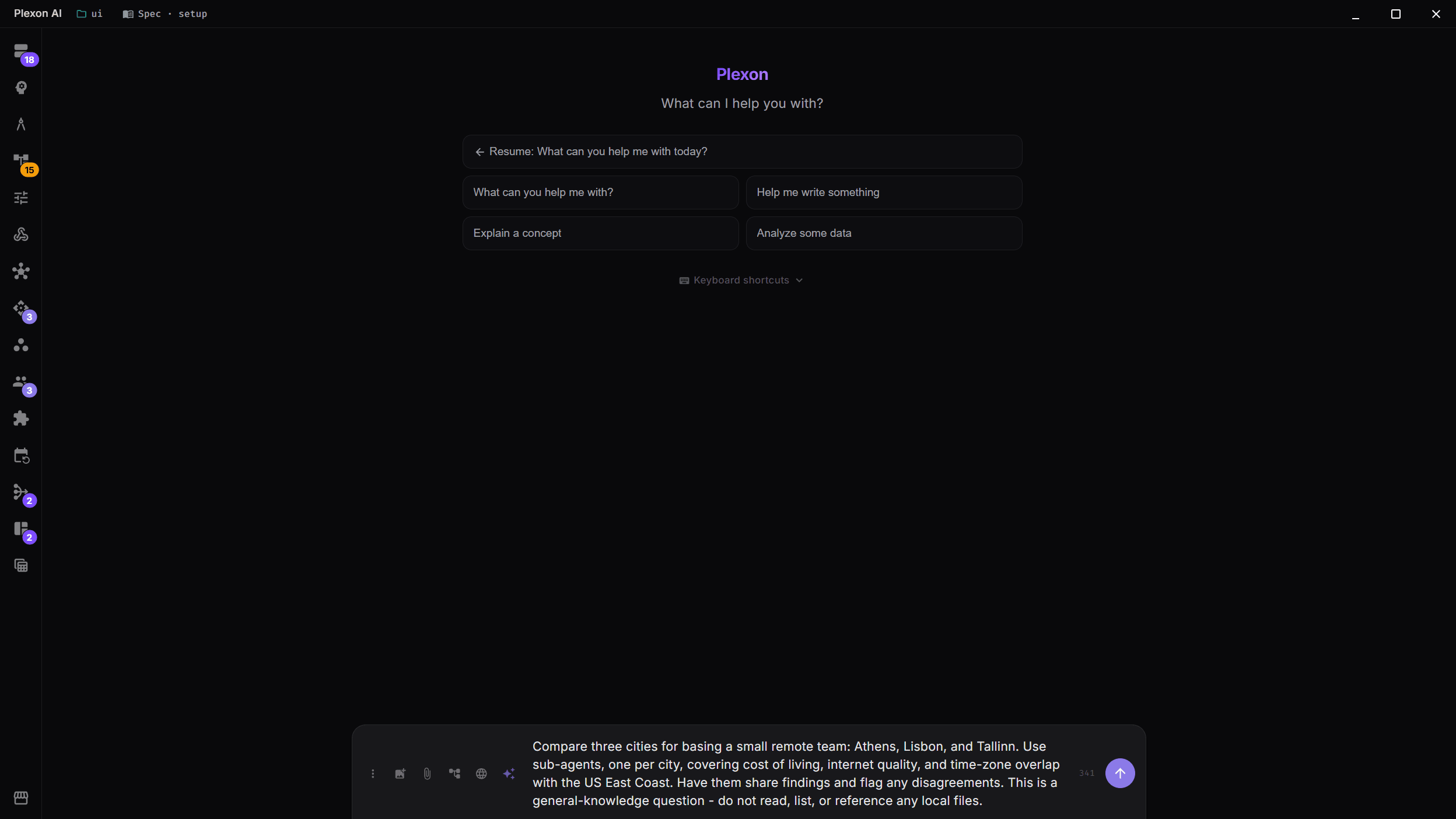
Choose how Plexon helps
A mode sets how Plexon approaches the task. The picker offers Make, Plan, Ask and Auto. For software projects that need a written specification, start Spec from its separate control in the title bar.
- Code: make changes to a software project
- Plan: explore the project and prepare a plan for approval
- Ask: answer a question or explain something
- Auto: keep working through a task within the limits you set
- Spec: work through a specification, plan, tasks and implementation
See what is happening
While Plexon works, a status line shows its current step. Open the line to review its notes and actions. The answer, reports and other results remain in the conversation when it finishes.
- Expand the status line to inspect the steps
- Review which tools ran and how long the work took
- Stop a reply and keep what it did so far; your next message or Resume continues from there
- Copy an answer or have it read aloud
Keep going on a bad connection
When the connection drops mid-answer, Plexon waits it out and carries on. The turn says Reconnecting while it waits and resumes the moment you are back online, so a tunnel or a hotspot that cuts out for a minute costs you the minute and nothing else.
- A chat keeps trying for about ten minutes; Stop ends the wait whenever you like
- A workflow or a dashboard, with nobody watching it, keeps trying for about fifty
- An answer cut off mid-sentence is retried, never saved as if it had finished
- A run that failed because the network was down does not count against a workflow
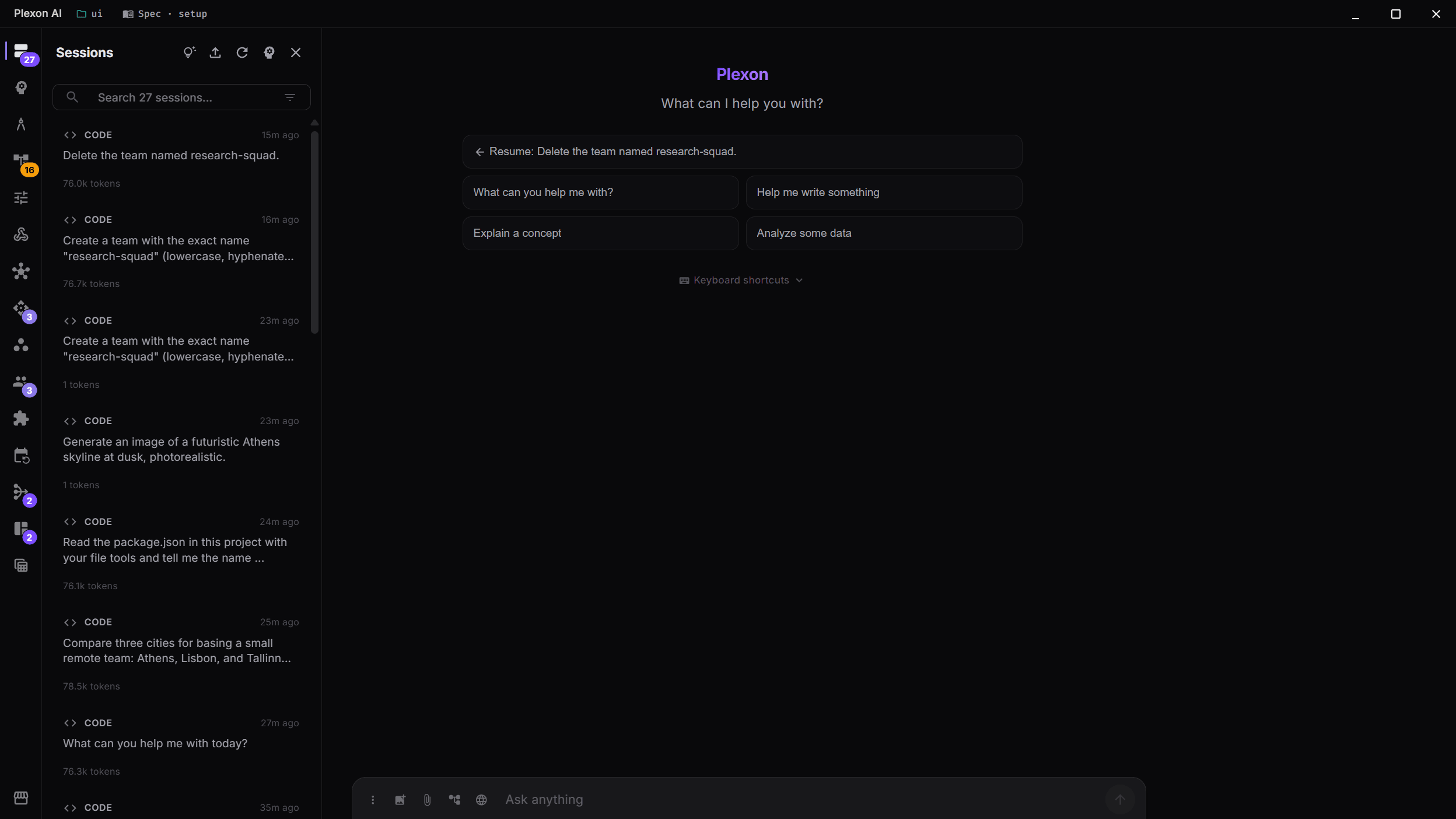
Pick up where you left off
Conversations save automatically on your computer. Find one in the sidebar by its topic, or search for it. You can keep several conversations open in tabs and start another while Plexon is working.
- Rename conversations to make them easier to find
- Each tab keeps its draft and scroll position
- See when a task is working, finished or waiting for you
- Closing a tab keeps its task running in the background
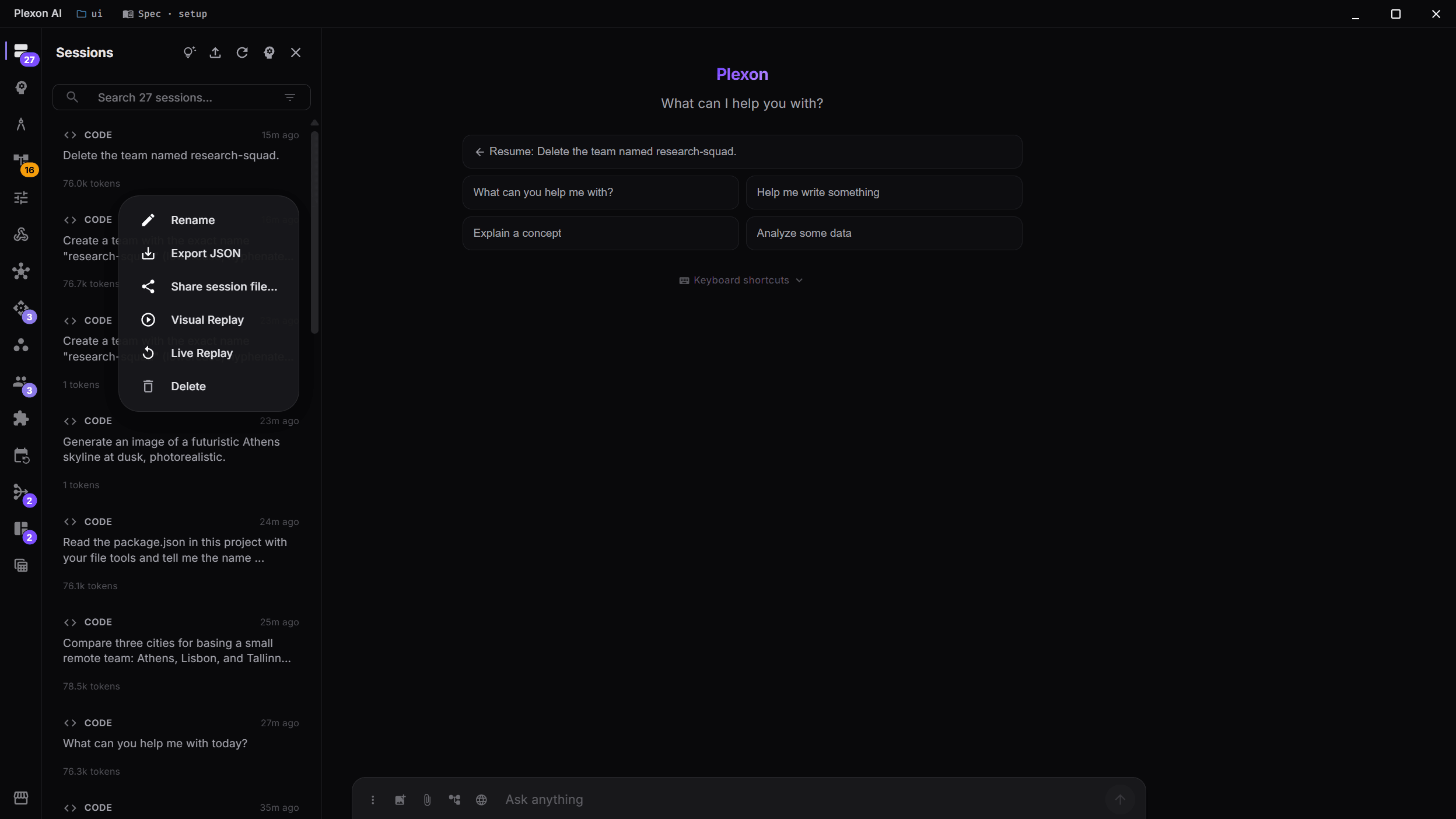
Review an earlier conversation
Visual Replay plays back a saved conversation, including its messages and actions. Live Replay starts a new run using the earlier conversation and the current project. That new run uses AI and may perform actions again.
- Open either replay from the conversation menu
- Adjust playback speed from 0.5x to 8x
- Export a conversation for your records
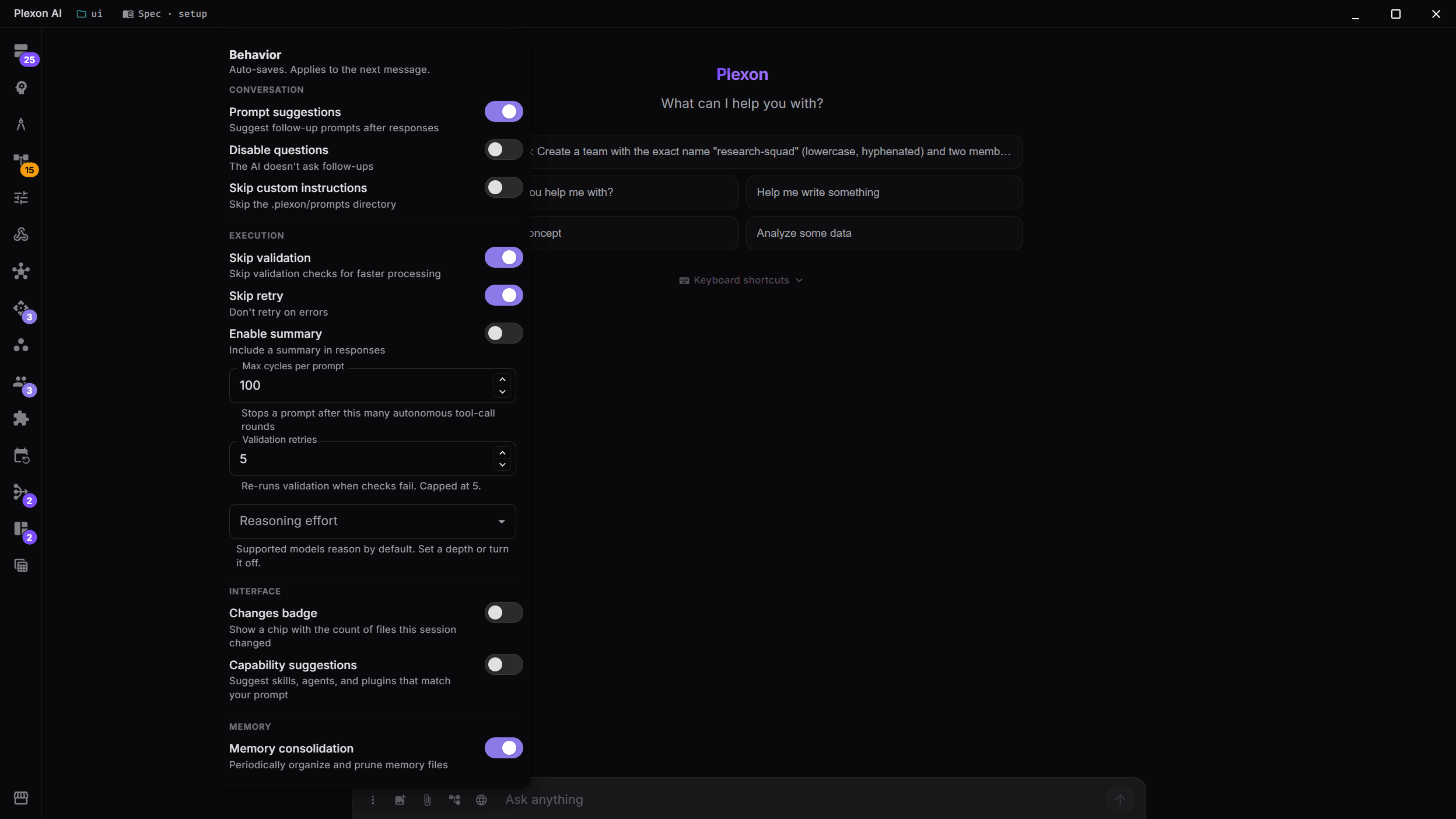
Set the amount of detail you want
Choose Concise for a short answer or Detailed for more explanation. Other conversation settings control follow-up questions, retries and summaries. Auto mode has a limit on how many rounds it can run.
- Change response style for a conversation or a single message
- Review the settings beside the message box
- Set the number of Auto rounds before starting work
Continue a long conversation
An AI service can only use a limited amount of conversation at once. Condense summarizes older messages to make room for more. The summary may omit details; you can undo it to restore the earlier conversation.
- Use Condense beside the conversation usage indicator
- Review usage before and after the summary
- Set an automatic threshold in Settings
More ways to work in chat
Work through a task
Auto mode runs repeated rounds of work and checks. Set its limits and review the result when it finishes.
Ask about an image
Add a screenshot, photo or diagram and describe what you want to understand. Image support depends on the AI service you choose.
Expand a short request
Prompt Enhancement rewrites a short request into more detailed instructions before it runs. It can add assumptions, so include any requirements that must stay exact.
Know where your chat goes
History is saved on your computer. An online AI service receives your request and the content needed to answer. Our server keeps no copy of the request or reply.
Connects to
Nothing here works alone. See the whole map for how the pieces fit together.
This one is taught in step 2 of 8: have a real conversation.
What feeds it
App Connectors feeds this.
Turn one on with your own account and the assistant works inside that app.
API Connections feeds this.
Import an OpenAPI spec or a Postman collection and every endpoint becomes a tool the assistant can call.
Data Sources feeds this.
A built-in tool reads a source from any prompt, and you can @-mention a source or exact rows.
Document Reader feeds this.
A Word doc, spreadsheet, deck, PDF, EPUB or Outlook email arrives as Markdown you can ask about.
Embedded Browser feeds this.
Point at any element on your dev server and the selector, HTML, computed styles and a cropped shot land in the prompt.
Visual & Voice feeds this.
Speak instead of typing; Plexon Voice (or Whisper on your machine) turns it into the message.
Shell Commands feeds this.
A ! command's output renders as a terminal card, joins the session, and rides into context on your next message.
Plan Mode & Saved Plans feeds this.
Approve a plan and the same conversation switches to Make mode with its checklist loaded.
Spec-Driven Mode extends this.
A sixth mode, driven by living markdown contracts a verifier checks at every step.
Quality Harness extends this.
Turn it on and the model writes a spec before multi-step work and files a verdict after.
AutoDream Memory Consolidation feeds this.
Rules distilled from your thumbs-down feedback are followed afterwards.
Knowledge Graph feeds this.
Ask about a client and every fact comes back with the note and the line it was read from.
Code Intelligence feeds this.
Questions about a symbol are answered from the language server rather than from a text search.
Side Questions extends this.
Ask @btw about the conversation while the assistant keeps working; the answer never enters the session history.
Session Branching extends this.
Branch a chat at any message and the conversation up to that point opens as a second chat, with the first one untouched.
Office Integration feeds this.
Read and edit a real .docx or .xlsx from the conversation, with tracked changes while Word is open.
Plexonaki extends this.
The pet mirrors each turn: thinking, working, a question waiting, the reply landing; a click on it opens its own chat window.
Plexon Provider feeds this.
One subscription covers text, images, video, voice and music, even inside a single prompt.
Custom Providers feeds this.
Point Plexon at any OpenAI- or Anthropic-compatible endpoint, including a local model.
Fireworks AI feeds this.
Open-weight models over the Anthropic Messages protocol, so cached prompts and tool calls arrive intact.
Kosareva Cloud feeds this.
Models from eight vendors on one key, billed in rubles, with the Claude entries keeping their cached prompts.
Session Lock & App Lock extends this.
The same conversation, encrypted under a passcode only you hold.
New Workspace Guide feeds this.
The instructions the guide saves as AGENTS.md are read on every turn in that folder, and the persona it picks is the one the folder opens with.
Where it goes
This renders into Dynamic UI Widgets.
Structured answers render as cards, tables, timelines and forms instead of a wall of markdown.
This renders into Telegram Bot.
Every session is reachable from your phone.
This renders into Slack Bot.
DM the bot or @mention it in a channel.
This triggers Dynamic Workflows.
A finished reply or a tool call is an event a flow can watch for, matched on a phrase you choose.
This authors Dynamic Workflows.
Describe a flow in chat and the AI drafts it; it lands switched off, with a review link.
This authors Dashboards.
Draft a board in chat, then keep editing it by describing the change.
This authors Skills & Tools.
Author a skill from the conversation, through the plexon_skill tool.
This authors 192 AI Agents.
Author a sub-agent from the conversation, through the plexon_agent tool.
This authors Personas.
The persona wizard drafts the description and welcome prompts for you.
This authors Customization.
Describe a setting in your own words and it changes, behind a confirmation.
This authors Design Canvas.
Ask for a page, three versions of a hero, or a mobile and a desktop layout, and each one lands on the board as a frame you can read at full size.
This triggers File Sharing.
Ask the assistant to start or stop the share and it hands you the link.