Workspace Setup
NewWorkspace
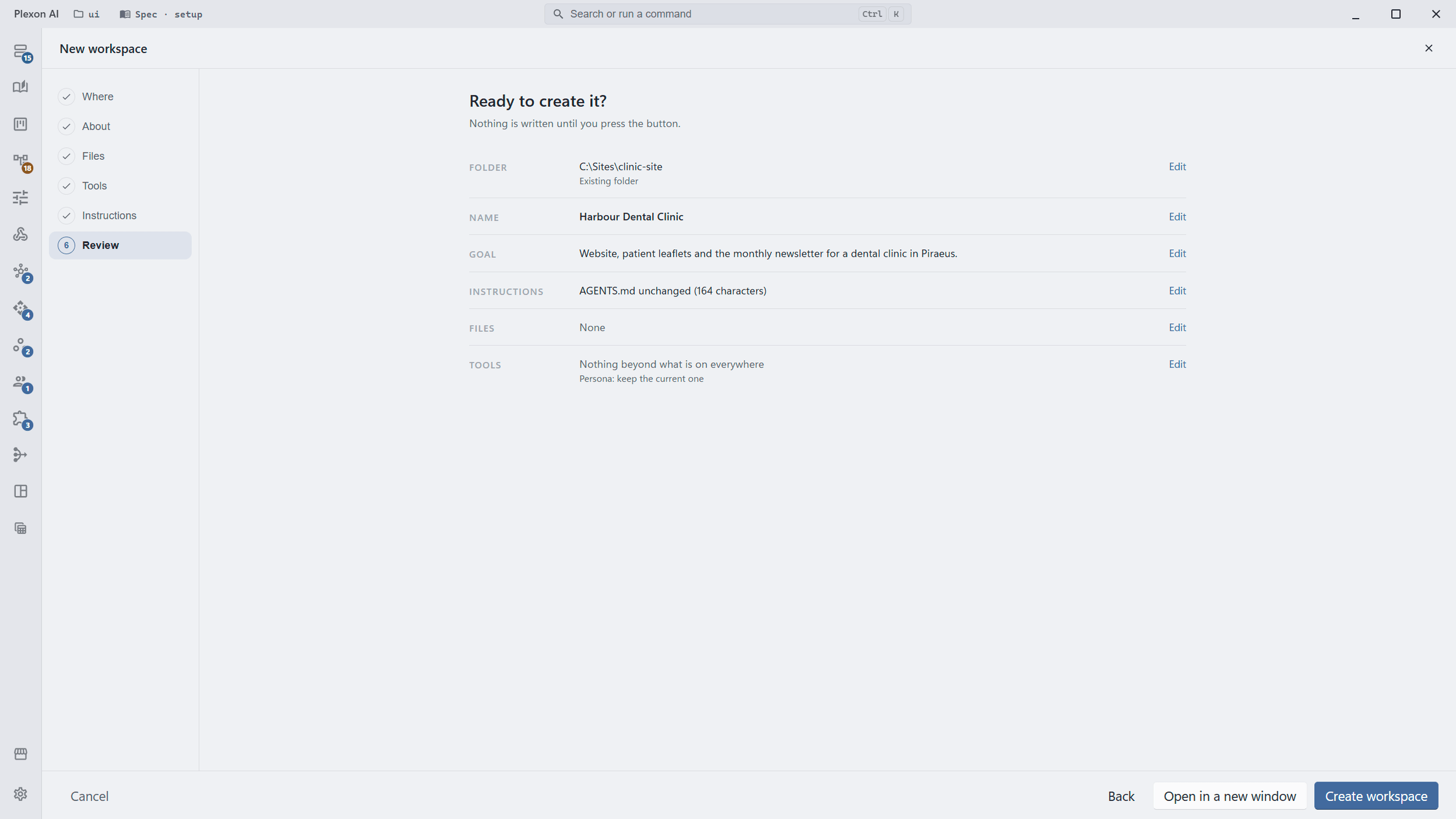
A folder on its own tells the assistant nothing. The New workspace guide asks six questions about it: where it lives, what it is for, which files to know, which tools to use, which instructions to follow, and whether that all looks right. Then the welcome screen shows the answers by name, each one a pencil away from a change.
Related features
Start From Anywhere
New workspace is on the welcome screen, in the title-bar workspace menu, in the gear menu, in the command palette under Ctrl or Cmd+K, and in the taskbar or Dock menu. Every entry opens the same full-page guide with a step rail on the left. Escape or Cancel takes you back to the chat with nothing written.
- Six steps: Where, About, Files, Tools, Instructions, Review
- Each step can be revisited; nothing is saved until Create
- The same guide reopens in edit mode for the workspace you have open
- Finish with Open here or Open in a new window
Where: New, Existing, or From GitHub
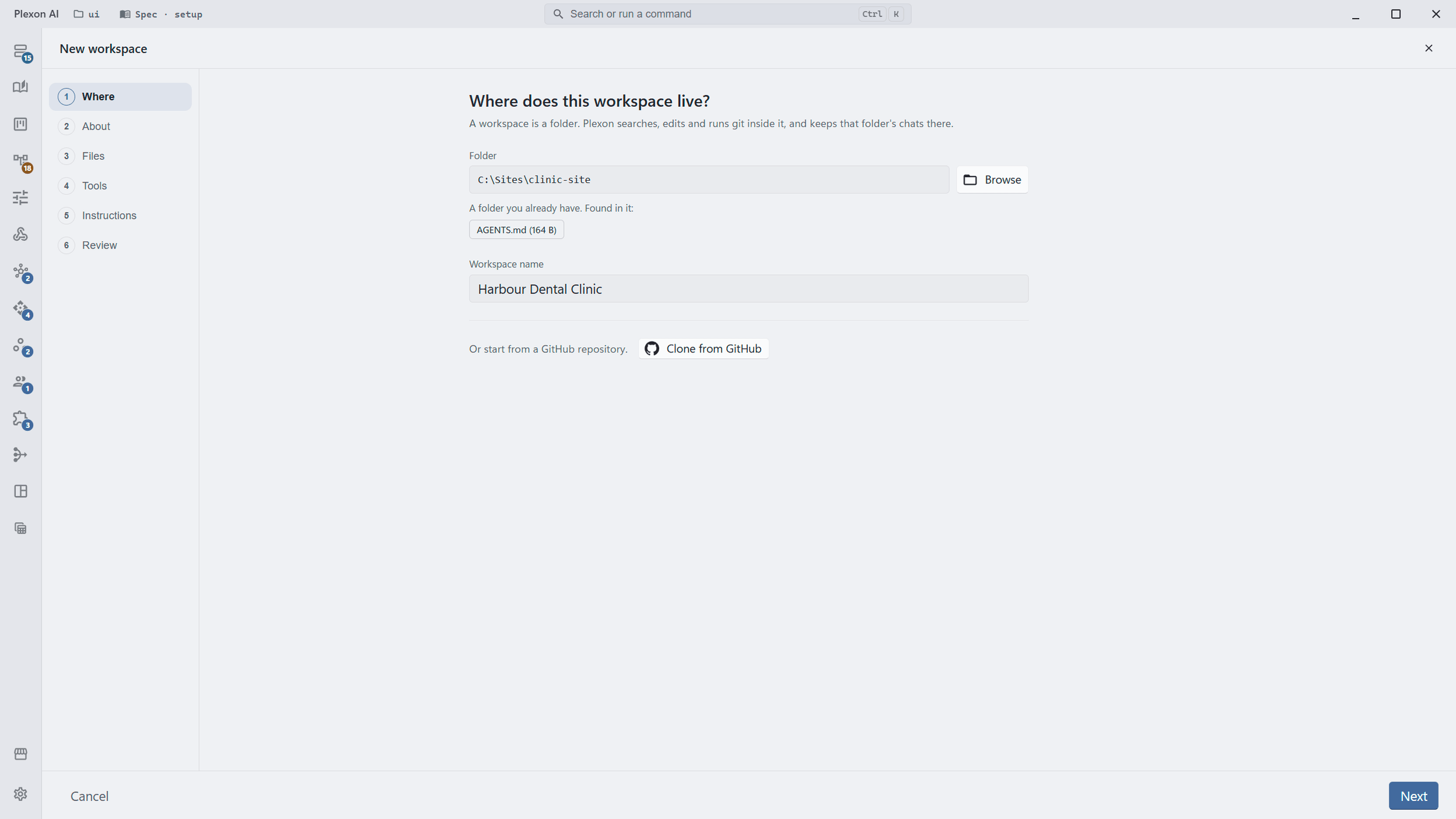
One folder field: pick a folder, create one in the picker, or type a path. The guide scans it, read-only, and decides. A path that does not exist yet, or an empty folder, starts a new workspace, with git set up if you want it. A folder with files is used as it is, and the guide reports what it found: instructions files, a git branch and remote, skills and agents already inside. The workspace name fills in from the folder and you can change it. Or clone a GitHub repository and carry on the same way.
- The scan decides: an empty folder is new, a folder with files is existing
- The scan reads the folder and writes nothing
- A folder with a .claude directory hands off to the Claude Code import
- Git repository, branch and remote are shown when present
About and Instructions
Give the workspace a title and say what you are trying to achieve. The title replaces the folder path in the recent list and the title bar; the description is for you and never enters the prompt. Then write the instructions the assistant reads on every turn in this folder. They are saved as AGENTS.md at the root. An existing AGENTS.md fills the editor; a CLAUDE.md is read as it is and never copied.
- A .cursorrules, .windsurfrules, GEMINI.md or Copilot instructions file can be folded in with one checkbox
- Draft with Plexon writes a first version from the goal, the folder, your files and the tools you picked, and you can stop it
- AGENTS.md is written only when the text differs from what is on disk
- Title and description live in your Plexon home folder, not in the repository
Files the Assistant Should Know
Drop files or pick them, from inside the folder or anywhere on the disk. A file already inside the folder stays where it is and is referenced in place. A file from outside is copied into a reference folder at the root, with a name clash resolved by a suffix rather than an overwrite. A switch builds a searchable reference from the lot; it is on by default once you add three or more files.
- Inside the folder: referenced in place, nothing moved
- Outside the folder: copied into reference/ at the root
- Build a reference the AI can search, on by default at three files
- The build can run later from the welcome screen if you skip it now
Tools: Skills Stay with the Folder, Apps Follow You
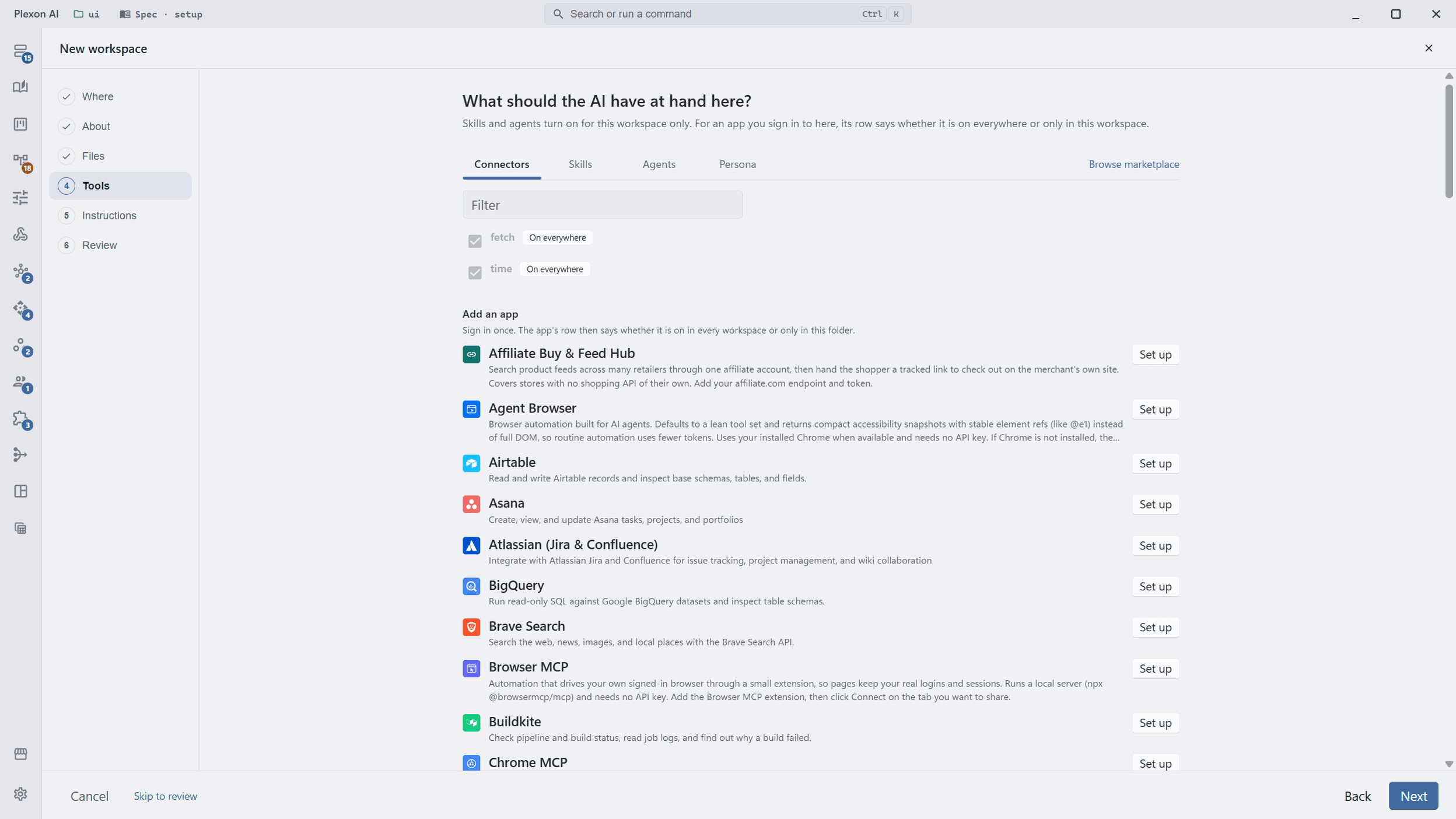
Four tabs: Connectors, Skills, Agents, Persona. Skills and agents you turn on here apply to this folder and no other, and skills that fit what the workspace is for are suggested first. Anything already on everywhere is shown as such and not offered twice, and a managed company item behaves the same way. The persona is the role the folder opens with. Apps you have not connected yet are listed under the installed ones: Set up runs the same sign-in or key steps as the marketplace, and one sign-in is enough. The app is on in every workspace from then on; its row has an Only this workspace choice when you want it in this folder alone.
- Skills and agents turned on for this folder alone
- Connect Gmail, GitHub, Slack and the rest from the guide; signed in once, on in every workspace unless you keep one to this folder
- Items already on everywhere are marked, not duplicated
- One persona the workspace switches to on open
- Review shows every step on one page with an Edit link each
A Welcome Screen That Knows the Workspace
Once a workspace has a title, the welcome screen shows it, with the description beneath and three compact cards: Instructions, Files, Tools. Each card has an edit pencil that reopens the guide at that step. If you skipped the reference build, the Files card offers it. The recent workspaces list and the title-bar pill show the title too, with the folder path as the second line.
- Title and description above the recent list
- Instructions, Files and Tools cards with an edit pencil each
- Build reference from the Files card when it was deferred
- Hidden in the compact window
What the Guide Gives You
Any Folder
A new folder with git, a folder you already work in, or a clone from GitHub. The guide reads what is there before it asks you anything.
Instructions That Stick
One AGENTS.md at the root, read on every turn in that folder. Rules you wrote for other tools can be folded in, and Draft with Plexon gives you a first version.
Tools Per Folder
Skills, agents, connectors and a persona chosen for this workspace. What is already on everywhere stays where it is.
Home Cards
The welcome screen shows the workspace by name, with Instructions, Files and Tools cards you can edit without opening the whole guide again.
Connects to
Nothing here works alone. See the whole map for how the pieces fit together.
What feeds it
Skills & Tools feeds this.
The Tools step turns skills, agents and connectors on for this folder alone; what is already on everywhere is marked, not offered twice.
Where it goes
This feeds AI Chat & Modes.
The instructions the guide saves as AGENTS.md are read on every turn in that folder, and the persona it picks is the one the folder opens with.
This feeds Migrate from Claude Code.
A folder that already carries a .claude directory is handed off to the Claude Code import from the Where step.