Design Canvas
Design it whereyou are talking about it
The design canvas is a board of pages docked beside the chat. Ask for a landing page, three versions of a hero, or a mobile and a desktop layout, and they appear as frames rendering live. Click the heading you want changed, say what is wrong, and watch the page update in place. Each frame is an ordinary HTML file in your project, so nothing has to be exported to be real.
Related features
A board of real pages, not a picture of one
Ask for a landing page and it lands on the board as a frame you can read at full size. Each frame is one HTML file under your project, at the size you asked for (desktop 1280x800, mobile 390x844, or anything you name). The pane renders it live: when the AI edits the file, a watcher sees the write and the frame redraws where it sits.
- Frames live at .plexon/canvas/<board>/frames/ inside your project
- No separate format and no export step: a frame is a page
- Drag the background to pan, the wheel to zoom, Fit to frame the whole board
- Frames travel with the board, in a transfer bundle and in cloud backup
Every board as a picture
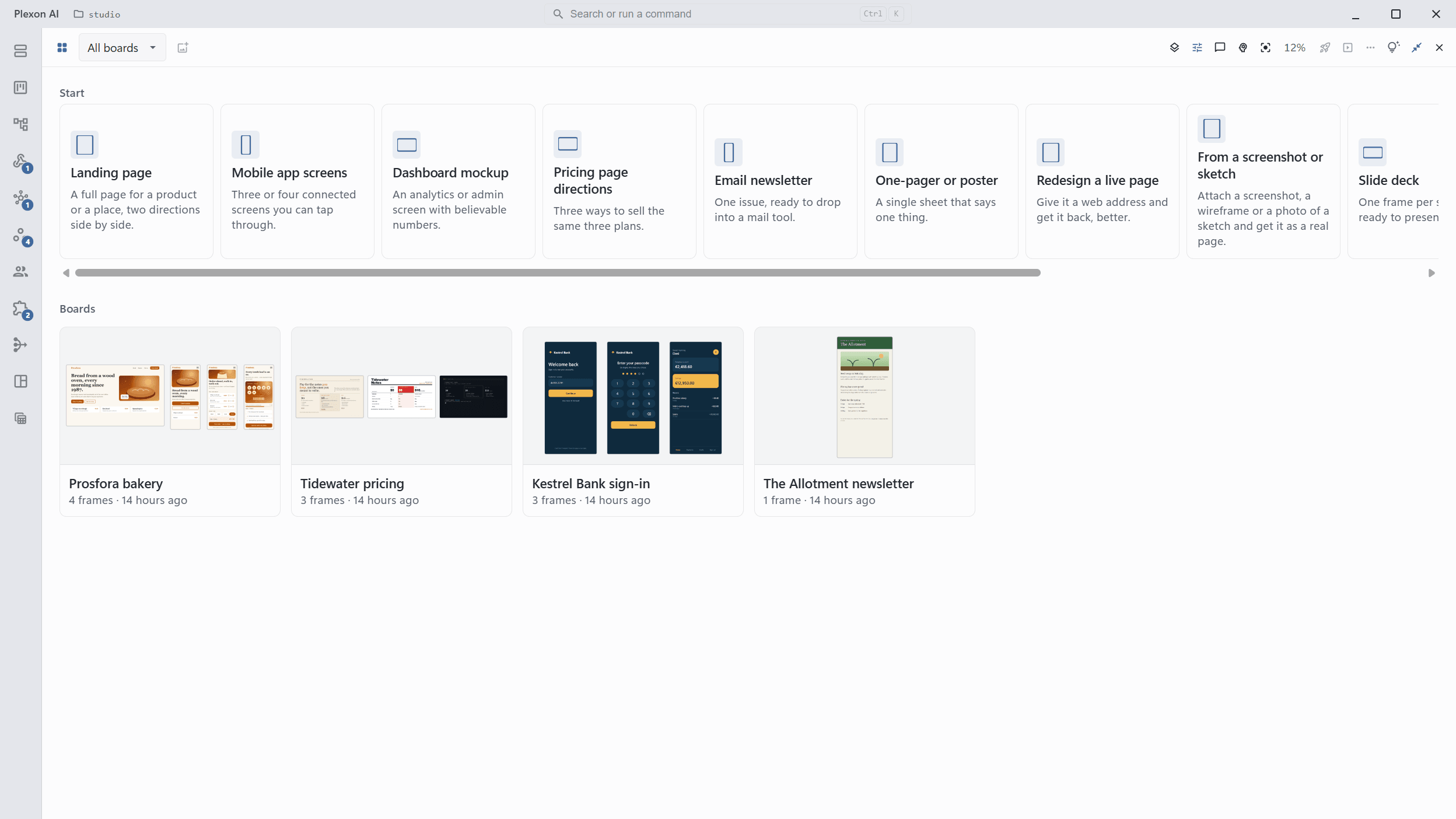
The canvas opens on the Boards home, a card for every board. A card is the board’s layout drawn small; it fills in with pictures of the frames as they render, with the name, the frame count and the last change under it. Click one to open that board. Above the cards, the Start grid holds nine templates. Pick one, describe the job in a line ("Prosfora, a bakery in Athens"), and a new board opens beside a chat that starts designing on it.
- The templates: landing page, mobile app screens, dashboard mockup, pricing page directions, email newsletter, one-pager or poster, redesign a live page, slide deck
- When the brief is missing what the design needs, such as a name or who it is for, the AI asks one short question first
- New canvas, Import a PDF and From Figma end the same row
- A search box appears once there are more than eight boards
- Boards, in the toolbar, brings you back here, and the board picker shows a small picture beside every name
- The pictures are made on your computer and left out of transfers, cloud backup and a published gallery
Three directions, side by side
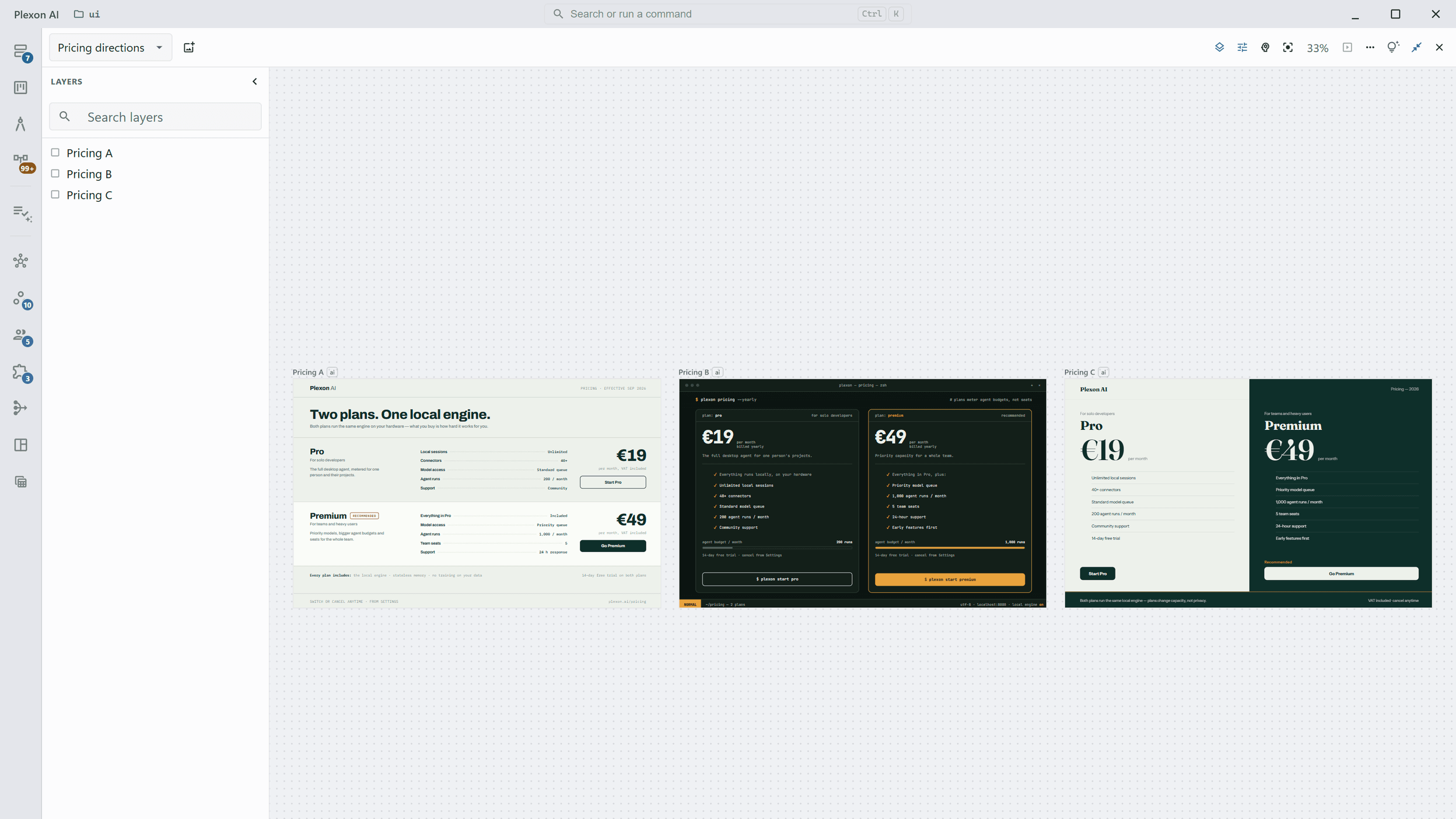
Ask for a few alternatives and they arrive as frames laid out left to right, so you compare them at their real size instead of flipping between tabs. The AI screenshots each frame after it writes it and reads its own work back, which is why the second version usually fixes something you would have had to point out.
- A new frame is placed beside the rightmost one, never on top of it
- The AI reviews its own frame with a screenshot before starting the next
- Continue with this one, on a frame’s right-click menu, saves the pick and has the AI build on that frame; the others stay as the record
- Send an options set from the chat to the canvas to compare the candidates there
Point at the part you mean
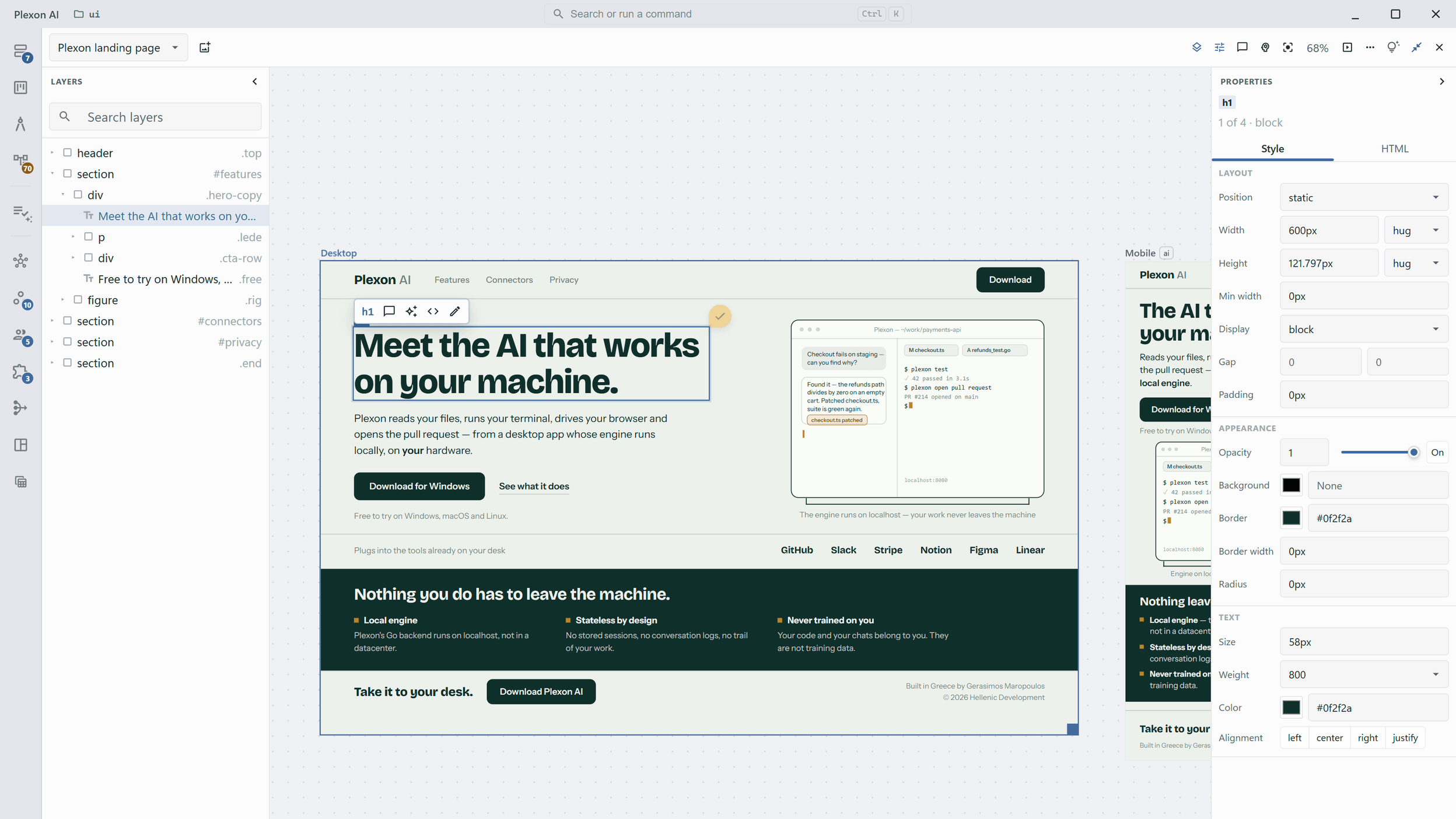
Move the pointer over a frame and the element under it outlines. Click it and a small toolbar appears with its tag name. From there you can leave a comment, hand it to the AI, read its markup, or type straight into the text. The Layers panel shows the same page as a tree, and Properties shows what the element actually computes to, including the values a stylesheet gives it.
- Layers is a searchable tree; picking a row selects the element on the frame
- Ctrl-click (Cmd on a Mac) picks several elements, and Properties marks every value they disagree on as Mixed
- Properties reads live computed values: size, weight, colour, padding, radius, opacity
- The opacity slider changes the frame while you drag it and undoes as one step
- The HTML tab shows the element and everything inside it, markup coloured, and takes an edit
- Double-click text to place the caret and edit in place; the file is saved for you
Turn the knobs a design comes with
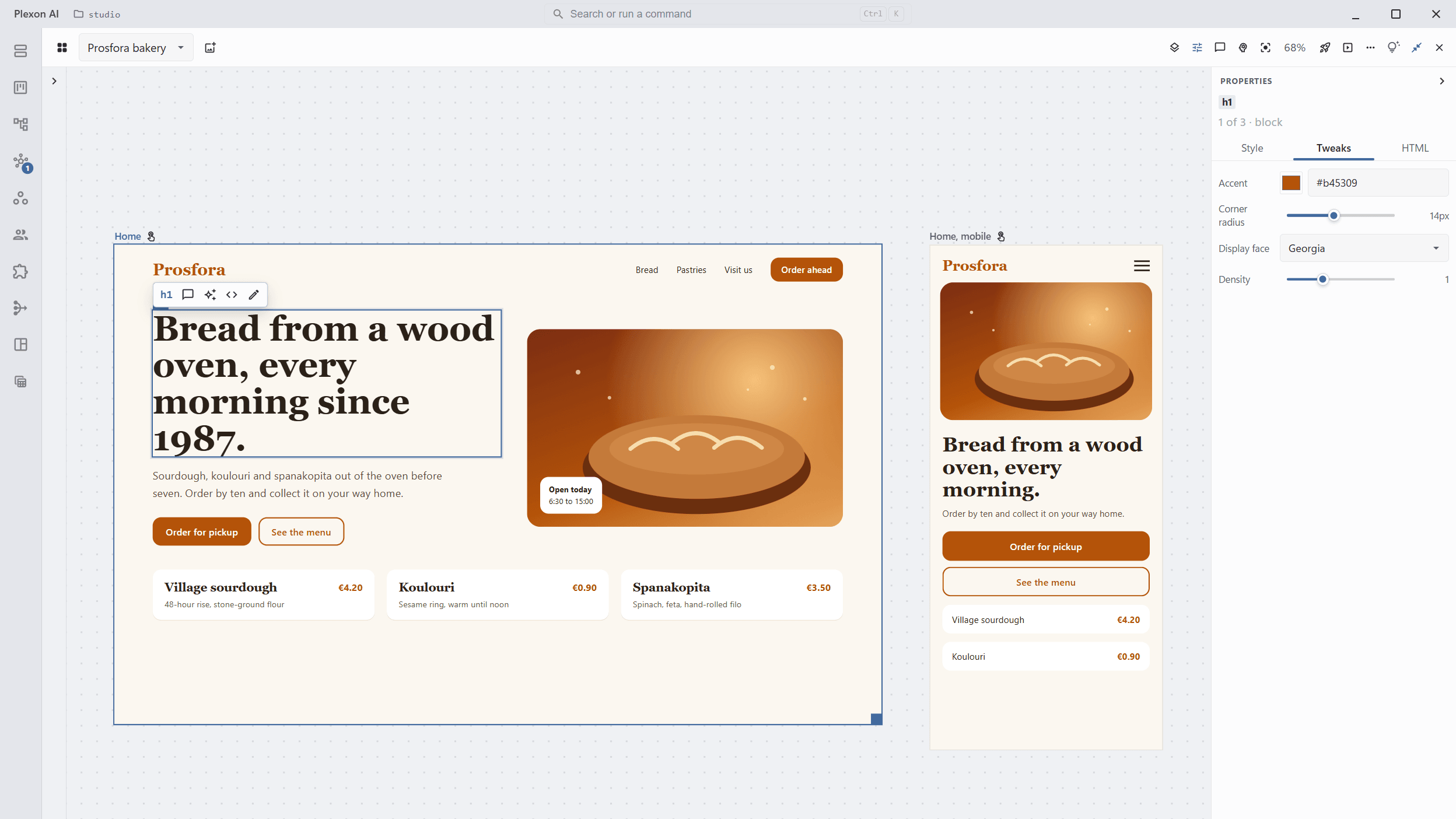
The AI marks the values a client would ask to change as knobs, three to six per frame: the accent colour, the corner radius, the display face, the spacing. The Properties panel shows them on a Tweaks tab, each as a colour picker, a slider, a list or a text box. Move one and the page repaints as you go, without asking the AI. The new value is written into the frame’s own stylesheet, and Ctrl+Z takes it back.
- Four kinds of knob: a colour, a range with its unit and step, a list of choices, and free text
- A value outside the range the design allows is refused with a sentence saying why
Knobs from a stylesheet nobody annotated
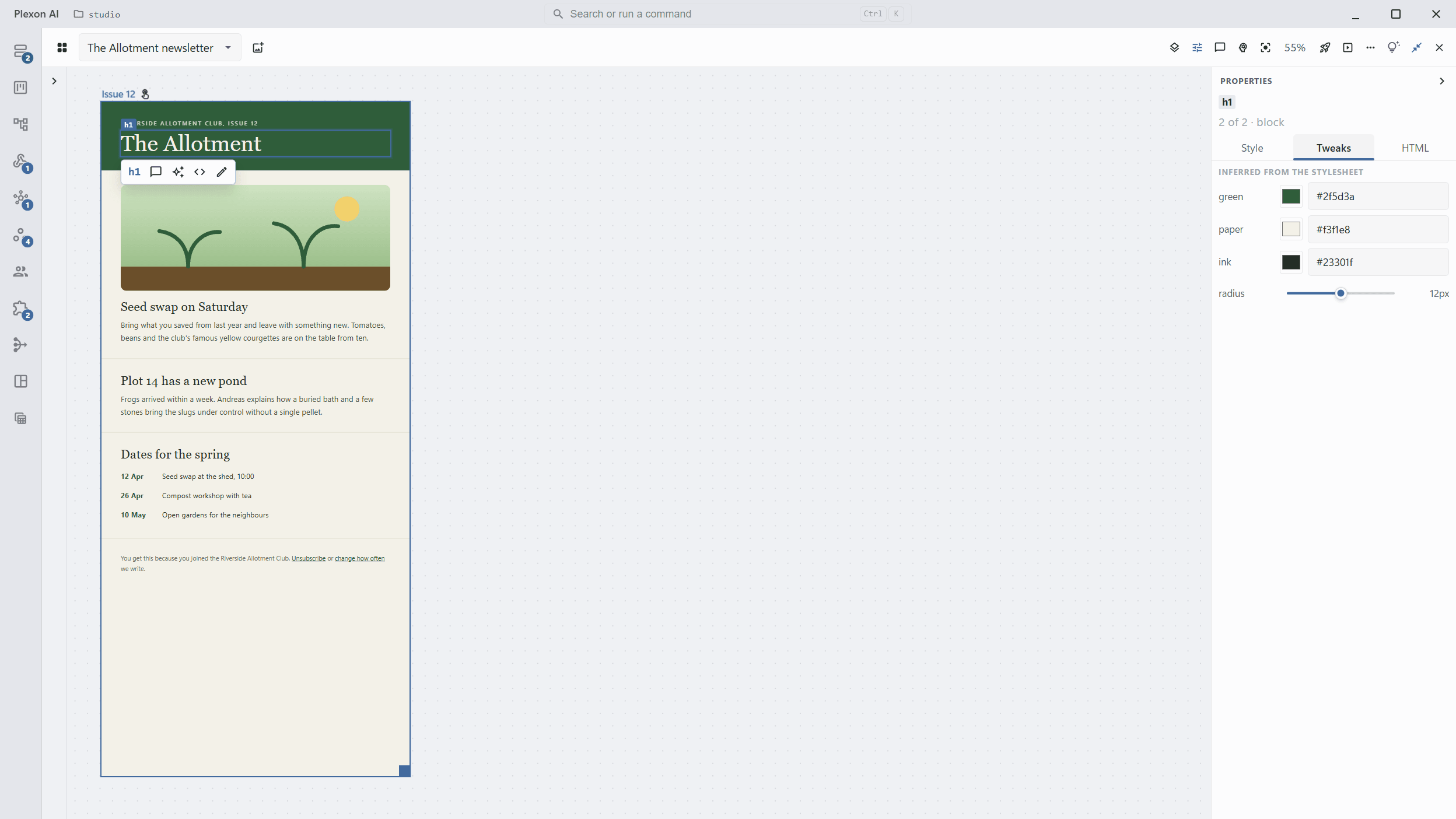
A page that declares no knobs still gets a Tweaks tab. Every custom property in its stylesheet becomes one, listed under Inferred from the stylesheet: a colour value gets a colour well, a number gets a slider from zero to twice its value, anything else a text box. Turn one and the page repaints the same way, and the value is written into the file. A page with no custom properties at all offers Ask the AI for knobs, one request that has the AI mark three to six.
- A page the AI wrote before knobs existed, or one you pasted in, gets the same tab
- The inferred range is the slider, not a rule: a value past it is still taken when you type it
Click through it like the real thing
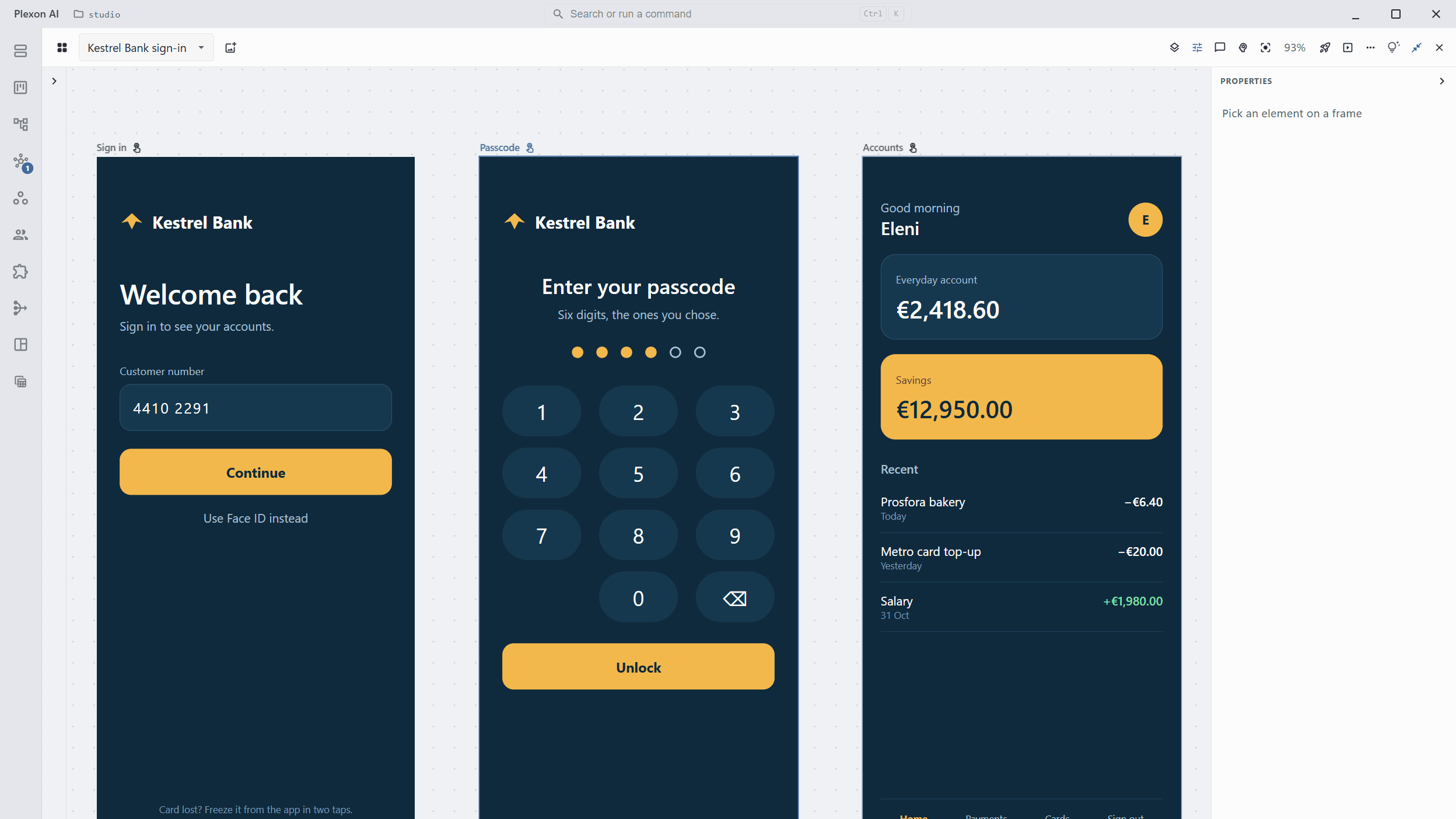
On the board, a click on a frame picks the element under the pointer. Press Interact on the frame’s title bar and the pointer goes to the design instead: buttons press, menus open, fields take typing, and Esc gives the board back. Screens can link to each other, so a mobile flow is something you tap through. A button that points at another frame flies the board to that screen with Interact still on, and in Present it moves to that frame. A page drafted in the chat grows to the height of its content, so a whole landing page reads top to bottom instead of stopping at the fold.
- Interact is one frame at a time, and selecting a frame or editing text turns it off
- The Mobile app screens template links every button, starting from the first screen
- A page grows up to 4,000 pixels tall; resize it by hand and it keeps your height until you pick Fit height to content
- Tablet (834x1194) joins the size presets, and Duplicate at mobile width puts a 390-wide copy of a page beside it
- A design that throws an error shows Script error on its title bar; click it and the AI gets the file, the error and the line to fix
- A published gallery does not follow links between frames yet
Stop a moving frame and edit that instant
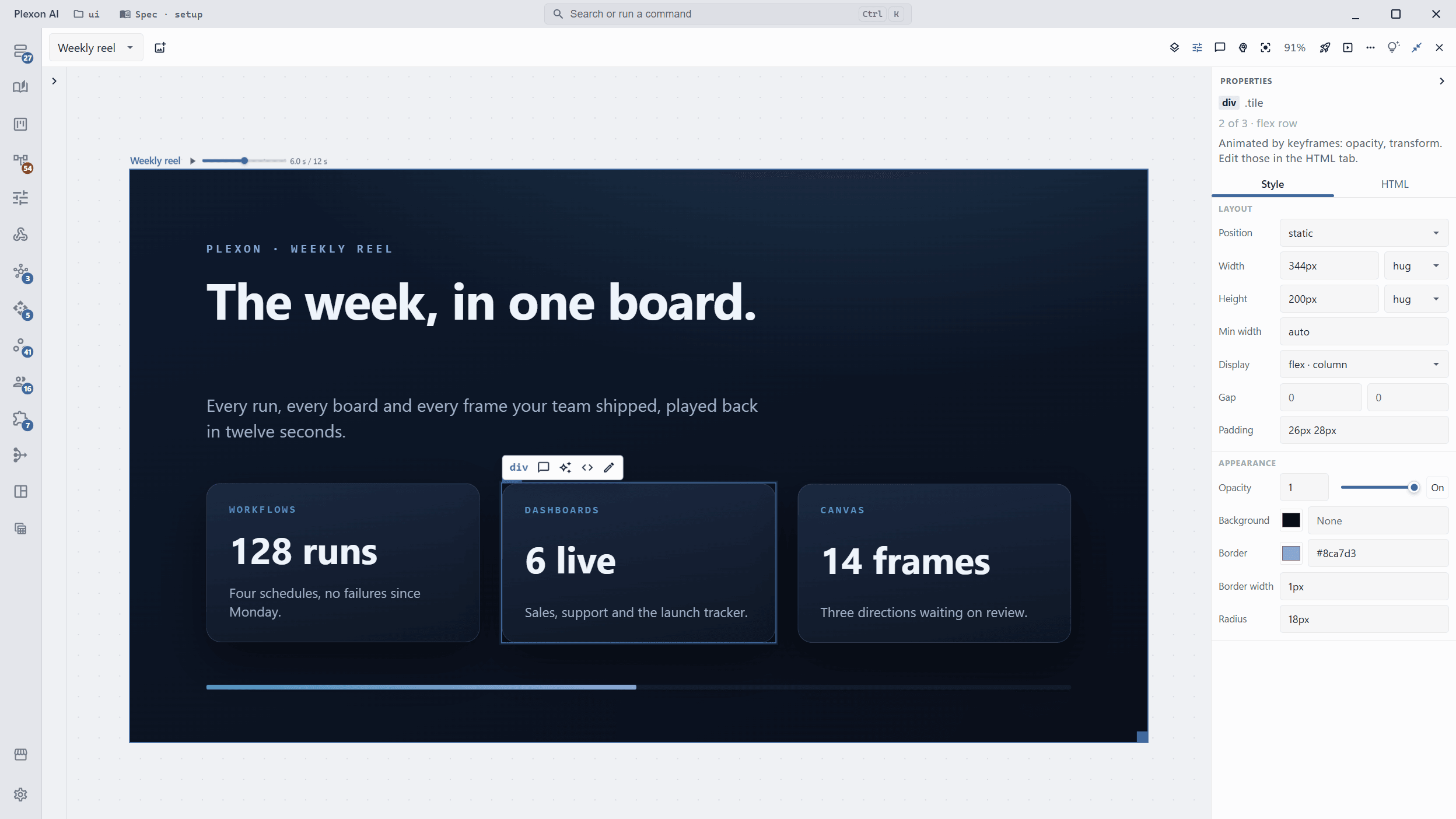
A frame that animates has Play, a scrubber and a clock on its title bar. Pause it or step it a frame at a time with the arrow keys, then pick an element and edit it: the frame stays on that instant, and Properties names the values its keyframes control.
- Ask for an animation, an explainer or a 3D animation about your project, a workflow or a dashboard: it is built here as a frame and recorded to video, every frame exact
- A frame can animate by script too: a GSAP timeline or a 3D scene behind a small seek hook pauses, scrubs and exports the same way as CSS
Every comment the board has, in one list
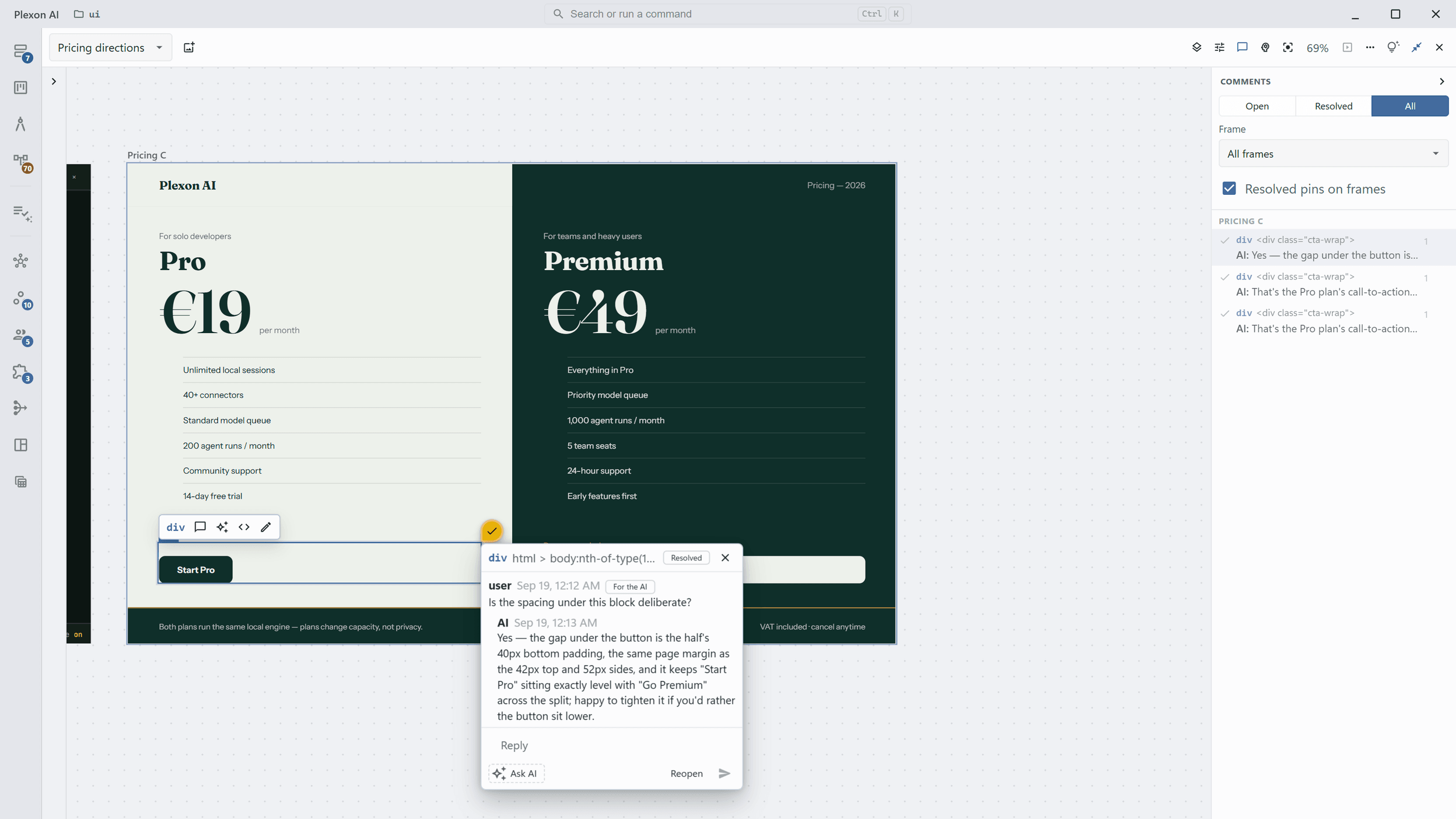
A comment the AI answers and resolves in the same turn sits on the frame for about a second. The Comments panel is where you read it back. It lists every thread under the frame it was left on, and the number on the toolbar button counts the ones still waiting on somebody. Click a row and the board flies to that element and puts the conversation back on the frame.
- Filter the list to Open, Resolved or All, and narrow it to one frame
- A resolved thread keeps a muted pin with a check where it was left
- Send 3 to the AI, at the top of the panel, hands over every open comment you have not sent yet in one message, and the AI answers and resolves each one
- Reopen one from the list or from the card when the answer did not land
- Arrow keys walk the rows, Enter opens a thread, N jumps to the next one still waiting
- Fold a side panel away and it leaves a 28px strip with a chevron to bring it back
The board and the chat are one conversation
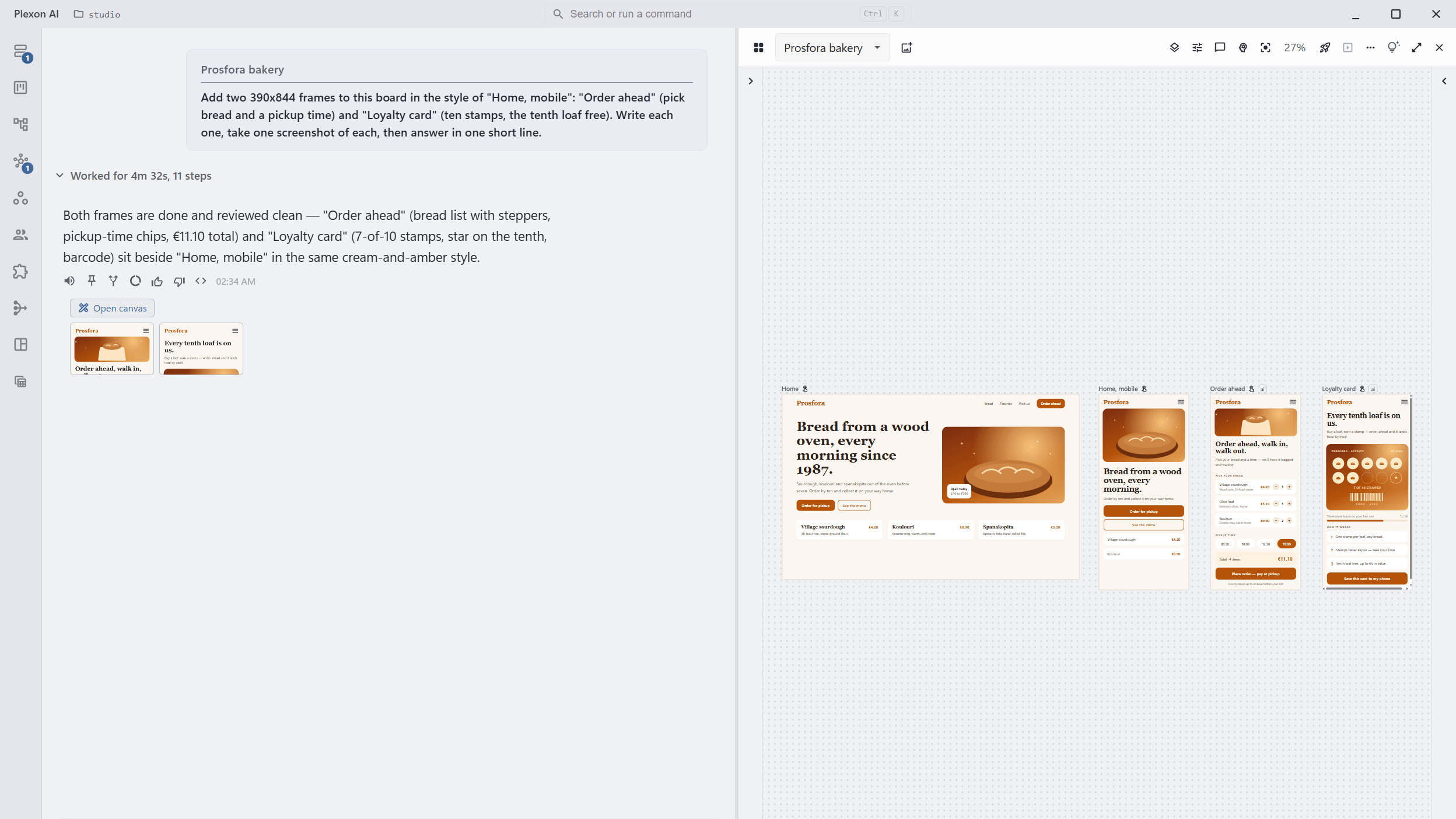
With the board open, whatever you ask to design lands on it; closed, a design request opens a board. Say "make the hero taller on the desktop one" and the AI edits that file. You do not have to say where anything is. Click an element first and the message carries it: the composer shows what you scoped to, and the AI gets the selector, the markup and a cropped picture of exactly that element.
- A comment stays on the frame as a note until you send it to the AI, alone or with every other open one from the Comments panel
- Ask AI sends the comment as a request and resolves the comment when the work lands
- A rewrite is patched into the page in place, so the scroll position and your selection survive
- A large rewrite plays back over a few seconds instead of blinking
- Undo and redo work on the board: Ctrl+Z steps back through moves, resizes and style changes
- A turn that added frames shows small pictures of them under its Open canvas chip; click one and the board opens on that frame
Start from a design you already have
Import PDF, in the More menu, puts a PDF on the board one frame per page at the page’s real size; dropping the file on the board does the same, with the first page where you dropped it. The words on a page stay selectable, so a comment pins on a heading and the AI reads the copy. Imported frames are never edited: ask for a rebuild and an editable page lands beside the original, keeping the document’s own typefaces, its logos and pictures, and the position of everything on the page. The import saves those fonts and images beside the frame and writes down where each line, rule and picture sits, so the rebuild is measured rather than guessed from a screenshot.
- Up to 40 pages per import; pages appear as they render, and Stop is one click
- The page text sits in a plain file beside the frame, so the AI works from the real copy
- The page’s geometry sits in a second file: fonts, text lines, rules, bands and images
- The AI can run the same import from the chat with its canvas tool
- Delete the frames to take an import back; there is no undo for it
A Figma frame from its link
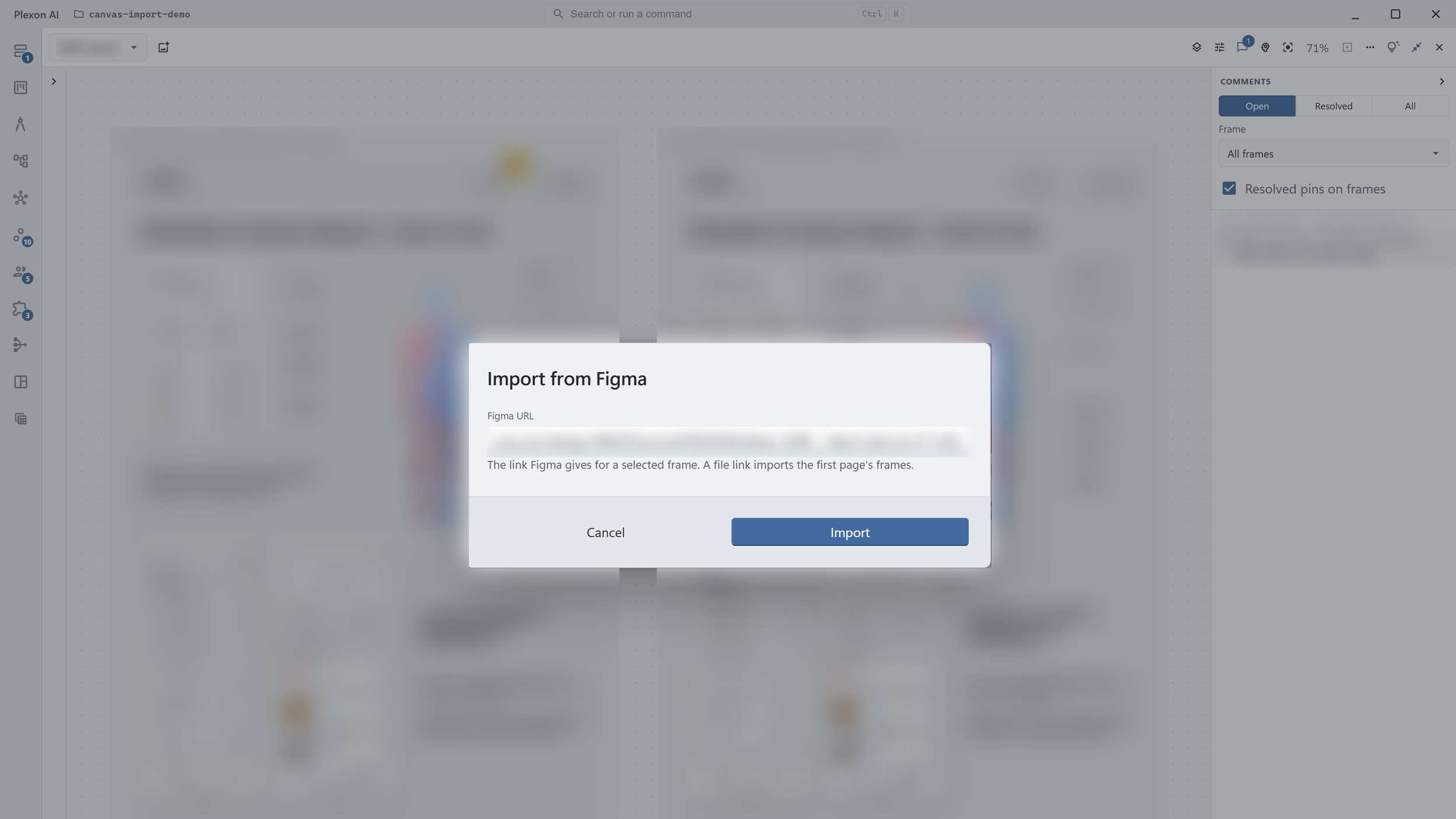
From Figma URL, under Add frame, takes the link Figma gives for a selected frame and puts that frame on the board at its own size, drawn by Figma itself. A file link imports the first page’s frames, up to 12. The first time, Plexon asks for a Figma personal access token and holds it until the app closes; Settings keeps it for good.
- Faithful without local fonts: Figma renders the frame, Plexon adds the selectable text layer
- The AI also receives the design’s colours, type and layer tree, to rebuild it as an editable page beside the import
- Prototype links between frames and the frame a flow starts on come in too, and a link to a page imports that page’s frames
- Token, not an OAuth app: the same token the Figma tool uses, asked for once
- Imports go into the board’s own folder, so they travel with a backup or a transfer
What you settle stays settled
The Memory panel holds the board’s own house rules, the decisions that came out of your comments, and any frame you pinned as a reference. When the AI reads enough settled decisions to see a pattern, it offers one rule for you to accept or dismiss. Accepting writes it into the board’s guidelines and keeps the previous copy, and the panel lists it.
- Guidelines are a markdown file you can edit by hand in the panel
- Every earlier version is kept, and the panel lists them
- A proposed rule says which decisions it was read from
- Pin a frame as a reference and the AI matches it instead of guessing
- Design system, in the Guidelines section, has the AI read the colours, type and spacing of a web address, this project or the brand files you attach, then add them to the house rules
Show it, save it, publish it
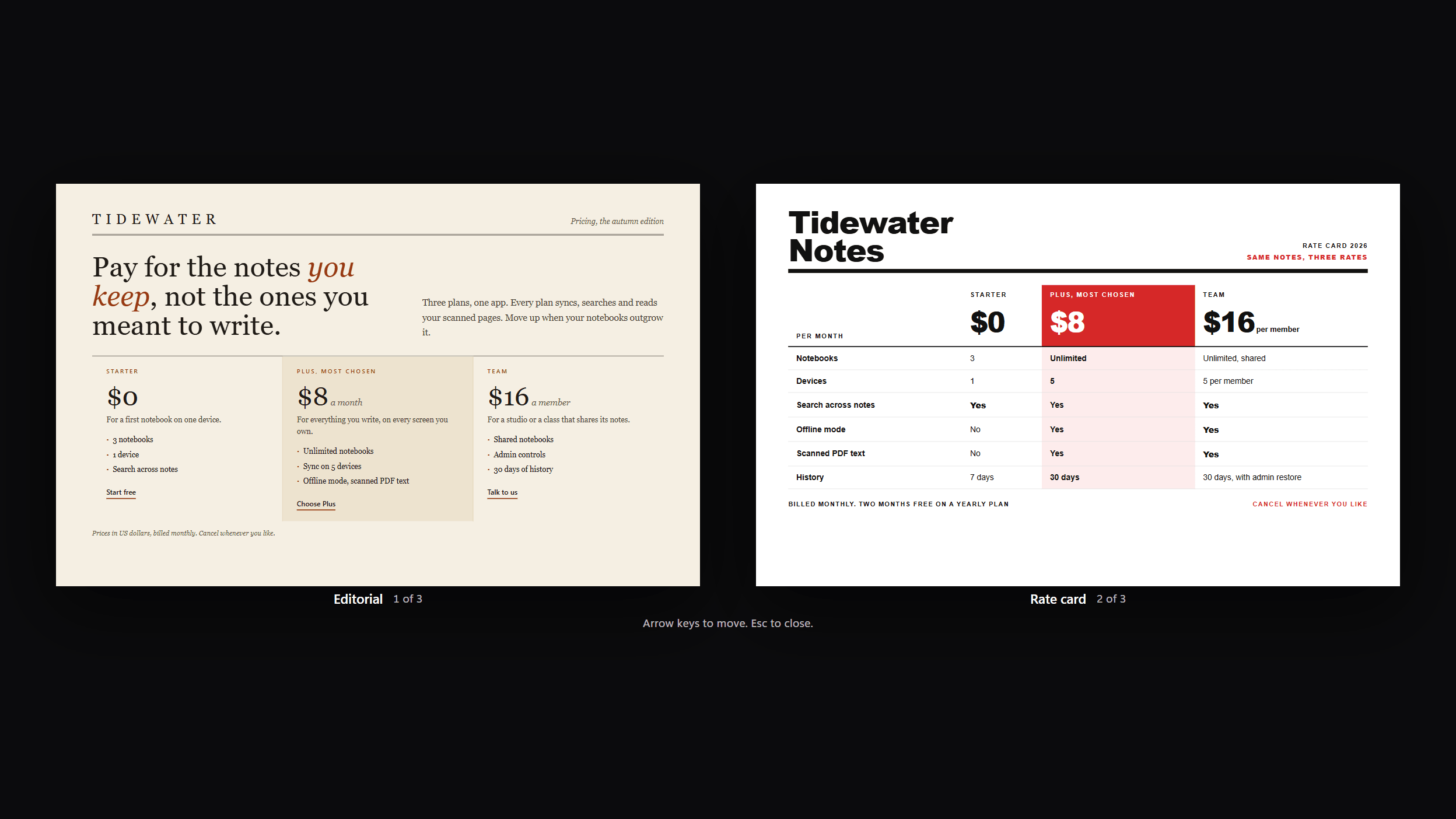
Present fills the window with one frame at its own size, and the arrow keys walk the board. Select two frames first and Present puts them side by side, each with its own caption, so two directions of the same page are judged on one screen. The frames stay live while they are up, so an edit the AI makes lands on the screen you are both looking at. When you are done, take the board with you as images, as a PDF, or as a web address.
- With a pair up, the arrow keys move the left frame and the right one follows it; a link inside a presented design switches the half it was clicked in
- Export PNG or JPG writes the selected frame at twice its size; Copy image puts it on the clipboard
- Export as PDF writes one file with a page per frame, each page the frame’s own size
- Export frame files packs one frame into a zip: the page, its assets, any video recorded beside it, and its code blocks as files
- From a laptop on a Plexon Nous, the Nous renders the canvas, records the video and zips the frame on its own, and the files land on your laptop through a download with progress
- Publish as gallery puts the whole board on a web address: one page listing every frame at the size you designed it
- Publishing needs company hosting on your account and a board inside a project
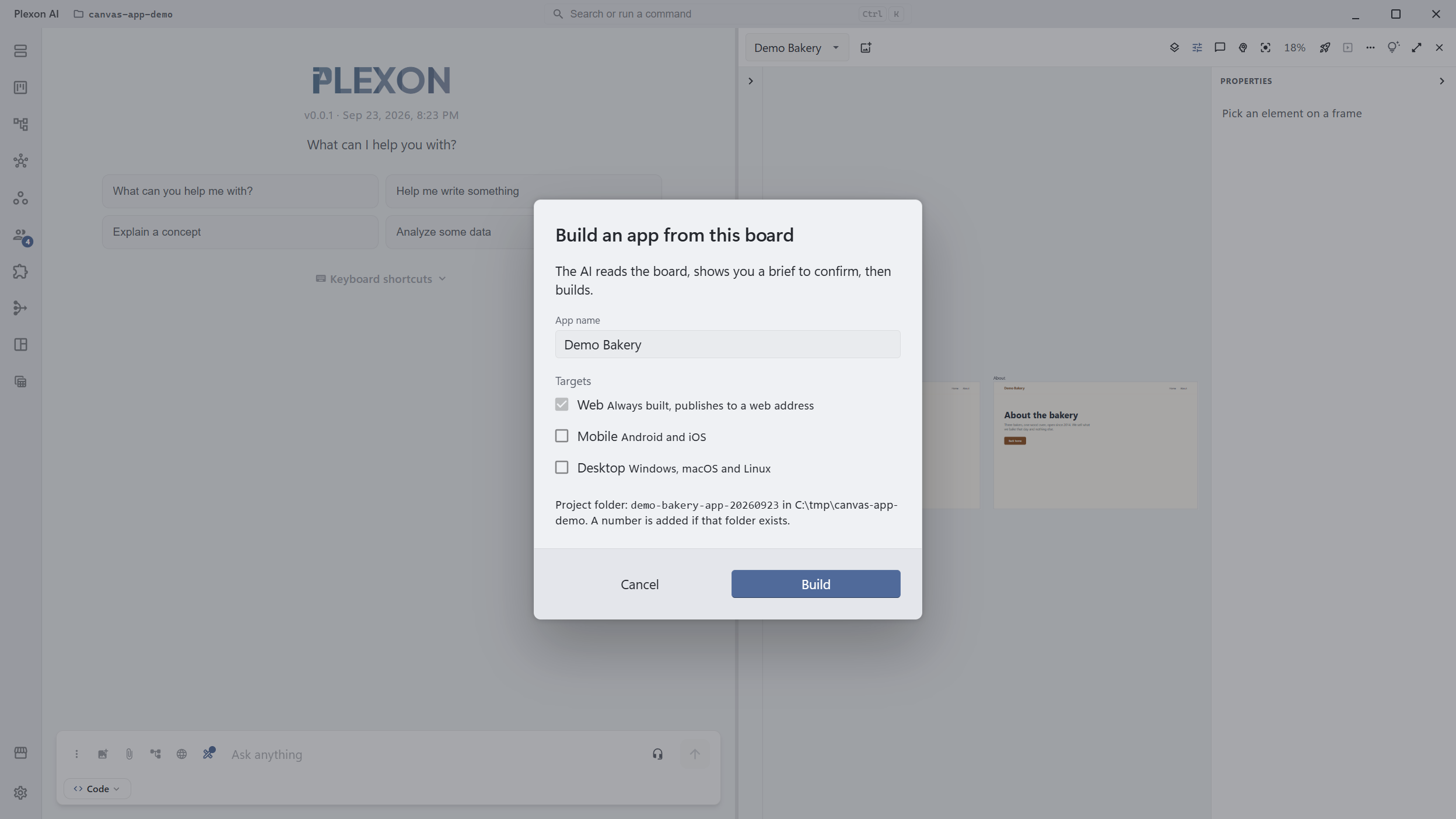
From board to app
Build app, in the toolbar, turns the board into a working application. Name it, tick Mobile or Desktop if you want them (the web app is always built), and a chat opens beside the board. The AI reads every frame, the house rules and the open comments, writes a brief with the screens, the navigation and the data, and shows it to you as one form. Nothing is built until you confirm it. Then it builds a React web app one screen at a time, checking each one against a screenshot of its frame, and adds the phone and desktop shells you asked for. A journey map or a storyboard works too: each stage becomes a screen through the brief.
- One web codebase: Android and iOS are a Capacitor shell around it, the desktop build an Electron one
- Installers are built on your computer when the SDKs are there; otherwise the project is handed over ready to build
- An apps chip on the board lists every app with its state, plus Open preview, Open chat, Update from board, Publish, Show in folder and Remove from board
- Update from board rebuilds only the screens whose frames changed
- Publishing happens only when you ask for it, through the same hosting as your other sites
- From chat, @skill:canvas-app-builder with the board’s id does the same
It stays on your computer
A board is a folder in your project. Nothing about a canvas reaches the Plexon server, and a publish uploads only the frames and the page that lists them. Your comments, the decisions and the board’s house rules stay on your machine.
- One folder per board, holding canvas.json and one HTML file per frame
- Show in folder opens it; delete removes the folder and its frames, with no undo
- A publish excludes canvas.json, the guidelines, their history and pinned references
- A board travels in a transfer bundle and in cloud backup, like a dashboard or a data source
A frame that moves is a video
Ask for an animated product card, a reel, or a launch video and the AI writes a frame that says how long it runs and at what frame rate, then animates it with ordinary CSS. The board plays it live, its title bar carries Pause, a scrubber and a clock such as 12.4 s / 20 s, and its right-click menu gains Replay, Export as MP4 and Export as WebM. Pause holds the frame at that instant, the arrow keys step it one frame at a time, and an element you pick there is edited at that instant. Pick a file name and Plexon records the frame one instant at a time on your computer, so a slow laptop produces the same file as a fast one. On a Plexon Nous the Nous records it instead and asks whether the file should come to your laptop or stay there.
Sound goes in the file too. The frame names its music, sound effects and narration with a start time each, kept in the frame's own folder, and the export lays them under the picture: the music fades at the end and drops under any voice. On the board, click the speaker on the frame's title bar to hear it; the export carries the same mix. Name a moment and it is saved as a poster beside the video, the frame every player shows first. A frame that fetches a font or a script from the web, or animates with something the recorder cannot step, is refused in a sentence before anything is recorded, and the AI fixes it on the board.
This is how brag works. Type it inside a project and the bundled skill storyboards a 15 to 25 second launch video from the project's own code, composes it as one frame on a board named after the project, reviews each scene from a still frozen at the moment it settles, and exports the mp4 with a poster and a share caption. The frame stays on the board, where you can replay it, ask for a change, and export it again. The storyboard path, for a narrated cut of footage you already have, is on the Video Composition page.
What the design canvas gives you
Frames that render live
Each frame is one HTML file in your project. The AI writes it, the watcher sees it, the frame redraws.
A picture of every board
The canvas opens on a card for every board, drawn from its frames. Eight templates there start a new board with a chat designing on it.
Click the thing you mean
Hover to outline, click to select. The message you send carries the selector, the markup and a crop of that element.
Prototypes you can click
Interact hands the pointer to the design, and a button linked to another frame flies the board to that screen.
Layers and properties
A searchable tree of the page and a panel of its computed values, including what a stylesheet gives it. Pick an image and browse to a file on disk; it is copied beside the frame and shown at once. Any other element takes a picture as its background the same way.
Tweaks you turn yourself
Colour pickers, sliders and lists for the values a design marks as knobs. Move one and the page repaints at once.
Comments on the frame
Pin a comment where the problem is and send it to the AI on its own or with the rest. It stays there until the AI answers it and resolves it.
Versions side by side
Three directions at full size on one board, each reviewed by the AI with a screenshot before the next one starts.
House rules the AI follows
Guidelines, decisions and pinned references live with the board, so a later chat starts from what you agreed. Design system fills them in from a site, a project or brand files.
Bring a piece of any page over
Pick elements in the browser and send them to a board as editable frames, with the page styles written in. Restyle them, then ask for the change to go back into the site.
Documents and code, not only designs
A plan or a source file goes on the board as a page you can edit. Code blocks get their own editor, and the frame exports as Markdown or as source files.
Every frame keeps its history
See every state a frame has been in drawn as it looked, compare any two side by side or line by line, and put an older one back. Right-click the frame, History.
Present and export
One frame full screen with the arrow keys, or PNG, JPG and a PDF with a page per frame.
Publish the board as a gallery
One web address listing every frame at its designed size. Needs company hosting and a board inside a project.
Build an app from the board
A brief you confirm in one form, then a web app built screen by screen against the frames, with Android, iOS and desktop shells when you tick them. Preview, update and publish it from the board.
A frame that moves
Declare a length and a frame rate, animate with CSS, and the frame is a video: Replay on the board, Export as MP4 or WebM from its menu, sound included.
Import a PDF or a Figma frame
A PDF becomes one frame per page with selectable words; a Figma link becomes a frame at its own size, drawn by Figma.
Files you already own
A frame is an ordinary HTML file in your project folder, and the board travels in a transfer bundle and in cloud backup. Nothing about a board reaches the Plexon server.
Connects to
Nothing here works alone. See the whole map for how the pieces fit together.
What feeds it
AI Chat & Modes authors this.
Ask for a page, three versions of a hero, or a mobile and a desktop layout, and each one lands on the board as a frame you can read at full size.
Dynamic UI Widgets feeds this.
A page the assistant drafts lands on the board open beside the chat, or on the chat's own board. Open on canvas takes the page a widget is already showing and adds it to a board; Compare on canvas lays every candidate out side by side.
Where it goes
This feeds Video Composition.
A frame that moves exports as MP4 or WebM from its own menu, sound included; brag builds its launch video as one.
This feeds Animated and 3D Videos.
An animation is a motion frame on the board: CSS, a GSAP timeline or a Three.js scene behind the frame's seek hook, paused and scrubbed from the title bar.
This feeds 3D Simulators You Can Take Apart.
A simulator is two frames on the board: a Live frame driven with Interact on, and a Film frame the recorder plays through at 60 fps.
This renders into Publish Sites.
Publish as gallery puts the whole board on a web address as one page listing every frame at the size you designed it, and an app built from the board publishes its web build the same way.