v1 · September 2026
Share One FolderWith Anyone, From a Link
Pick a folder on your computer, turn sharing on under Settings, Connected apps, File sharing, and send the link. The person on the other end opens it in any browser and gets a page like a file drive: browse, search, download one file or a zip of several. No Plexon and no account on their side. Upload and Edit are separate levels with their own passwords, and the files never leave your computer for Plexon's servers.
Related features
One Folder, One Switch, One Link
Open Settings, Connected apps, File sharing and pick a folder on your computer. Turn sharing on and Plexon gives you a link to send. That is the whole setup. The folder is the only thing served: a visitor sees what is inside it and nothing above it or beside it, however the link is edited.
- Exactly one folder. Changing it is a matter of picking another
- Nothing outside that folder is reachable, whatever path a visitor types
- Turn it off and the link stops working at once
- Delete the folder and sharing stops on its own; Settings asks for a folder again
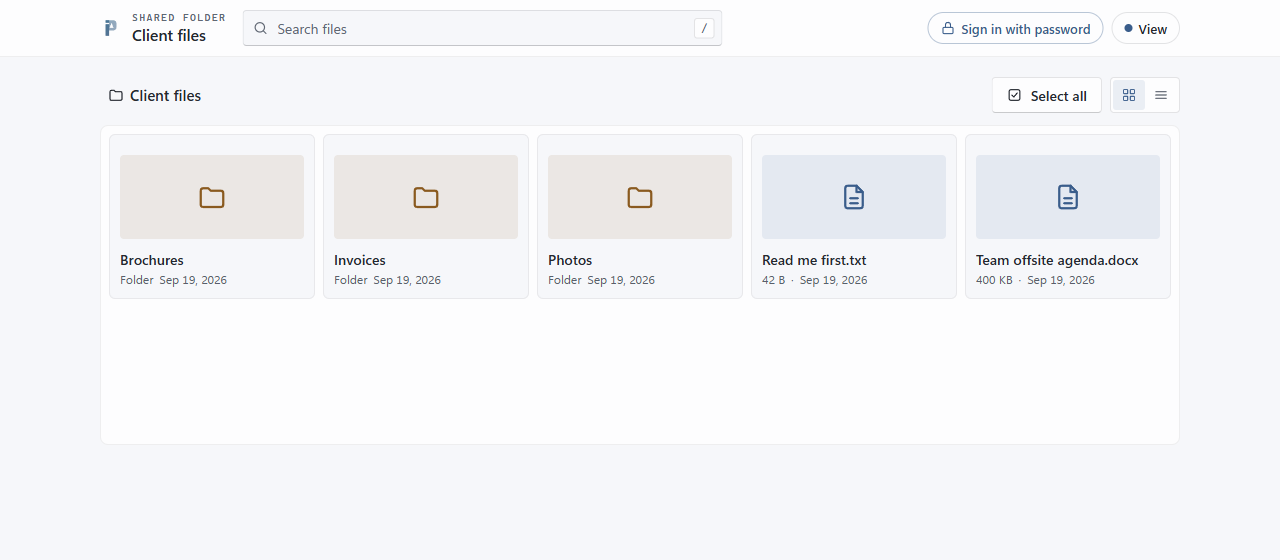
What the Person You Send It To Sees
They open the link in any browser, on any device, and get a page that looks like a file drive: a search box at the top, the path of the folder they are in, and the files below it as a grid or a list. No Plexon to install and no account to create. They click a file to download it, or tick several files and folders and download them as one zip.
- Works in any browser, with no Plexon and no account
- Browse folders, search by name, download a file
- With Upload on, files dropped onto the page upload into the folder being viewed
- Tick several files and folders and get one zip
- The page uses Plexon's light theme, so it reads as yours rather than as a bare directory listing
Three Levels, Each With Its Own Password
View lets a visitor browse, search, and download. Upload adds uploading into the folder they are viewing and creating folders. Edit adds deleting. You switch each level on separately, and each one takes an optional password of its own. A level with no password is open to anyone holding the link; a visitor who types a password gets whichever level it unlocks.
- View: browse, search, download
- Upload: everything in View, plus upload into the current folder and create folders
- Edit: everything in Upload, plus delete
- Leave a password empty and that level is open to anyone with the link
- Passwords are stored as hashes. Plexon never keeps the plain text
Three Addresses for Three Situations
Plexon hands you three links and tells you which is which. The public one is an https address that reaches your computer through a tunnel and works from anywhere. The network one is the address on your own Wi-Fi or office network, for someone in the same building. The direct one is your public IP and a port, and it works once your router forwards that port.
- Public: an https link through a tunnel. Uses ngrok when you have set a token under Settings, Tools; a Cloudflare quick tunnel otherwise
- The public address changes each time the app restarts unless you set an ngrok domain under Settings, Tools
- Network: the address on your own network, for people in the same building
- Direct: your public IP and port (8791 by default), once your router forwards that port
Ask the Assistant to Do It
You do not have to open Settings at all. Say "share my Invoices folder" or "stop sharing" in the chat and the assistant starts or stops it and puts the link in its reply. It can tell you the current state and the three addresses whenever you ask.
- Start or stop sharing from the conversation
- The link lands in the reply, ready to paste
- Ask what is shared right now and get the folder and the addresses
Stays On Until You Stop It
Sharing survives closing and reopening Plexon. When the app starts with a share running, a notification shows the link, so you know the folder is still reachable. Everything runs on your own computer: no file goes through Plexon's servers. The one thing that touches the outside is the tunnel, and it relays the connection, nothing else.
- Sharing stays on across app restarts until you stop it
- A notification at launch shows the link when a share is running
- No file goes through Plexon's servers; the tunnel only relays the connection
- The whole thing runs on your computer, so it is reachable only while Plexon is open
What File Sharing Gives You
One Folder Only
You share exactly one folder and nothing outside it is served, whatever a visitor types into the address bar.
No Plexon on the Other End
The person you send the link to opens it in a browser. No install, no account, nothing to explain.
View, Upload, Edit
Three levels, switched on separately, each with its own optional password. A typed password unlocks the level it belongs to.
Start It From the Chat
Ask the assistant to share a folder or stop sharing and it hands you the link in its reply.
Connects to
Nothing here works alone. See the whole map for how the pieces fit together.
What feeds it
AI Chat & Modes triggers this.
Ask the assistant to start or stop the share and it hands you the link.