Solo developer
Find out before the build does
“The build fails on something I could have caught on my own machine.”
A workflow searches your code on a schedule, speaks up only when it finds something that blocks, and leaves what it found on a board. No AI runs in it, so checking costs nothing.
Set the search running on its own
Start blank in the Workflows panel, give it a schedule, and add a search step. It calls the built-in file search rather than a model, so a run costs nothing and works offline.
Try this
Every hour, search <your project folder> for lines containing FIXME and lines containing TODO, and count each one separately.
An empty canvas to a working workflow: put it on a clock, add steps from the rail by name, fill in the fields each tool asks for, branch on what it found, then save it and run it. Then the same thing from one sentence, drafted for you to read before it can run. What happens in this clip
- Start from an empty canvas.
- Put the workflow on a clock.
- Add steps from the rail by name, then fill in the fields each tool asks for.
- Branch on what the previous step found.
- Save it and run it. Then the same workflow again from one sentence, drafted for you to read before it can run.
Say what counts as a problem
A condition splits the run in two. The markers that block a release raise a notification that opens the folder when you click it. Everything else finishes quietly.
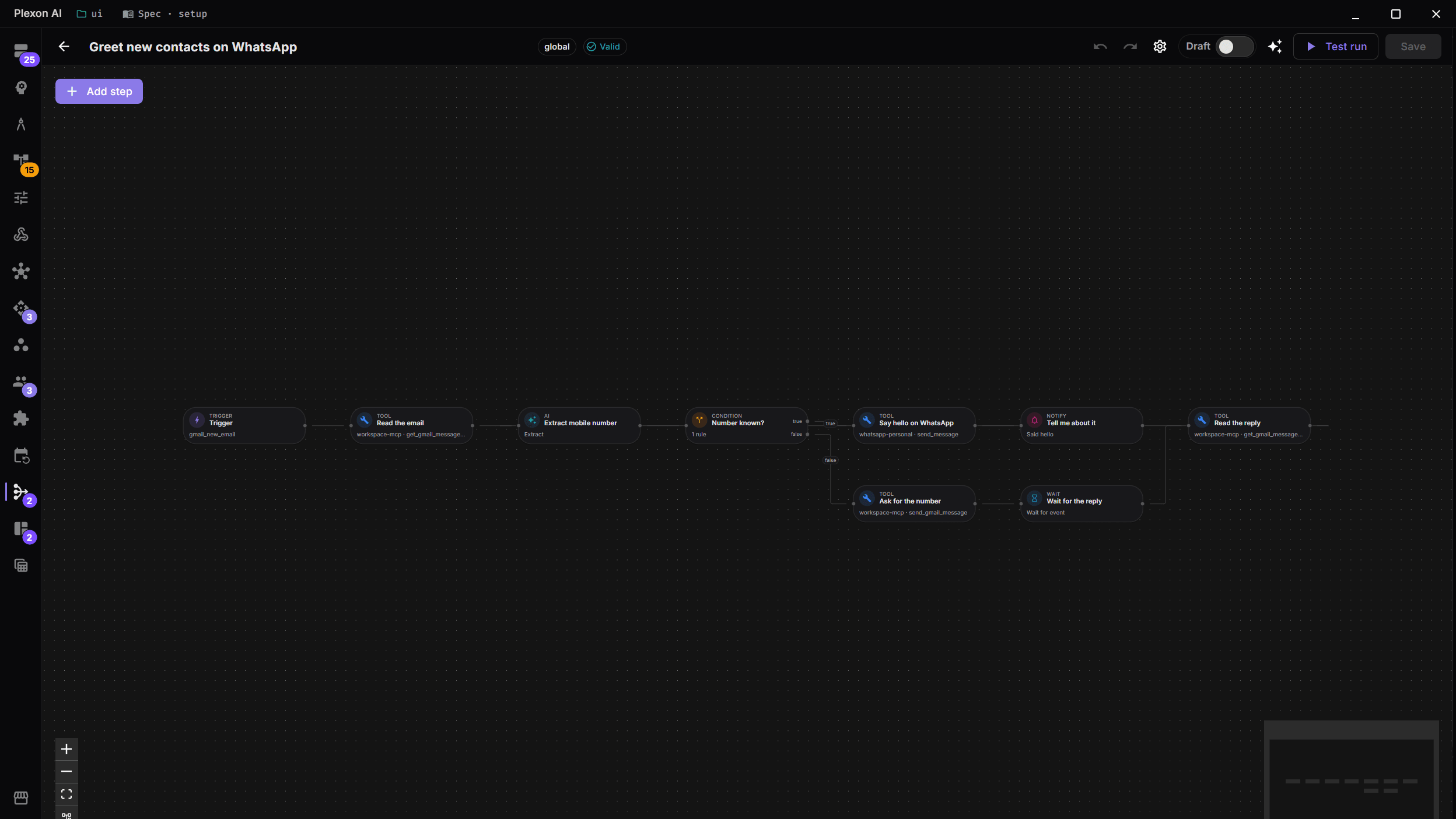
A bundled workflow opened in the editor, one step at a time: the trigger that polls the inbox, the tool step that reads the email, the AI step and the fields it returns, the branch, the message it sends, and the notification at the end. What happens in this clip
- A bundled workflow opens in the editor.
- The trigger at the top polls the inbox.
- A tool step reads the email, spending no AI tokens.
- An AI step pulls out named fields, and a branch decides what happens next.
- A message step sends the reply, and a notification step tells you it went.
Shape the result on the way out
The last step turns the counts into tiles and a table, using small recipes rather than hand-written code. Whatever runs last is what a board reads, so it pays to shape it on purpose.
Put the last run on a board
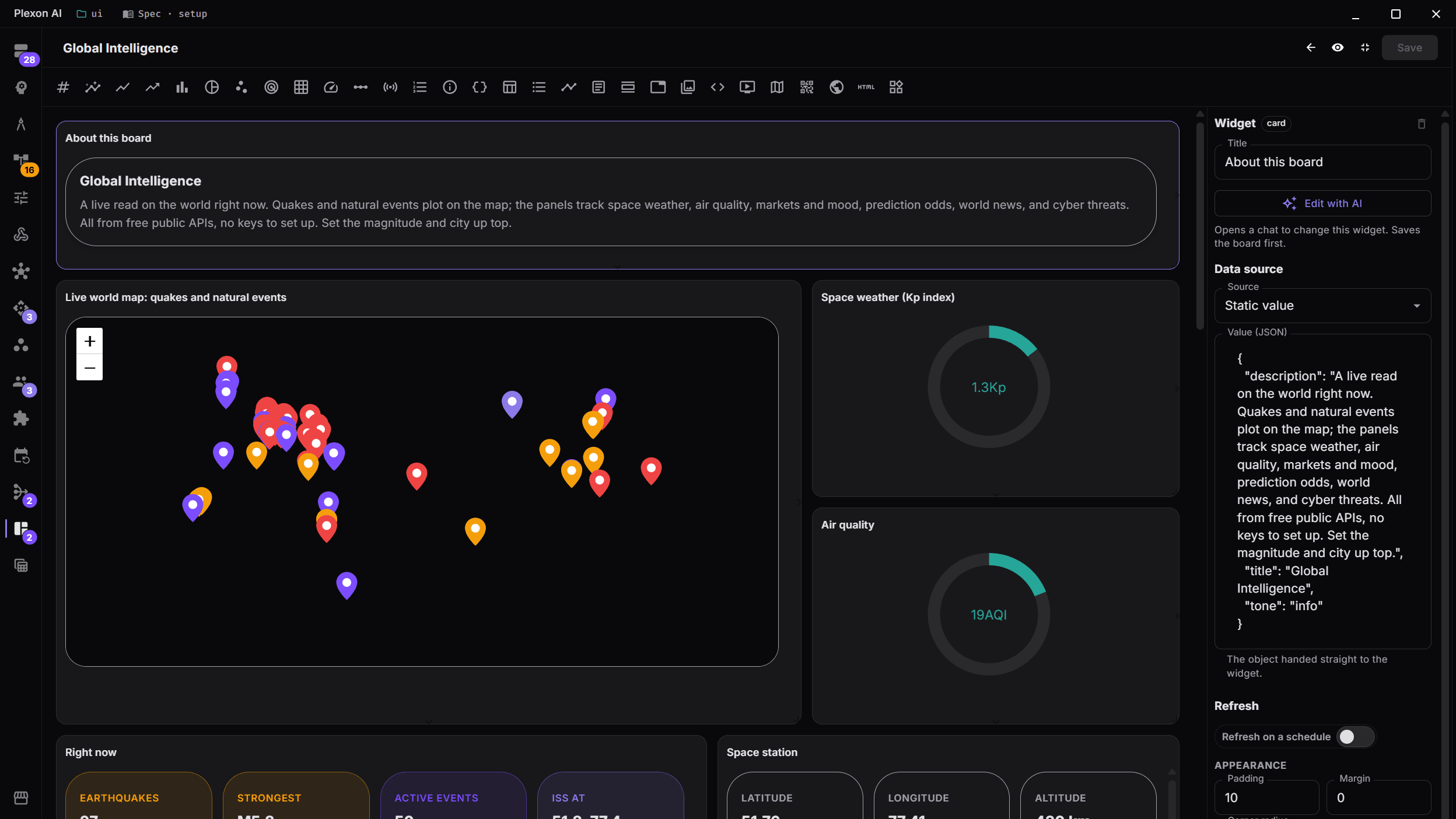
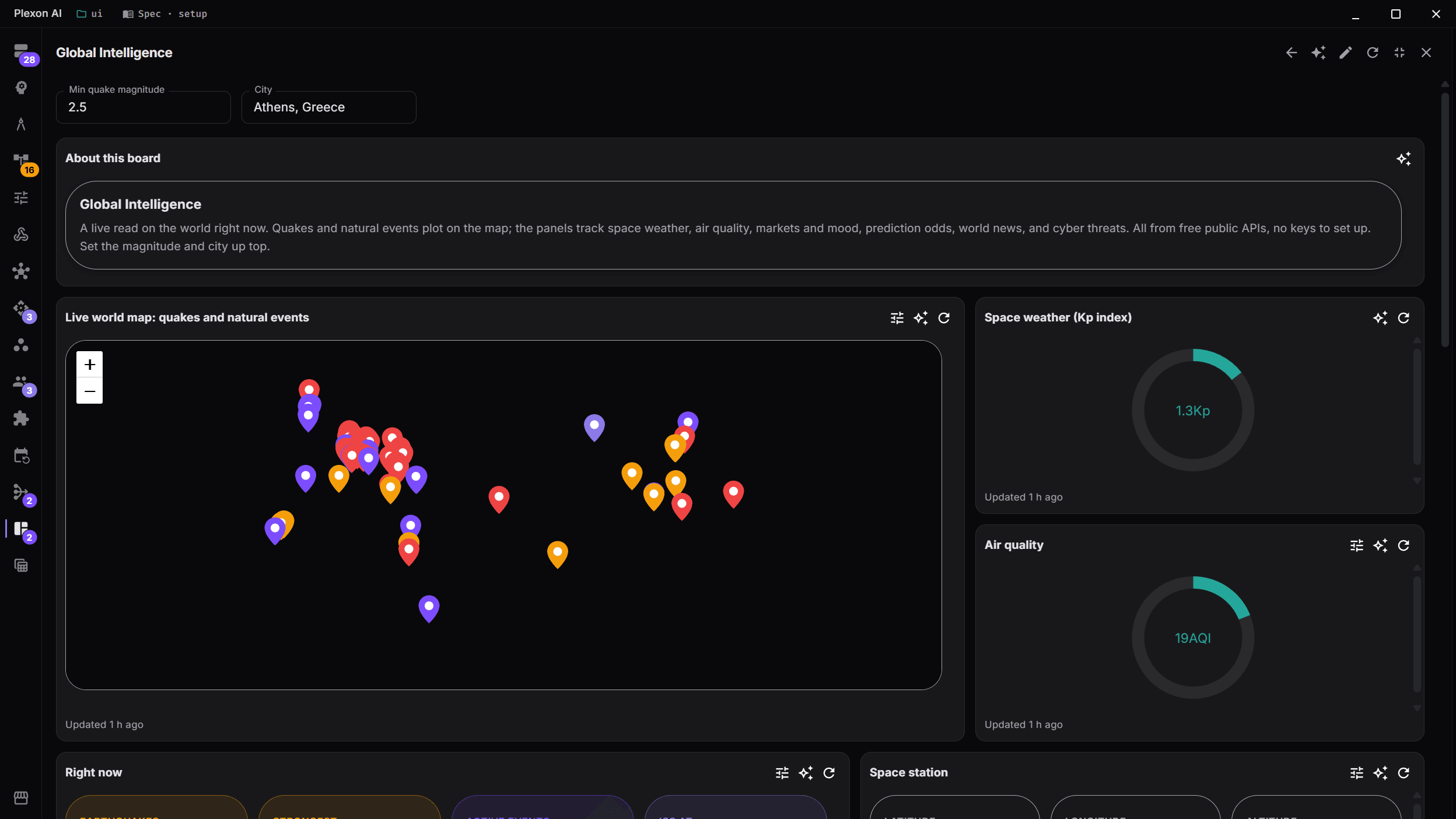
Add a stat tile and point it at the workflow instead of a tool. It reads the newest finished run rather than starting one, so the tiles are free to keep on screen. A table beside them names the file and line behind every marker.
Try this
Build me a board from that workflow: a tile per count, red when the blocking one is above zero, and a table of every marker with its file and line.
Leave it watching while you work
Turn on monitoring and the board stays current with the panel closed. Three failed runs in a row switch the workflow off and tell you, so a check that quietly broke cannot keep looking green.
Turn what is left into a list you can work through
The markers that do not block are still work. Each one can be filed as a task pointing at the folder it came from, so they land on the board with the rest of your work rather than sitting in the code.
Try this
For every TODO that run found, add a task in Projects pointing at that file, and skip the ones I already have.
What you end up with
A board showing what the last check found, a notification only when something blocks, and the rest filed as tasks instead of forgotten.
Download PlexonAlso for solo developer
Ship a feature without babysitting every edit
Plan first, fan the work out across isolated worktrees, review every diff in one place, and let the pull request wait for your approval rather than your attention.
Work on the same conversation as someone else
Share a running session and both drive, or export a finished one as a file they can continue in their own copy.
Move your existing setup over in one pass
Agents, MCP servers, hooks, plans, memory and every conversation come across with labels that identify the imported items.